Minox
Learn how to connect and configure Minox for automated invoice generation.
Minox is a Dutch online accounting package used by entrepreneurs and their accountants. This guide walks you through connecting Minox to BrickInvoice and setting it up so your orders turn into invoices automatically — including registering the payments you receive and the fees PayPal or Stripe charge you.
Table of Contents
- Before You Start
- Connecting Minox
- Configuring Minox Settings
- Payments and Transaction Fees
- Troubleshooting
- Best Practices
- Next Steps
- Support
Before You Start
Prerequisites
- An active Minox subscription with the orders module (see Check the Orders Module)
- Access to Minox as the main user (see the note below — this matters)
- Automatically assign switched on in your sales day book (see Set Up the Sales Day Book)
- Completed settings configuration
- Connected BrickLink and/or BrickOwl stores
What You'll Need
- Your Minox login — You connect by logging in to Minox and giving BrickInvoice permission. There are no keys or codes to copy across.
- Items set up in Minox — BrickInvoice does not invent products. For every kind of line on your invoice (the bricks themselves, shipping, handling fees) you point to an item that already exists in Minox. Create those first if you have not already.
- A VAT code on each of those items — Minox takes the VAT rate from the item itself, so an item without one cannot be invoiced. More on this under Items and VAT.
Important — connect as the Minox main user. Minox only hands out permission when the main user of the administration approves it. If you log in as a regular user, you will go through the whole screen and end up without a connection. If you are not the main user, ask whoever is to make the connection for you.
Check the Orders Module
BrickInvoice creates your invoices through the Minox orders module (Orders). Not every Minox subscription includes it, and without it the connection cannot create invoices.
To check whether you have it, open the Taken (Tasks) menu in Minox and go to Verkoop (Sales). If Orders is listed there, you are set.
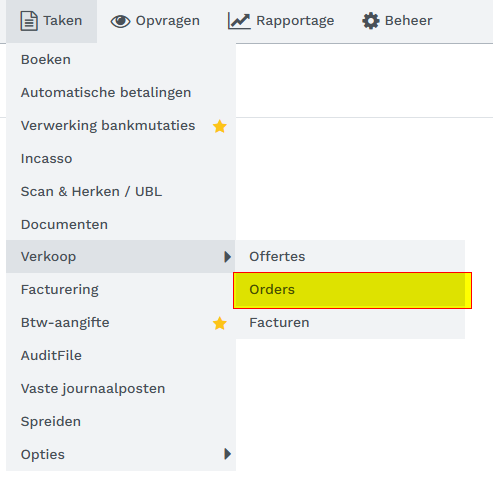
If Orders is missing, activate the orders module first via minox.nl/bestellen, then come back and connect.
Set Up the Sales Day Book
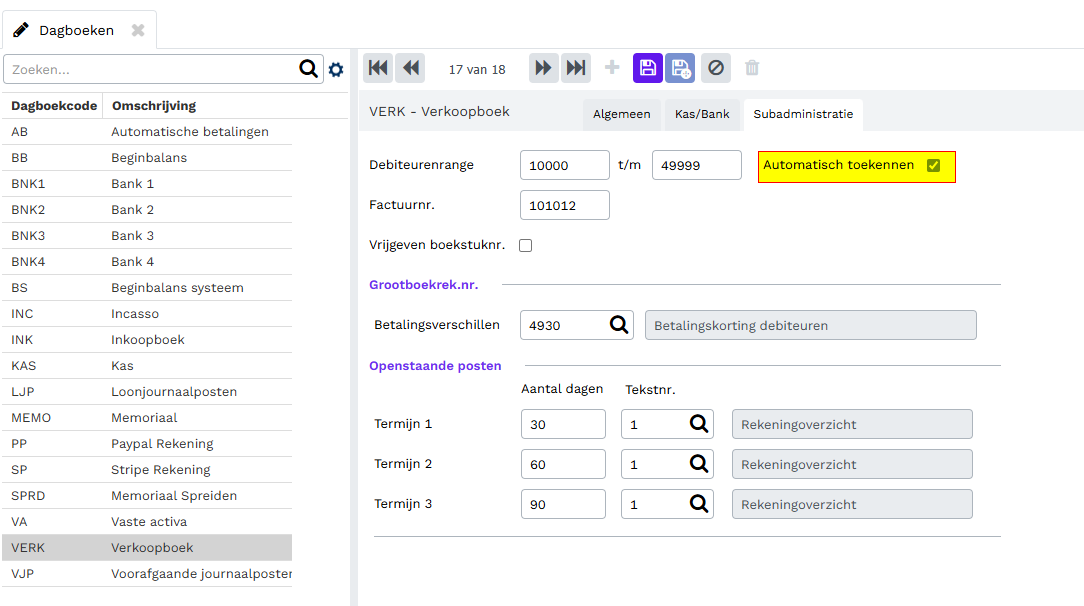
When BrickInvoice books an invoice, Minox has to create the customer and the invoice number itself. It only does that when Automatisch toekennen (Automatically assign) is ticked on your sales day book. If it is not, every invoice is rejected with an error.
- In Minox, open the Dagboeken (Day books) settings
- Select your sales day book (usually VERK — Verkoopboek)
- Open the Subadministratie tab
- Tick Automatisch toekennen next to the customer range (Debiteurenrange) and save
Part 1: Connecting Minox
Step 1: Start the Connection
- Go to:
/home/accounting/connect - Choose "Minox" from the list of accounting packages
- Click "Connect to Minox"
- You are taken to Minox to log in
Step 2: Give Permission in Minox
- Log in to Minox as the main user
- Read what BrickInvoice is asking for and click "Authorize"
- You are sent back to BrickInvoice automatically
Step 3: Choose Your Administration
One Minox login can give access to more than one administration. Go to the configuration page and pick the one your store's invoices belong in. Nothing else can be set up until you have.
If you keep separate administrations for separate businesses, take a moment here — invoices are hard to move once they are booked.
Minox gives every user the demo administration Import Holland B.V. BrickInvoice leaves it out of the list, so you only see your own administrations.
Connection Status
Once connected, the status shows Connected. BrickInvoice renews the permission in the background, so you do not have to reconnect periodically.
Disconnecting Minox
- Go to:
/home/accounting/connect - Click "Disconnect" next to Minox
Your login details are removed from BrickInvoice. Invoices already in Minox stay where they are.
Part 2: Configuring Minox Settings
General Settings
Administration: The Minox administration your invoices are booked into. Required.
Create as Draft:
- On — invoices arrive in Minox as drafts, so you can check them before they count
- Off — invoices are final straight away and get their invoice number immediately
Leave this on while you are setting things up. It is the cheapest way to spot a mistake.
Payment registration only works with this off. A draft has no invoice number yet, so there is nothing for a payment to be matched against. The settings page will not let you save both at once.
Differentiate Platforms: Turn this on if you want to point BrickLink and Brick Owl orders at different items in Minox, so you can see the two apart in your figures. If you do not need that, leave it off and you have half as much to fill in.
Contact Sync
Sync Email Address: Includes the buyer's email address on the customer record in Minox.
Update Existing Customers:
- On (default) — a returning buyer's details are refreshed from their latest order
- Off — once a customer exists in Minox, BrickInvoice leaves them alone
BrickInvoice recognises returning buyers by their marketplace username, so the same person is not added twice.
Items and VAT
This is the part worth reading twice, because Minox works differently from most packages here.
In Minox, the VAT rate lives on the item, not on the invoice line. BrickInvoice cannot send "this line is 21%" — it can only say "this line is item €25", and Minox looks up the rate. So every item you select must have a VAT code set in Minox, otherwise the invoice will not go through.
Items without a VAT code are marked with a warning in the dropdowns, so you can spot them before they cause trouble.
You choose an item for each of these:
Products
The bricks and sets themselves.
Description: The text that appears on the invoice line. You can use placeholders that get filled in per order:
{order_number}— the order number, for example "123456"{source}— "BrickLink" or "Brick Owl"{payment_method}— how the buyer paid, for example "PayPal"
"Order {order_number} via {source}" comes out as "Order 123456 via BrickLink".
Which item, based on where the buyer lives:
- Domestic — buyers in your own country
- EU — buyers elsewhere in the EU
- Export — buyers outside the EU
Three separate items, because these carry different VAT rates. With platform differentiation on, each of the three splits again into BrickLink and Brick Owl.
Margin Scheme
For second-hand goods sold under the margin scheme, where VAT is due on your profit rather than the full sale price. Same structure as Products: domestic, EU and export.
Shipping
What you charged the buyer for postage.
- Regular — domestic and EU
- Export — outside the EU
Handling Fees
Any order fee you pass on. Same split as Shipping.
Quantity
BrickInvoice bills one line per amount, so the quantity is always one.
Minox has a setting per item called "aantal van toepassing" (quantity applies). If you switch that off for an item, Minox refuses any line that mentions a quantity at all. BrickInvoice checks this per item and leaves the quantity off where it has to — you do not need to do anything, and either setting works.
B2B Orders (VAT Reverse Charge)
If you have B2B VAT switched on in your settings, orders from business customers elsewhere in the EU are invoiced with 0% VAT and the buyer accounts for the VAT in their own country.
For those orders BrickInvoice uses a separate set of items, which you configure under B2B VAT Exempt Line Items. Point them at Minox items carrying a reverse-charge VAT code.
BrickInvoice also puts the buyer's VAT number on the customer in Minox, so it is printed on the invoice and available for your ICP return:
- Brick Owl: the VAT number the buyer entered at checkout is used
- BrickLink: orders do not include the buyer's VAT number, so the customer is created without one. Fill it in on the customer in Minox
- A VAT number you entered in Minox yourself is never removed by a sync, also when Update Existing Contacts is on
- With Update Existing Contacts off, only the VAT number is updated, and only when a B2B order brings one the customer does not have yet
Minox checks the format of a VAT number but not its check digits, so check that the number is correct. If Minox refuses a number a buyer typed, the customer is created without it and the sync carries on.
What an Invoice Looks Like
The item names below are only there to show which item gets picked in each case — yours will be called whatever you named them.
Dutch seller, German buyer:
Order: €100 (bricks) + €5 (shipping) + €2 (handling)

Minox invoice:
1. Products  €100.00  ->  item "Sales EU"       ->  21% VAT
2. Shipping    €5.00  ->  item "Shipping"       ->  21% VAT
3. Handling    €2.00  ->  item "Handling fees"  ->  21% VAT
Dutch seller, US buyer:
Order: €100 (bricks) + €5 (shipping)

Minox invoice:
1. Products  €100.00  ->  item "Export"         ->  0% VAT
2. Shipping    €5.00  ->  item "Export S&H"     ->  0% VAT
Part 3: Payments and Transaction Fees
BrickInvoice can also record that an invoice has been paid, and book the fee PayPal or Stripe kept. That saves you ticking off invoices by hand and means your PayPal and Stripe balances in Minox actually match reality.
This only works for orders paid through PayPal or Stripe, and only when that account is connected to BrickInvoice. Orders paid by bank transfer stay open in Minox for you to match off yourself, unless you collect them through Stripe.
Do buyers who pick Bank Transfer or IBAN pay you through a link from your own Stripe account (for example iDEAL)? Then, with Register Stripe payments on, tick Bank Transfer orders and/or IBAN orders, separately for BrickLink and Brick Owl. Those orders are then registered as Stripe payments, and their Stripe fee is booked when Book Stripe fees is on. See Bank Transfer and IBAN Orders Paid via Stripe for how it works.
Registering payments also needs Create as Draft switched off: a payment can only be matched against a final invoice. Booking fees works either way.
Choosing a Day Book
Minox ties each bank account to a day book (dagboek). Pick the one that holds the balance for that provider — whatever you have called it in your own administration.
You pick the day book, and that is the whole story — you do not choose an account as well. Minox knows which account belongs to that day book and handles the other side of the entry itself.
If you do not have a day book for PayPal or Stripe yet, add one in Minox first. It has to be a bank day book, because only those have a bank account behind them.
One day book per provider covers both marketplaces, since your PayPal balance is the same balance whether the order came from BrickLink or Brick Owl.
Fee Expense Account
For fees you also choose the account the cost is booked to — separately for BrickLink and Brick Owl, so you can keep the two apart in your figures.
Important — pick an account without a VAT code. Whichever account you use, make sure it has no VAT code set in Minox. Minox takes VAT from the account, so an account with 21% on it will quietly split your fee into an amount and VAT that was never charged. PayPal and Stripe fees do not carry deductible VAT.
Some sellers book these fees to their general bank charges account, others keep a separate account for payment provider costs. Either is fine — it is your choice how detailed you want your figures to be.
The dropdown only offers accounts Minox marks as cost accounts, so you cannot accidentally pick a revenue account.
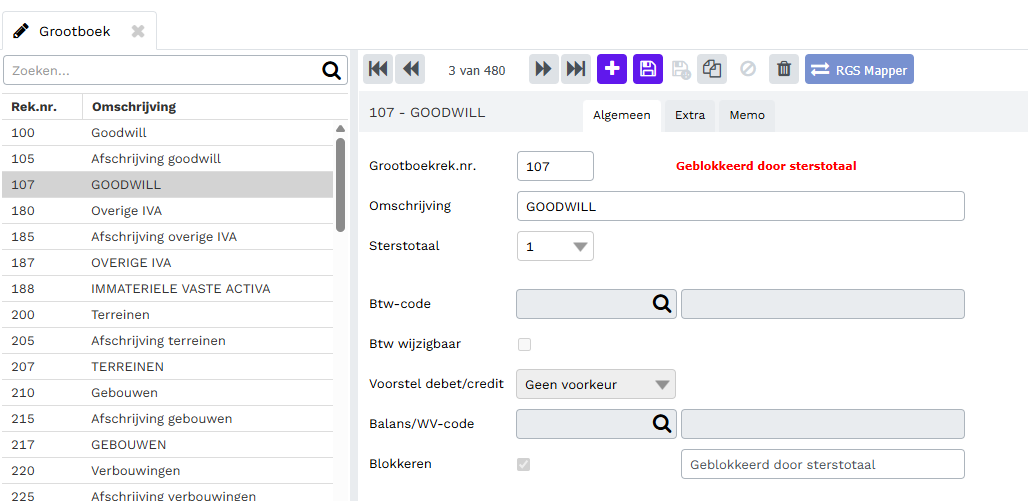
Accounts you cannot book on are left out as well: accounts you blocked yourself, and total accounts (sterstotaal), which Minox shows as Geblokkeerd door sterstotaal. Those only add up other accounts in your reports — in a standard chart of accounts they are the ones written in capitals, such as 107 GOODWILL.
What Gets Recorded
For a €12.72 order where PayPal kept €0.78:
The invoice is marked as paid    €12.72
The fee is booked as a cost       €0.78
Your PayPal balance goes up by   €11.94
Which is exactly what landed in your PayPal account. Each entry carries a description like Payment brickowl_5411768 and PayPal fee brickowl_5411768, so you can always trace it back to the order.
Troubleshooting
Connection Issues
You log in to Minox but never come back to BrickInvoice
Almost always because you are not signed in as the Minox main user. Minox only completes the handover for that user. Sign out of Minox, sign back in as the main user, and start again from the connect page.
The connection stopped working
Reconnect from /home/accounting/connect. BrickInvoice normally renews the permission by itself, so this is rare — but if someone changed the Minox password or removed the app's access at the Minox end, a fresh connection is the fix.
Configuration Issues
No administrations in the dropdown
Check that Minox is still connected, and that the login you used actually has access to an administration.
Items or day books are not loading
Refresh the page. If it keeps happening, check the connection — an expired connection shows up as empty dropdowns.
The day book you want is not listed
Only bank day books are offered, because only those have a bank account behind them. If your PayPal or Stripe day book is missing, it either does not exist yet or is set up as a different type. You can add it in Minox under your day book settings.
Invoice Issues
"Item is not configured"
One of the line types has no item selected for this order's situation — an export order with no export item, for instance. Go back to the configuration page and fill in the gaps.
Minox rejects the invoice
Check these, most common first:
- Automatically assign is off. Without it Minox cannot create the customer and invoice number. Tick Automatisch toekennen on your sales day book, as described in Set Up the Sales Day Book.
- The item has no VAT code. Open the item in Minox and set its VAT code.
- The orders module is not active. See Check the Orders Module.
Fix the cause, then sync the order again.
The invoice arrived but is not marked as paid
Check four things: payment registration is switched on for that provider, the day book is filled in, Create as Draft is off, and the order was actually paid via PayPal or Stripe. Bank transfers are never registered automatically.
Also note that orders synced before you set this up are not caught up afterwards — those you match off in Minox yourself.
The fee is on the wrong side or your balance looks off
Check the cost account you selected. If it has a VAT code in Minox, the amounts will be split in a way you did not intend.
Best Practices
Setting Up Items in Minox
What matters is that you have one item per situation, each carrying the right VAT code — domestic sales, EU sales, export, margin goods, shipping (regular and export) and handling fees. Name them however suits your administration; BrickInvoice only cares which item you point each line at.
Since the VAT rate lives on the item, this is what keeps your VAT return right. It is worth doing carefully once.
Start with Drafts
Leave Create as Draft on for the first handful of orders. Check in Minox that the lines, amounts and VAT look right, then switch it off for a hands-off workflow. Switch on payment registration only after that — it cannot run on drafts.
Check the First Payment Entry
After your first PayPal or Stripe order, open the day book in Minox and look at the entry. The closing balance should move by what actually arrived — the invoice amount minus the fee. If it does not, the cost account is the first place to look.
Platform Differentiation
Turn it on if you want BrickLink and Brick Owl separated in your figures. If you do not, leaving it off keeps the configuration a lot shorter.
Next Steps
- Sync a few test orders and check them in Minox
- Check the VAT on a domestic, an EU and an export order
- Switch off draft mode once you are happy
- Switch on payment registration and check one payment entry in the day book, as described above
- Turn on the schedule so orders sync by themselves
Support
If you run into trouble with Minox:
- Check the connection status in BrickInvoice
- Check that your items have VAT codes in Minox
- Check that the day book and cost account are filled in
- Contact support with the order number and what you saw