Connect Brick Owl
Connect your Brick Owl store with one API key, so BrickInvoice can fetch your orders.
Brick Owl needs one API key to connect. You make the key on Brick Owl, give it the right permissions and paste it into BrickInvoice.
Table of Contents
- Before you start
- Make an API key on Brick Owl
- Enter it in BrickInvoice
- Status
- Error messages
- The inventory permission
- Changing your API key
- Removing the connection
- Next steps
Before you start
You need a Brick Owl seller account. Set your country in your settings as well: BrickInvoice fetches your orders as soon as a store is connected and a country is set.
The key needs two permissions on Brick Owl:
- Orders View/Edit, to fetch your orders. Without it the key cannot be connected.
- Store Inventory / Coupons, to import and sync your inventory. Your orders come in without it.
Make an API key on Brick Owl
- Log in to your Brick Owl account.
- Go to the Brick Owl API documentation (
https://www.brickowl.com/api_docs) and click API Key. - Click Add API Key.
- Give it a name, such as BrickInvoice, and tick Orders View/Edit and Store Inventory / Coupons.
- Click Create and copy the key Brick Owl shows.
The help card next to the form on the Stores page has the same steps, with a link to the API documentation.
Enter it in BrickInvoice
- Go to Connections → Stores and find the Brick Owl block (or open
/home/connections/stores#brickowl). - Paste the key into API key.
- Click Test connection. BrickInvoice checks the key with Brick Owl without saving anything. When it works, you see Brick Owl accepted this API key.
- Click Save connection. This button only works after a successful test.
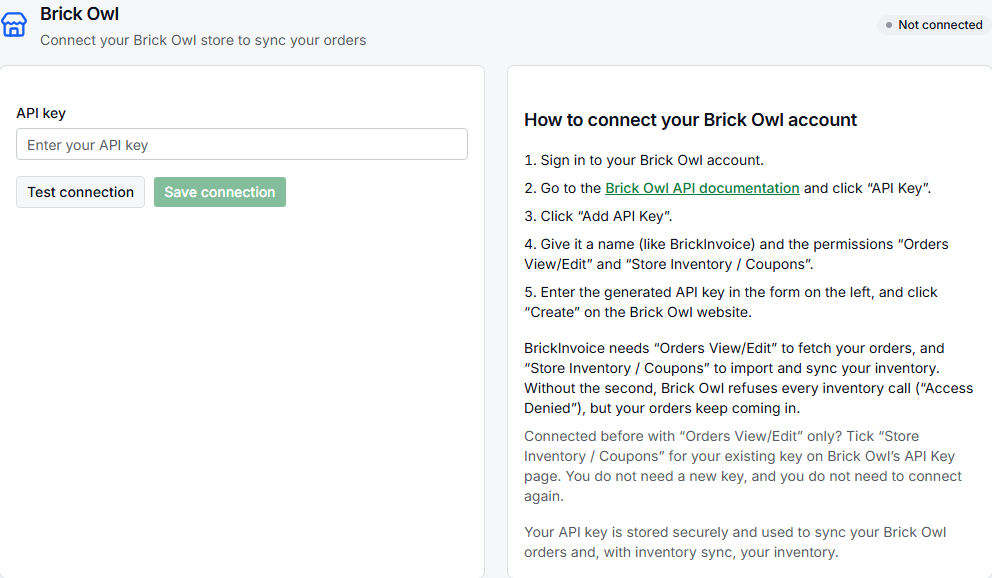
The block now shows Connected to Brick Owl with Your API key is saved. BrickInvoice stores the key encrypted and starts fetching your orders, right away if your country is set.
Status
The badge next to the Brick Owl heading, and the dot in the link at the top of the page, show one of three states:
- Connected: orders are fetched.
- Stopped: reconnect: Brick Owl refused your API key several times in a row, so BrickInvoice no longer contacts it. The block says Brick Owl stopped: reconnect. Enter a working key under Change connection to start again.
- Not connected: no key is saved.
Error messages
When the test or the save fails, the form tells you why:
- Brick Owl did not accept this API key. Check the key and its permissions, and try again. Copy the key again, without spaces at the start or end, and check that it has Orders View/Edit.
- Brick Owl could not be reached. Try again in a moment.
- We could not check this API key with Brick Owl. Try again in a moment.
- This key belongs to a different Brick Owl store than the one your inventory sync keeps in step. Once you have started an inventory sync, BrickInvoice only accepts a key of that same store. Connect the key of that store: moving the sync to another store is not possible.
- We could not check which Brick Owl store this key belongs to. Try again in a moment. During an inventory sync, BrickInvoice does not save a key when it cannot tell which store it belongs to.
When a test or save fails, nothing is written. A connection that was already working stays as it is.
The inventory permission
Without Store Inventory / Coupons, Brick Owl refuses every inventory call with "Access Denied". Your orders keep coming in, but the inventory import cannot read your stock on Brick Owl and the inventory sync cannot change it.
If your account has the inventory sync, BrickInvoice checks the key right after you save it. When the permission is missing, the block warns you: the key is saved and your orders will be fetched, but you need to tick Store Inventory / Coupons for this key on Brick Owl. The inventory import checks again before it reads your stock, and shows the same steps with Check again.
To add the permission, open the API Key page on Brick Owl, edit the key BrickInvoice uses, tick Store Inventory / Coupons and save it. You do not need a new key, and you do not need to connect Brick Owl again in BrickInvoice.
Changing your API key
- In the Brick Owl block, click Change connection.
- Paste the new key and click Test connection.
- Click Update connection to save it, or Cancel to keep the old one.
The connection keeps running on the old key until the new one is saved.
Removing the connection
Click Remove connection in the Brick Owl block. The dialog Remove the Brick Owl connection? lists what happens:
- Your stored Brick Owl credentials are deleted, and orders from Brick Owl are no longer fetched.
- If Brick Owl is in a running inventory sync, BrickInvoice first fetches and books your last Brick Owl orders, and changes not yet sent to Brick Owl are cancelled. If that fetch fails, the connection stays and the dialog says why (The Brick Owl connection was not removed), with Try again.
- If that leaves fewer than two stores, the dialog warns that your inventory sync stops. Your stock stays in BrickInvoice, nothing on BrickLink or Brick Owl is undone, and orders from then on cost no inventory fee.
Click Remove connection to go ahead, or Keep the connection. While the last orders are fetched you see Fetching your last orders from Brick Owl. You can close the window: the connection is removed as soon as the orders are in.
Next steps
- Check that the badge says Connected.
- Wait for the first orders, or look at the last and next fetch on Connections → Schedules.
- Connect BrickLink as well if you sell there: Connect BrickLink.
- Connect your accounting package to have your orders booked.