Schedules
When BrickInvoice fetches your orders and when it sends them to your accounting package.
Connections → Schedules opens the page Sync Schedules. It shows two things: how often your orders are fetched from your stores, and whether they go to your accounting package by themselves.
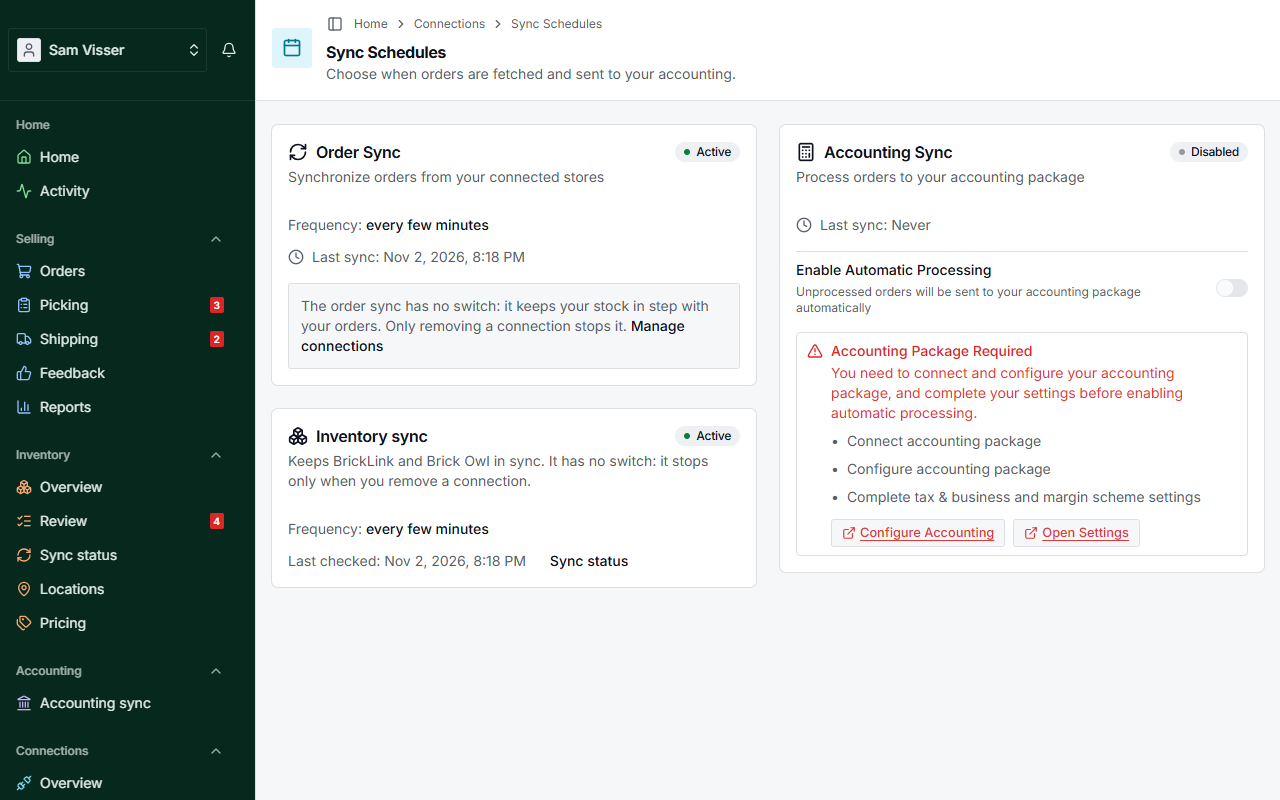
Table of Contents
Order sync
The Order Sync card shows how your orders come in from BrickLink and Brick Owl.
- Frequency depends on your plan: every 24 hours on Free and Pay per Order, every 6 hours on Unlimited, the Inventory sync plan and the free accounting trial. While an inventory sync runs, it says every few minutes.
- Last sync and Next sync show when the last round ran and when the next one is due.
The badge in the corner says how it is going:
- Active: orders are fetched on schedule.
- Not current since a date: the last rounds failed. The card shows the date of the last good round and the error. BrickInvoice keeps trying.
- Paused: no orders are being fetched for now.
- Not set up: no store is connected yet, or your country is not set.
The order sync has no switch. It runs as long as a store is connected and your country is set, and only removing a connection stops it. Manage connections takes you to the Connections overview.
When it is not set up, the card shows Configuration Required with Connect a store and set your country so your orders can be fetched. Click Connect Stores or Open Settings, whichever is missing. You do not need a cutoff date for this: orders are fetched without one.
If a store refused your keys several times in a row, the card also shows BrickLink stopped: reconnect (or Brick Owl). BrickInvoice no longer contacts that store until you enter working keys. Reconnect BrickLink takes you to its block on the Stores page. Your other store goes on as usual.
Accounting sync
The Accounting Sync card is about sending your orders to your accounting package. This one does have a switch: Enable Automatic Processing. When it is on, orders that are not booked yet are sent to your accounting package on each round.
The card shows Last sync and Next sync for the bookings, and how often they run (Frequency: Every 6 hours, for example). The badge says:
- Active: bookings run on schedule.
- Error: the last round went wrong. The error is shown on the card.
- Paused: bookings are on hold, for example because your free trial is used up.
- Disabled: the switch is off.
The first time you switch it on, BrickInvoice starts booking the orders that are waiting right away, in the background. Switch it off to stop booking. Orders keep coming in from your stores either way.
Which orders get booked, and when, you set in your settings: see Configure settings.
What you need before you switch it on
The switch stays grey until everything is in place. The card then shows what is missing:
- Accounting Package Required: connect and configure your accounting package, and complete your settings. The card lists what is still open (Connect accounting package, Configure accounting package, or your tax and business settings) with the buttons Configure Accounting and Open Settings.
- Cutoff Date Reset Required: you reactivated a subscription, so you need to set a new cutoff date in your settings first. Open Settings takes you there.
- Active Subscription Required: your plan has ended. Manage Subscription takes you to Billing.
- Trial Limit Reached: see Trial limits.
Your settings are complete when your country and a Processed Orders Cutoff Date are set. If you are in the EU, you also need to have chosen your margin scheme settings. The cutoff date tells BrickInvoice from which date on orders are booked, so the accounting sync needs it even though fetching orders does not.
Trial limits
Without a plan, the free accounting trial books up to 25 orders. Your orders keep being fetched after that, but nothing more is booked.
- If the accounting sync was running when the trial ran out, the card says Paused: free trial used up. New orders wait and are booked once you choose a plan. Click Choose a plan to go to Billing.
- If the switch was off, the card shows Trial Limit Reached with Upgrade Plan, and the switch cannot be turned on.
Once you have a plan, the waiting orders are booked.
Inventory sync
If you use the inventory sync, an Inventory sync card shows how BrickLink and Brick Owl are kept in step, with a status badge and a link to Sync status. This sync has no switch either: it stops only when you remove a connection. If it stopped because only one store is left, the card says so and links to Connections.