Activity
One timeline of what happened in your account: connections, accounting problems, imports and what needs your attention.
Activity is one timeline of what BrickInvoice did or noticed in your account. Think of a store or accounting package you connected or that needs to be connected again, an order that could not be booked, or an import of your stock. Your earlier notifications are in it too. You find it under Home → Activity in the menu.
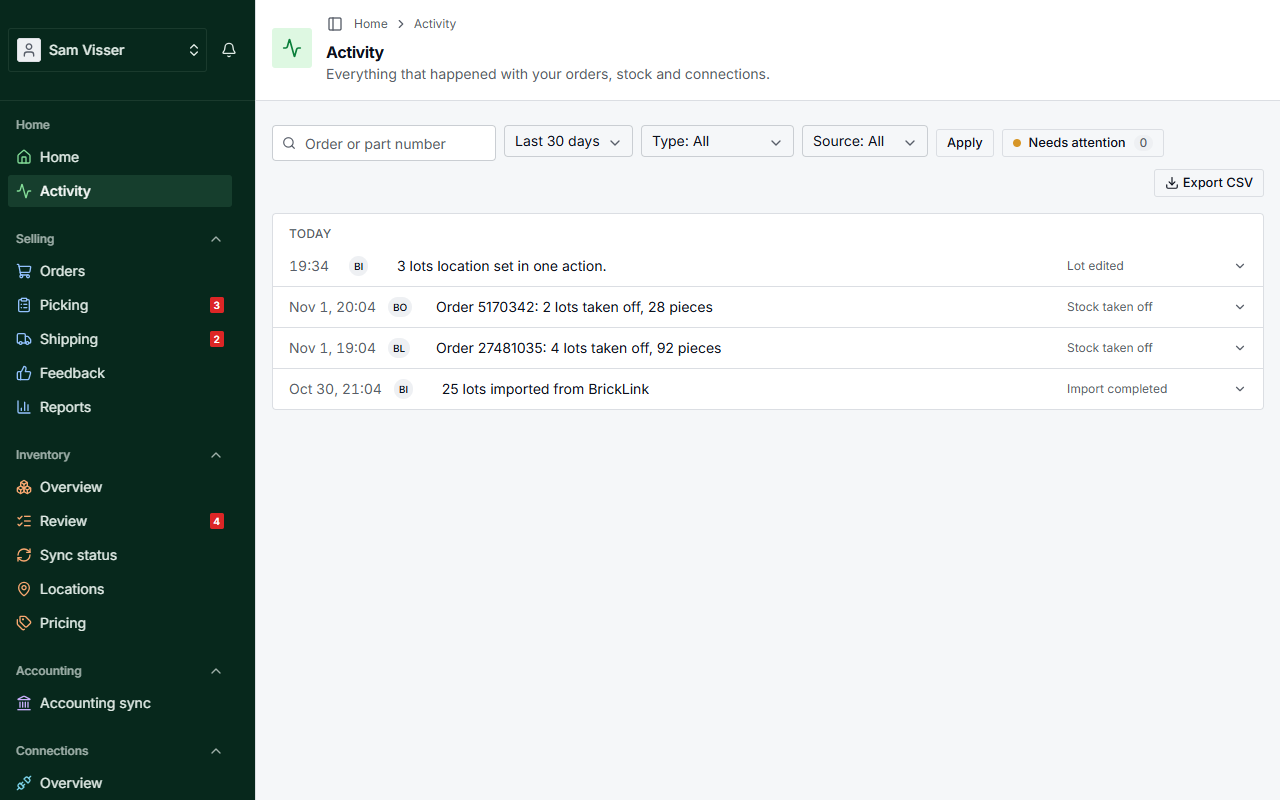
Table of Contents
- What you see
- Needs attention
- Marking events as handled
- Finding something
- The history of a lot
- Exporting
- Where your notifications went
What you see
The newest events are at the top, grouped per day. Each line says what happened, where it came from (BrickLink, Brick Owl, your accounting package or BrickInvoice itself), what kind of event it is and when.
A line with an arrow on the right opens when you click it. Depending on the event, you then see its counts (for example of an import), the stock movements it caused with the lots and pieces, and the lots that were moved. You also see what was Sent to the stores, each with its state: Waiting, Sending, Done, Failed, On hold or Replaced by a newer change.
Days follow the time in Amsterdam. If you sell from another time zone, an event shortly after midnight can appear under the day before.
Needs attention
Some events ask something of you: an order that could not be booked, a connection that needs to be renewed. They are marked with a dot and in bold.
The newest five are also in a Needs your attention strip at the top of the timeline, each with a link to where you deal with it: Open the order, Open the connection or Open the review. If there are more, Show all with the number of events opens the full list.
Turn on Needs attention at the top, with its count, to see only those events, so you can work through them and leave the rest. This list shows every open event, whatever the period you chose.
Marking events as handled
Open an event that needs attention to see Mark as handled. Use it for a problem you dealt with yourself. Many events also close by themselves once a later event shows the problem is solved.
With Needs attention on, Mark all as handled closes all events in the list at once. You first confirm how many events you are marking. Events that arrive after you opened the page stay open.
A handled event stays in the timeline, labelled Resolved. It leaves the Needs attention list here, the Needs your attention card on Home and the bell.
Finding something
Search for an order or part number, choose the filters, and click Apply:
- Period: Last 7 days, Last 30 days (the default), Last 90 days or All time.
- Type: Orders, Stock, Sync and import, Billing, Feedback, Connections or Accounting.
- Source: BrickLink, Brick Owl, BrickInvoice or Accounting.
The filters are part of the page address, so you can bookmark a view or send it to someone who helps you with your store. When nothing matches, the page says Nothing here yet, with No events match these filters when a filter is on. Widen the period or clear a filter to see more.
Show older adds the next 50 older events under the list, within the period you chose: the newest stay at the top and you keep your place. Reloading the page keeps the longer list. After 500 lines, Show older opens the older events as a page of their own, with a link back to the newest.
The history of a lot
See history at the bottom of a lot in Inventory opens Activity for that one lot, from the start. The chip at the top names the lot by item number, name, color and condition, for example "Lot · 3001 Brick 2 x 4, Red, New". On a phone, long lines wrap instead of being cut off, so the order number in them stays visible and clickable.
Exporting
Export CSV downloads the events that match your filters, up to 10,000 lines. It opens in any spreadsheet program.
Where your notifications went
Activity replaces the old Notifications page. Everything that was there is in the timeline, and the old address takes you to the events that need your attention. The bell at the top still shows new notifications. One about an order or a connection takes you to that order or connection, the others take you to Activity. A notification that is closed somewhere else, for example because the problem was solved, disappears from the bell straight away, also while the bell is open.