Shopify
Connect your own Shopify store for its orders, and choose which part of your stock BrickInvoice sells there.
Shopify works in two places in BrickInvoice:
- Connections → Stores, the Shopify block: you connect your store there, and from then on its orders come into BrickInvoice. You remove the connection there too.
- Inventory → Sales channels → Shopify, its channel page: with the inventory sync, you choose there which part of your stock BrickInvoice sells on Shopify, at what price, and at which location Shopify keeps it.
Table of Contents
On Stores: your store and its orders
Open Connections → Stores and go to the Shopify block. The badge on the block says Connected, Paused: confirm settings, Stopped: reconnect or Not connected.
Make the app in Shopify
BrickInvoice works through an app you make yourself in your own Shopify organization. Nobody else has access to it. The Connect Shopify card walks you through it:
- Open your store's app settings in Shopify, at
https://admin.shopify.com/store/your-store/settings/apps/development(with your store's name in place ofyour-store), and choose Build apps in Dev Dashboard. As soon as you fill in your store address in the card, it shows a button Open the app settings of … that opens this page of your store in a new tab. - In the Dev Dashboard, create an app named BrickInvoice.
- Add every access scope the card lists to the app:
write_products,write_inventory,write_orders,write_fulfillments,write_merchant_managed_fulfillment_ordersandread_locations. Copy all copies them in one go. - Release a version of the app and install it on the store you want to connect. If the app asks for a distribution method, choose Custom distribution, pick your store and install the app with the link Shopify gives you. Without it, Shopify does not report new orders to BrickInvoice right away (see Orders).
- Copy the client ID and the secret from the app's settings in the Dev Dashboard.
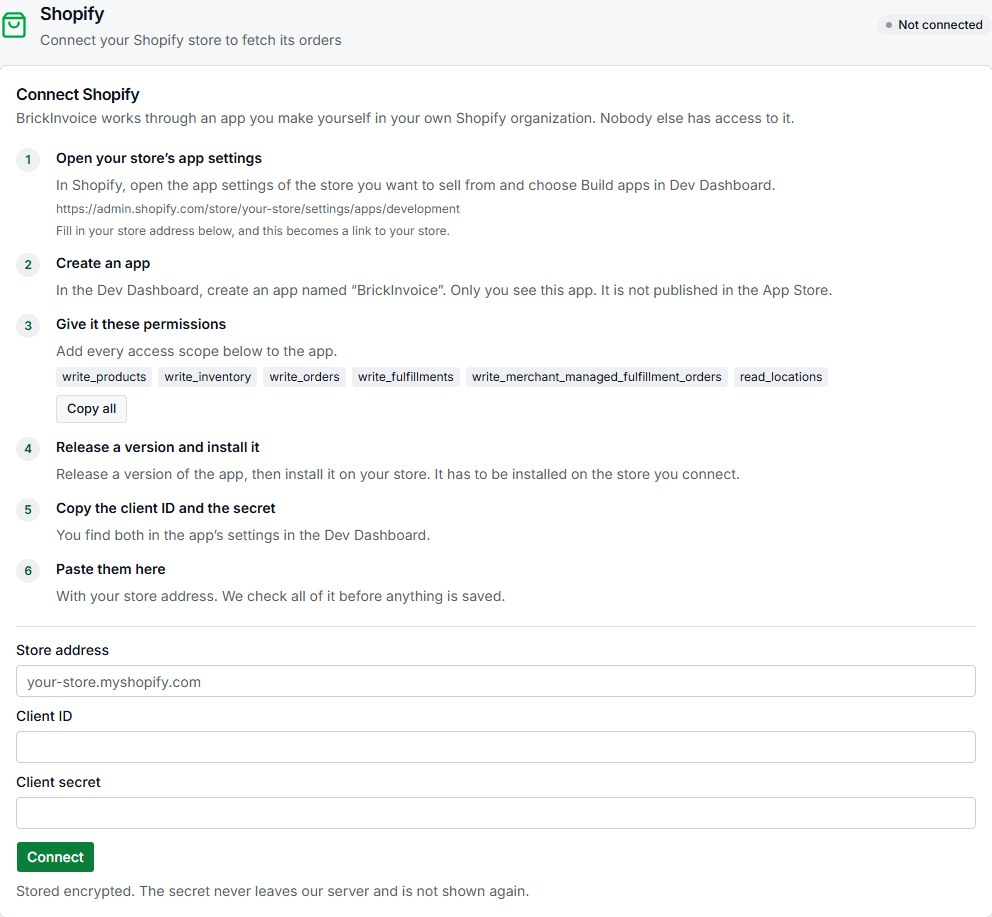
Connect your store
Fill in Store address (the address that ends in .myshopify.com, even if your shop has its own domain), Client ID and Client secret, and click Connect. BrickInvoice checks all of it before anything is saved. The secret is stored encrypted and is not shown again.
If the check fails, the card says why. The most common reasons:
- This is not a Shopify store address: use the
.myshopify.comaddress. You find it in Shopify under Settings → Domains. - The app is not installed on this store: install the app on this store in the Dev Dashboard. The app and the store must belong to the same organization.
- This app belongs to another organization: make the app in the same organization as the store.
- Client ID or secret not accepted: copy both again from the app's settings.
- The app is missing permissions: the card lists the missing scopes. Add them, release a new version and install it again.
- This store has no location for your stock: add a location in Shopify under Settings → Locations.
Once connected, the block shows the store, its currency and whether its prices include or exclude VAT, as read when you connected. Products you made yourself in Shopify are never touched. With the inventory sync, a line under Orders takes you to the channel page.
Orders
Shopify orders come into Orders like your other orders, and into Picking and Shipping when your plan includes them. With the inventory sync, what sells on Shopify is also taken off BrickLink and Brick Owl. The Orders card in the block says when the last orders were fetched.
Shopify can tell BrickInvoice about each new order the moment it comes in. When you connect, and after that once a day, BrickInvoice checks that these notifications are set up, and the Orders card shows what it found:
- Order updates: live: every notification is set up, so new orders come in right away.
- Order updates: polling only: only some of them are set up (the card says how many). Your orders still come in, on BrickInvoice's regular rounds, only later. Click Set up again to ask Shopify for the notifications once more. You do not need to connect again for this.
The notifications about orders and refunds contain buyer details, and Shopify only sets those up for an app that may see them. If they stay missing after Set up again:
- Your app asks for a distribution method. It was made in a Shopify Partner organization, which happens when you open the Dev Dashboard while signed in to a Partner account. In the Dev Dashboard, uninstall the app from your store, choose Custom distribution, pick your store and install the app again with the link Shopify gives you. Removing the app breaks the connection, so reconnect afterwards. The notifications are set up when you connect.
- Your store is on Shopify's Basic or Starter plan. On those plans, Shopify does not give an app you make yourself access to buyer details, so it never sets up these notifications. Your orders still come in on BrickInvoice's regular rounds.
The Webhooks page in Shopify's notification settings does not show the notifications an app sets up, so an empty list there is no sign that something is wrong.
When the connection breaks
If the app was removed from your store or its secret was changed, the block says Shopify no longer accepts our connection and the badge says Stopped: reconnect. Nothing is sent to Shopify until you reconnect. Fill in the client ID and secret again and click Reconnect. You can only reconnect the same store.
When the currency or VAT setting of your store changes
Every price BrickInvoice puts on Shopify is worked out in your store’s currency, with or without VAT as your store shows its prices. BrickInvoice reads both from Shopify when you connect, when Shopify reports a change to your store, and once a day.
When one of them changed after your products went to Shopify, the badge says Paused: confirm settings and an amber notice shows the old and the new values, on the Shopify block and on the channel page. Until you confirm them, BrickInvoice sends no prices or new products to Shopify, so nothing gets a price in the wrong currency. Quantities stay in step, lots that sell elsewhere still come off Shopify, and orders still come in.
The notice says how many products get a new price at the new settings. Click Confirm and reprice N products: that one click confirms the settings and lets the new prices past the safety brake. Variants with their own price on Shopify keep it. Without products on Shopify the button is Confirm the new settings. Changed it by mistake? Set it back in Shopify, and the notice goes away by itself.
Removing the connection
Click Remove Shopify connection in the block.
With the inventory sync, the dialog Remove the Shopify connection? asks what to do with the products BrickInvoice made:
- Set them to draft: buyers can no longer order stock you may sell elsewhere. You can publish them again in Shopify.
- Leave them for sale: their quantities are no longer updated, and a sale there is not taken off your other shops.
Your product groups and listings are kept, so connecting the same store again needs no new import.
Without the inventory sync, BrickInvoice only fetches your Shopify orders, so the dialog asks nothing about products: BrickInvoice fetches your last orders and then stops. The orders already fetched stay.
Either way, nothing on BrickLink or Brick Owl changes. Click Remove connection to go ahead, or Keep connected.
BrickInvoice first fetches your last Shopify orders and, if you chose it, sets your products to draft. If that does not work, the connection stays and the dialog says why, with Try again.
On the channel page: your stock on Shopify
With the inventory sync, open Inventory → Sales channels and click Manage on the Shopify row. The channel page has everything about your stock on Shopify. If the store is not connected, or the connection broke, the page only shows the way to Stores.
What goes to Shopify
Under What goes to Shopify you turn on the product groups to sell there. A lot in any group you turned on is listed with its full quantity, and a lot in two groups is listed once. The switch saves at once. You make and change the groups under Inventory → Product groups (Manage product groups): a group has a name and up to 20 rules, a lot is in the group when it fits any of them, and a rule fits a lot when every condition in it matches. A rule with no conditions fits every lot. Want a few lots on Shopify only? Make a group with just those lots and turn it on here only.
When a lot no longer fits, it comes off Shopify. A change that touches many listings waits for your OK first.
Price on Shopify
Under Price on Shopify, set a Factor (from 0.5 to 2) on your base price and how to Round to, then click Save price. The card also says which currency your Shopify prices are in and whether they include VAT, as your store shows its prices. Before your lots are on Shopify, the price is saved straight away and used when you put them there.
Once your products are on Shopify, a new factor or rounding also reprices them, and you see how many before anything changes. After Save price, the card says how many products get a new price, how many of their variants change price, and how many variants keep their own price. Click Reprice N products to go ahead, or Back to change it again. Until you confirm, nothing is saved and nothing changes on Shopify. That one click also lets the new prices past the safety brake. When no price changes, the card saves straight away.
While the new prices are being sent, the card shows the price they go to and cannot be changed. The price is saved once every product has it. If the new price did not reach every product, the card says so: click Save price to send it to the rest. While BrickInvoice waits for you to confirm new store settings, the card cannot be changed either (see When the currency or VAT setting of your store changes).
Your Shopify prices follow your lot prices. When you change a lot’s price, change prices in bulk, accept a price in Review or apply a price round under Inventory → Pricing, each variant on Shopify gets the new price worked out with your price card: the factor, your store’s currency and VAT setting, and the rounding. The price round preview shows that price for Shopify. A new lot weight goes along too. Titles, descriptions and pictures on Shopify are never changed. Variants you made yourself in Shopify, and variants with their own price on Shopify, keep their price.
Where your stock is kept
Shopify keeps stock per location. Under Where your stock is kept on Shopify, choose the location BrickInvoice puts your quantities on and click Save location. Other locations are left alone. When you connect, BrickInvoice picks the store's first location that ships online orders.
Put your lots on Shopify
When your groups are right, click Check the products under Put your lots on Shopify. The next page shows, before anything is made:
- how many lots are in the groups you turned on and how many products will be created (one per lot)
- how many have no picture, because the part is not on Rebrickable
- how long it takes, at Shopify's pace
- the list of products, and a sample of how one looks on Shopify
A product gets the BrickLink catalog name with the number and condition as its title, the lot's public description, a picture from Rebrickable and the lot weight. Click Create to start, or Back to Shopify to change the groups first. Creating runs at Shopify's pace, and you can keep working meanwhile. Lots that come into a group you turned on later follow within a few minutes.