Feedback
Leave positive feedback for your buyers on BrickLink and Brick Owl automatically, once per order, at the moment you choose.
BrickInvoice can leave positive feedback for your buyers on BrickLink and Brick Owl for you: once per order, at the moment you choose, with texts you write yourself. Automatic feedback is part of the inventory sync: Selling → Feedback is in the menu while your inventory sync is on trial, active or paused. Without the inventory sync, the menu has no Feedback item.
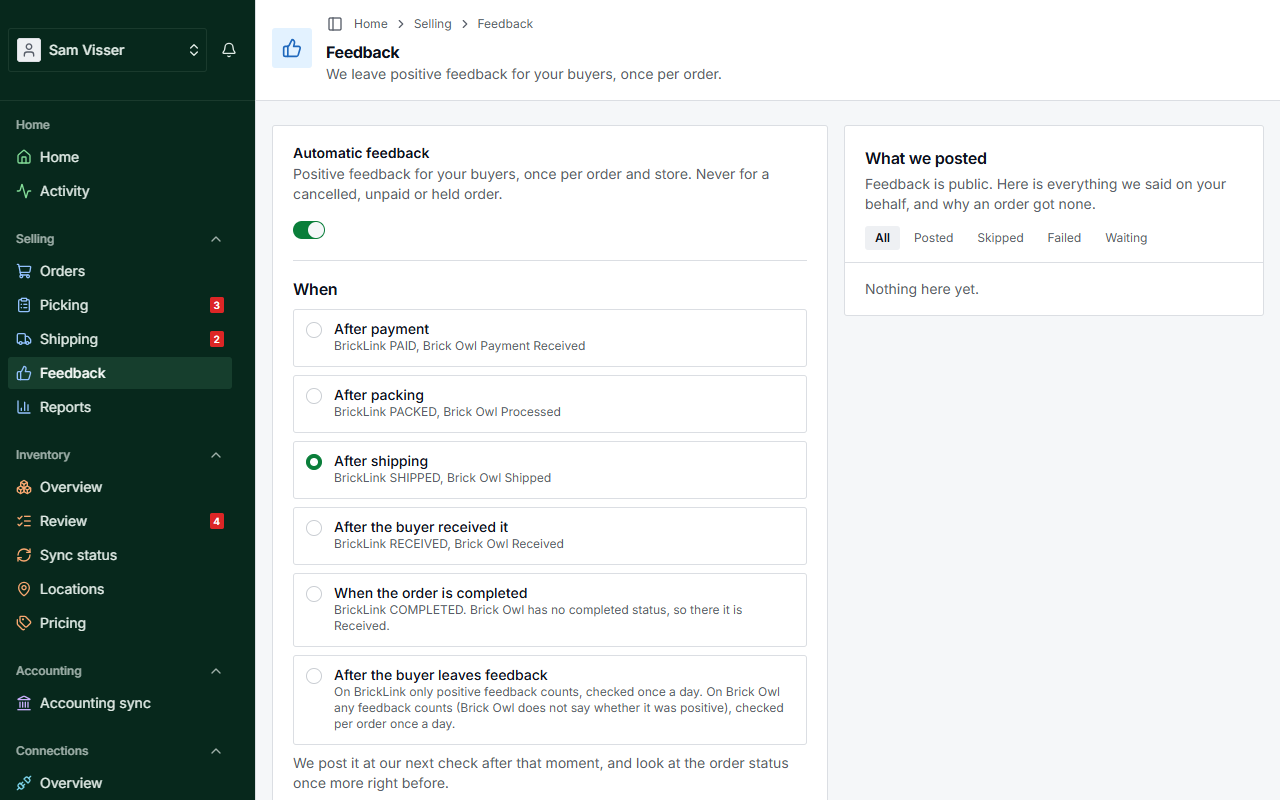
Table of Contents
- Your texts
- Switching it on
- The moment
- The five rules
- The log
- When the outcome is uncertain
- The Drive Thru e-mail on BrickLink
Your texts
Start with your texts, under Your texts on Selling → Feedback. Press Add text, write the line and tick the stores it may be used on under Use it on. Each text is one line of at most 80 characters, without emoji or symbols, because that is what the stores accept. Switch In use off to keep a text without using it, or Delete it. Each text shows how often it was used. A longer text made elsewhere for Brick Owl (up to 120 characters) can be switched off and on as it is. To change its words, make it 80 characters or shorter.
When an order gets feedback, BrickInvoice picks the text that was used least, so your buyers don't all read the same line.
Without a text for a store, orders on that store get no feedback, and adding a text later does not bring those orders back: the log lists them as skipped. The page warns you when you switch feedback on for a store without a text.
Your texts are public: buyers and other sellers see them on the store. The log keeps the text as it was posted, also when you edit or delete it afterwards.
Switching it on
In the When block, switch on Automatic feedback, choose the Moment, tick the stores under Where (On BrickLink, On Brick Owl or both) and press Save.
Only orders from that moment onwards take part. Switching it on does not leave feedback on months of old orders at once. The page shows the date per store.
If your inventory sync is paused, the page still shows your settings, but you can only switch feedback off. The sync pauses when your free trial ends without payment details, when your inventory plan is no longer active, or when fewer than two stores are connected. To come back, follow the banner on Inventory. See How it works.
The moment
Choose when an order gets its feedback:
- After payment, after packing, after shipping, after the buyer received it or when the order is completed. Brick Owl has no completed status, so there it is Received.
- After the buyer leaves feedback. On BrickLink only positive feedback from the buyer counts. On Brick Owl any feedback from the buyer counts, because Brick Owl does not say whether it was positive. BrickInvoice checks for buyer feedback once a day.
The feedback goes out at the next check after that moment, not to the second. An order that skips a status (from Paid straight to Shipped, for example) still gets its feedback once it is past the moment you chose. An order that goes back to an earlier status before the feedback went gets it once it is at the moment again.
The five rules
- Once per order, per store. An order never gets feedback twice from BrickInvoice, also not when you switch feedback off and on again.
- Never for an order with a problem. An order that is cancelled or on hold when BrickInvoice looks at it, or that BrickLink marks with a non-payment or non-delivery status, gets no feedback, also not when its status changes back later.
- Never twice when unsure. If BrickInvoice cannot tell whether feedback arrived, it does not try again blindly. See When the outcome is uncertain.
- The latest status, right before posting. Just before the feedback goes out, BrickInvoice checks the order status from its latest order sync once more. If the order has a problem by then, or went back before your moment, nothing is posted.
- Switching off stops what is waiting. Switching feedback off, for all stores or for one, asks for a confirmation and drops the feedback that was waiting to be posted. Orders that reach the moment while it is off never get automatic feedback.
If you already left feedback yourself on the store, BrickInvoice sees that and leaves it alone.
BrickInvoice only looks at orders from the last 120 days. On Brick Owl, feedback from the buyer is only looked for on orders up to 90 days old, so with the moment After the buyer leaves feedback an older Brick Owl order gets none.
The log
The right-hand side of the page, What we posted, lists what happened per order: Posted (with the text and when), Waiting, Skipped with the reason in plain words, or Failed with what the store answered. Filter on one of those at the top, or show All. The log shows the newest 100 entries. The order number opens the order in BrickInvoice.
A skipped order says why. For example:
- the order is from before you switched feedback on
- there was no text for that store
- the order already had feedback
- the buyer's feedback was not positive. You may then want to answer the buyer yourself.
When the outcome is uncertain
Sometimes a store does not answer clearly whether the feedback arrived, for example when the connection drops halfway.
- On BrickLink, BrickInvoice reads the feedback of that order. If ours is there, the log says Posted. If it is not, it is posted once more. If BrickLink keeps not answering that read, BrickInvoice stops asking 7 days after the first try.
- Brick Owl has no way to read it back, so BrickInvoice does not post again at all.
When it stays unclear, the order shows as Skipped in the log, with the reason We could not tell whether it arrived and a link to the order on the store. A line also appears on your list of problems. Have a look there: if the feedback is missing, you can leave it by hand.
The Drive Thru e-mail on BrickLink
BrickLink can send your buyer its "Thank You, Drive Thru!" e-mail. Switch on Send the Drive Thru e-mail under Thank-you e-mail on BrickLink on the Feedback page, and it goes out when you mark a BrickLink order as shipped in BrickInvoice: once per order, without a copy to you.
This only works while the inventory sync runs for BrickLink. If it does not, the order page says Not sent: the inventory sync does not run for BrickLink right now.
If BrickLink did not take it or the outcome is unclear, the order page says so, and Send it now sends it by hand after a confirmation. Check the order on BrickLink first: if BrickLink did send it, the buyer gets it twice.