Orders
The list of every order BrickInvoice fetched from your stores, and the order page with its items, shipping, buyer and amounts.
Selling → Orders opens Store Orders: every order BrickInvoice fetched from your stores, and whether it has reached your accounting. From here you open an order, start picking it or ship it.
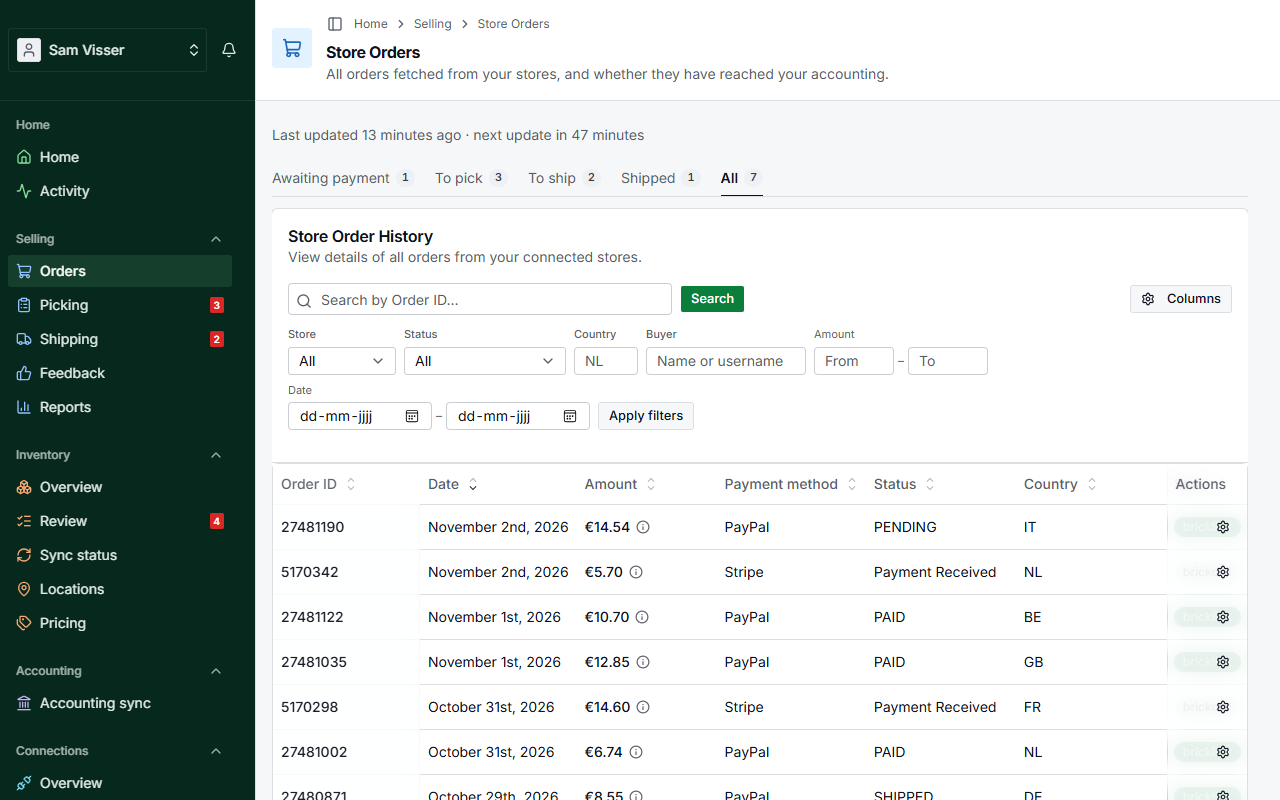
Table of Contents
Before the list shows
The page needs a connected store and your country. Without a store it says No stores connected, with Connect BrickLink and Connect Brick Owl. Without a country it says Missing country configuration: BrickInvoice needs your country to work out the VAT on every order, so press Go to Settings and set it. Once both are there and the first orders are fetched, the list appears. Until then the page says No store orders yet.
Above the list
A line above the list says when the orders were last updated and when the next update is due.
Other lines show up only when they apply:
- Your orders are not being booked yet. Your accounting sync needs a cutoff date or a margin scheme before it books orders. The button (Set cutoff date or Set margin scheme) takes you to the setting.
- Without the accounting sync, a line counts the orders that are not yet in your accounting, with Start free trial. Hide for now hides it for this session.
- With the inventory sync, a line says when orders a store announced could not be fetched, with See the activity.
Tabs
The tabs sort every order by where it stands, so you never sort by hand:
- Awaiting payment: not paid yet.
- To pick: paid and not picked yet.
- To ship: picked, or packed on the store, and not shipped yet.
- Shipped: marked as shipped.
- All: every order. This is the tab the page opens with.
Each tab shows how many orders it holds. A tab is its own address, so a link from the Today tiles on Home opens the right one.
Searching and filtering
Type an order number in the search field and press Search. Reset clears the search.
The filter bar narrows the list by Store (BrickLink, Brick Owl, and Shopify if you sell there), Status (Awaiting payment, Paid, Packed, Shipped, Received, Completed or Problem), Country (a two-letter code such as NL), Buyer (name or username), Amount and Date, each with a from and to. Press Apply filters to use them and Clear to remove them. The bar says how many filters are active. When nothing matches, the page says No orders match these filters.
Columns
The list shows the order number, Date, Store, Amount, Payment method, Status, Country, Processed (whether the order is in your accounting), Invoice Number and the order menu. The order number stays on the left and the menu on the right when you scroll sideways. An order that came in since your last visit has a blue bar in front of its number.
Columns above the list switches columns on and off, also the ones that are off at first: Subtotal, Margin, Shipping, Handling Fees, Cost and Total. BrickInvoice remembers your choice.
The Status column shows the payment status as the store has it: Paid, Awaiting payment, Cancelled, On hold, Non-paying buyer, Non-responding seller, Non-shipping seller, Cancel requested, Purged, Problem or Unknown.
The order menu
The menu button at the end of each row has the actions for that order. Which ones you see depends on the order and on what you use:
- View in Store opens the order on BrickLink, Brick Owl or Shopify.
- Pick starts a pick session for a paid order that is not picked yet.
- Ship opens the shipping page of the order.
- Re-sync Store Order Data fetches the order from the store again and recalculates its amounts.
- Exclude from Sync keeps the order out of your accounting; Include in Sync lets it back in.
- Sync with Accounting sends an order that is not booked yet to your accounting package. For an excluded order, BrickInvoice asks first (Yes, Sync Anyway).
- Re-sync with Accounting sends a booked order again. BrickInvoice warns first that this may create duplicate records in your accounting, and that a buyer gets the new invoice too if your accounting package e-mails invoices.
- View Invoice with the invoice number opens the invoice of a booked order.
The two sync actions are there with the accounting sync. Shopify orders are never sent to your accounting, so they have no re-sync, exclude or accounting actions.
The order page
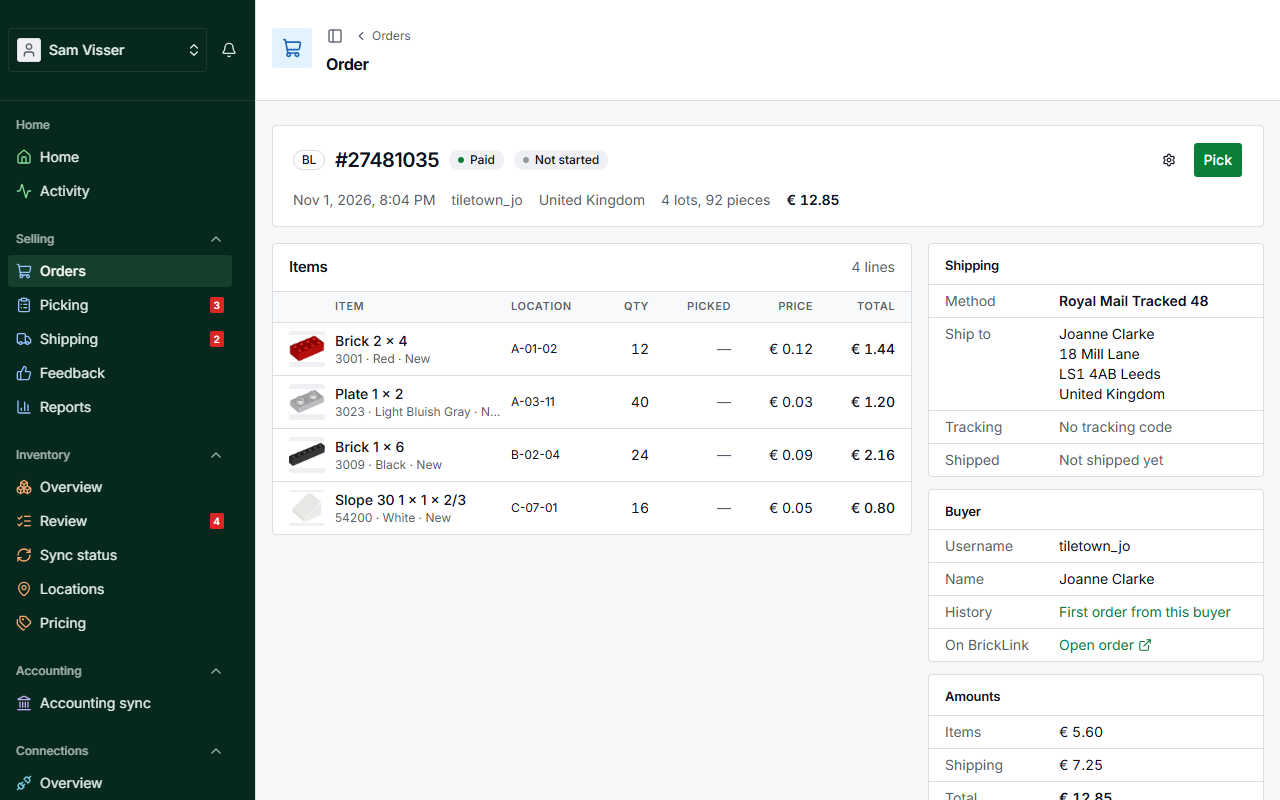
Click an order number to open the order page. At the top you see the store, the order number, the payment status and how far picking is (Not started, Picking 2/5, Picked, Shipped or Problem), then the date, buyer, country, lots and pieces, and the total. On the right are the order menu and one main button: Pick (or Continue for a pick you started) for an order that is waiting to be picked, otherwise Ship for an order that is ready to go.
A note from the buyer is shown in amber, under Note from the buyer.
The rest of the page is in blocks:
- Items: every line of the order, with the item, its location, the quantity, how many are picked, the price and the line total.
- Shipping: the method, the address, the weight, the tracking code and when the order shipped. With the inventory sync, the lines under On the store say whether the order was marked packed or shipped on the store and whether the tracking code went, with Retry when something failed. On BrickLink this includes the Drive Thru e-mail, with Send it now when it did not go. If the billing address differs, the block says so; the shipping page shows both.
- Buyer: username, name, e-mail address, phone number, the history (First order from this buyer, or for example 3rd order from this buyer) and Open order to see it on the store.
- Amounts: items, shipping, handling, extra costs, discount, tax and the total. If the buyer paid in another currency, it says what they paid.
- Inventory sync fee (with the inventory sync): the fee booked for this order, or what it would cost during your trial.
- Payment: the payment method, the status and the date it was paid.
- Accounting (with the accounting sync): the invoice, whether the order was sent to your accounting and whether it is excluded. An order that is not booked yet says Not booked yet.