Minifig Match
Upload a BrickStore BSX file and see which minifigures you can assemble from your parts inventory, with BrickLink price guide data and seller insights.
Minifig Match finds the LEGO minifigures you can build from the parts in a BrickStore inventory. Upload a BSX file and you see every minifigure you can fully or partly assemble, and how many of each part you have. When your BrickLink account is connected, you also get current market prices and selling advice per minifigure and per part.
The tool is in beta, which the page says at the top.
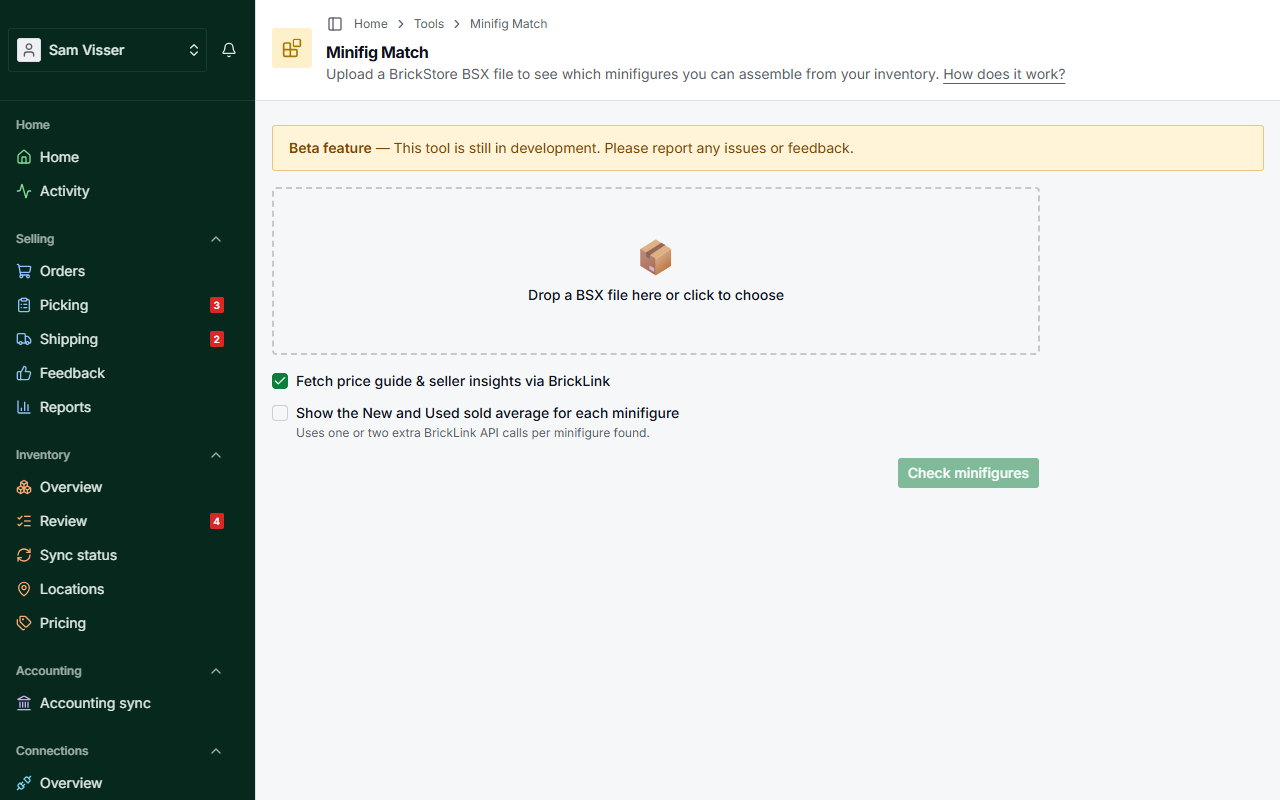
Table of Contents
- Before you start
- How to use
- Understanding the results
- Price guide & seller insights
- New and used sold averages
- Frequently asked questions
Before you start
Requirements
- A BSX file exported from BrickStore, up to 10 MB. Only the part lots in the file are read. Minifigures, sets and other item types in it are ignored.
- (Optional) A connected BrickLink account for price guide data and seller insights. Without it the two price options are not shown, and the page links to Connections instead.
Exporting a BSX file from BrickStore
- Open BrickStore
- Open the inventory you want to check
- Go to File → Save As and choose the BSX format
How to use
- Open Tools → Minifig Match in the menu.
- Drop your BSX file on the upload area, or click the area to choose the file.
- With BrickLink connected, "Fetch price guide & seller insights via BrickLink" is ticked already. Untick it if you only want the matches. Tick "Show the New and Used sold average for each minifigure" if you want those as well (see New and used sold averages).
- Click Check minifigures.
The page shows Waiting to start…, then Analyzing your parts…. Checks from all sellers share one queue, so on a busy moment the first step can take a little while. The results appear as soon as your parts are matched. With the price guide on, the page then shows Fetching BrickLink prices… and each minifigure has a placeholder until its prices arrive. They come in one minifigure at a time, so you can start reading straight away.
The results are not saved. If you reload the page or leave it, they are gone and you have to upload the file again. Upload a new file starts over with another file.
Understanding the results
Completeness
Results are grouped into Complete and Partially complete. Only minifigures for which you have at least 75% of the parts are shown, so the list does not fill up with figures you would have to buy almost entirely.
- Complete: you have every part the minifigure needs.
- Partially complete: you have at least 75% of the parts but are missing one or a few. The badge on the card says how many, for example 9 / 11 parts.
Sorting and filtering
Above the results you see how many minifigures were found and how many of them are complete. When the results span more than one BrickLink category, a Category filter appears. Once prices have come in you can sort with Sort by: Match order, Minifig price, Parts total, or Difference (parts − minifig), highest or lowest first. While prices are still loading the order keeps changing, and the page says so.
Parts table
Each minifigure card lists its parts with the columns Need, Have and Location. The location is the remarks field from your BSX file. When a part is spread over several lots, their locations are joined.
Parts shown in red are the ones you don't have enough of. Clicking a red part opens BrickLink's for-sale listings for that part number, so you can buy what is missing. The search is by part number only, so pick the right color there.
With the price guide on, the table also has a Sold avg. column: the average price the part recently sold for. Click that price for a detailed breakdown with seller advice for that part.
Identifiers
Each minifigure shows its BrickLink ID, its category, the Rebrickable number and the Brick Owl ID where one is known.
Price guide & seller insights
With BrickLink connected and the price guide option on, the check fetches market data from BrickLink for each minifigure and each of its parts. Each card gets a Price guide block. It starts folded, showing only the condition and the sold average. Click Show to see the sales, the listings, the seller insights and the monthly trend.
The condition used for pricing follows the parts in your BSX file: if any part you own is marked Used, the whole minifigure is priced as Used.
Prices include VAT, as buyers see them in BrickLink shops. They are shown in the currency of your BrickLink shop. If BrickInvoice does not know that currency, it uses the base currency of your inventory sync, or else euros. BrickInvoice keeps price data in euros and converts it at the day's rate. When there is no rate for your currency, the prices stay in euros. The unfolded block ends with the date the figures were fetched and, when converted, the rate that was used.
BrickInvoice keeps BrickLink price data for 14 days and shares it between checks. A minifigure or part that was looked up recently costs no new BrickLink call. Only what is missing or older than 14 days is fetched.
BrickLink allows a limited number of calls a day, and the price guide never uses the part your order sync needs. If the prices stop before every minifigure has them, the matches are still complete and the prices fetched so far stay on screen. A notice says why it stopped and when you can run the check again to fill in the rest. Besides the daily allowance, the reasons can be that BrickLink is in maintenance or not answering, that your BrickLink connection needs attention (then the notice points you to Connections), or that the check ran out of time: a check stops looking up prices after about 13 minutes.
Sales data (last 6 months)
What the minifigure or part sold for on BrickLink over the past six months:
| Field | What it means |
|---|---|
| Avg. | The average sale price across all transactions |
| Qty avg. | An average that weighs each sale by the number of units, so a sale of 10 pieces counts more than a single piece |
| Min / Max | The cheapest and most expensive it sold for |
| Sales | How many separate sales took place |
| Total qty | How many units were sold in total |
| Most recent sale | The price and date of the last sale |
| Monthly avg. price | The average price per month over up to the last twelve months, with an arrow showing whether it went up or down compared to the previous month with sales. Months without sales show a dash (–). Empty months before the first recorded sale are left out |
Current listings
What sellers are asking right now on BrickLink:
| Field | What it means |
|---|---|
| Avg. | The average asking price across all active listings |
| Qty avg. | The average asking price weighted by how many units each seller lists |
| Min / Max | The cheapest and most expensive active listing |
| Listings | How many sellers list it now |
| Total qty | How many units are available in total across all sellers |
Seller insights
Below the price data, a summary to help you decide when and how to sell:
| Insight | What it means |
|---|---|
| List price | A suggested price range. The lower end keeps you level with the cheapest listing. The upper end follows what buyers have paid. Anywhere in between gives you a good chance of selling at a fair price. |
| Supply pressure | Roughly how many months it would take to sell all current stock at the current sales rate. Under 2 months means the item sells quickly and you can ask more. Over 6 months means there is more supply than demand and prices are likely being pushed down. |
| Price trend | Whether the average sale price went up or down over the past six months. A rising trend means demand is growing or supply is shrinking, which is good for sellers. |
| Market vs. sales | The cheapest active listing compared with what buyers have paid. Listings above the sales average suggest the market is overpriced. Listings below it mean sellers are undercutting each other. |
Selling as a complete minifigure vs. parting out
Under the price guide block, Parts (total) adds up what the parts would bring when sold one by one, and compares it with the minifigure's own sale price. A line underneath tells you which way is worth more and by how much: parts sold separately, or the complete minifigure.
New and used sold averages
The price guide prices each minifigure in one condition only: the one that follows from your BSX file. To compare what a minifigure brings as New and as Used, tick "Show the New and Used sold average for each minifigure" before you start. This option works on its own. You don't need the full price guide for it.
Each card then shows the average sale price on BrickLink over the past six months for both conditions side by side. The condition that matches the parts in your file is marked Your parts. A dash (–) means there were no sales in that condition, or BrickLink did not return a price.
The option is off by default because it can take one or two extra BrickLink calls for every minifigure in the results that is not in the shared price data yet. Only the minifigures shown in the results are looked up.
Frequently asked questions
Why don't I see all my minifigures?
The check only knows minifigures that have a part list in the BrickInvoice database. Newly released minifigures may not be in it yet. The database is updated regularly. If nothing at all is found, the page says that the file has no matching minifigures or that the database is missing data for these parts.
Why is a minifigure showing as incomplete when I think I have all the parts?
A few possible reasons:
- Part numbers differ. BrickLink sometimes uses a different part number than the one in your BSX file. Check whether the part has known variants.
- Color mismatch. The check matches exact colors, so a part in a slightly different shade doesn't count.
- Quantity. Lots of the same part and color in your file are added up. Check how many of the part the minifigure needs.
Why is no price shown for some parts?
Some parts have never been sold or listed on BrickLink in the condition of your inventory (New or Used). This happens most with very rare or recently released parts. Prices can also be missing because the check stopped fetching them. The notice above the results then says why.
The file is refused
The upload takes .bsx files up to 10 MB that contain at least one part. A larger file is refused with File too large (max 10 MB). Split it in BrickStore, or check it in parts.
The check says it's running but nothing happens
While it says Waiting to start…, other checks are ahead of yours in the queue. If the progress stays the same for more than a few minutes, reload the page and upload the file again. Remember that reloading clears the results of the current check.
A minifigure I know exists isn't showing up
The database is refreshed regularly. A recently released minifigure will most likely appear after the next update.