Wanted List Match
Find the parts from your BrickLink Wanted List that are already in your own store inventory, pull them straight from stock, and update your Wanted List with what you filled.
Wanted List Match helps BrickLink sellers who also keep a Wanted List. When parts you want are already in your own store inventory, this tool finds them and lets you pull them out of stock one lot at a time. Your BrickLink inventory is updated for you. Afterwards it gives you a small update to paste back into BrickLink, so your Wanted List knows what you filled.
Table of Contents
- Before you start
- How to use
- The picking checklist
- Conditions (New / Used / Any)
- Max price
- Refreshing your inventory
- Finishing a session
- Updating your Wanted List
- The pick list
- With the inventory sync on
- Frequently asked questions
Before you start
Requirements
- A connected BrickLink account. This tool reads and updates your live BrickLink store inventory. Without a connection the page asks you to connect BrickLink first.
- A Wanted List XML exported from BrickLink, up to 15 MB, with at least one part on it.
Do you use the inventory sync? Then the tool works on your BrickInvoice inventory instead, and you don't need a BrickLink connection for it. See With the inventory sync on.
The tool is in beta, which the page says at the top.
Exporting a Wanted List from BrickLink
- Open your Wanted List on BrickLink.
- Use the Download option to export it as an XML file.
How to use
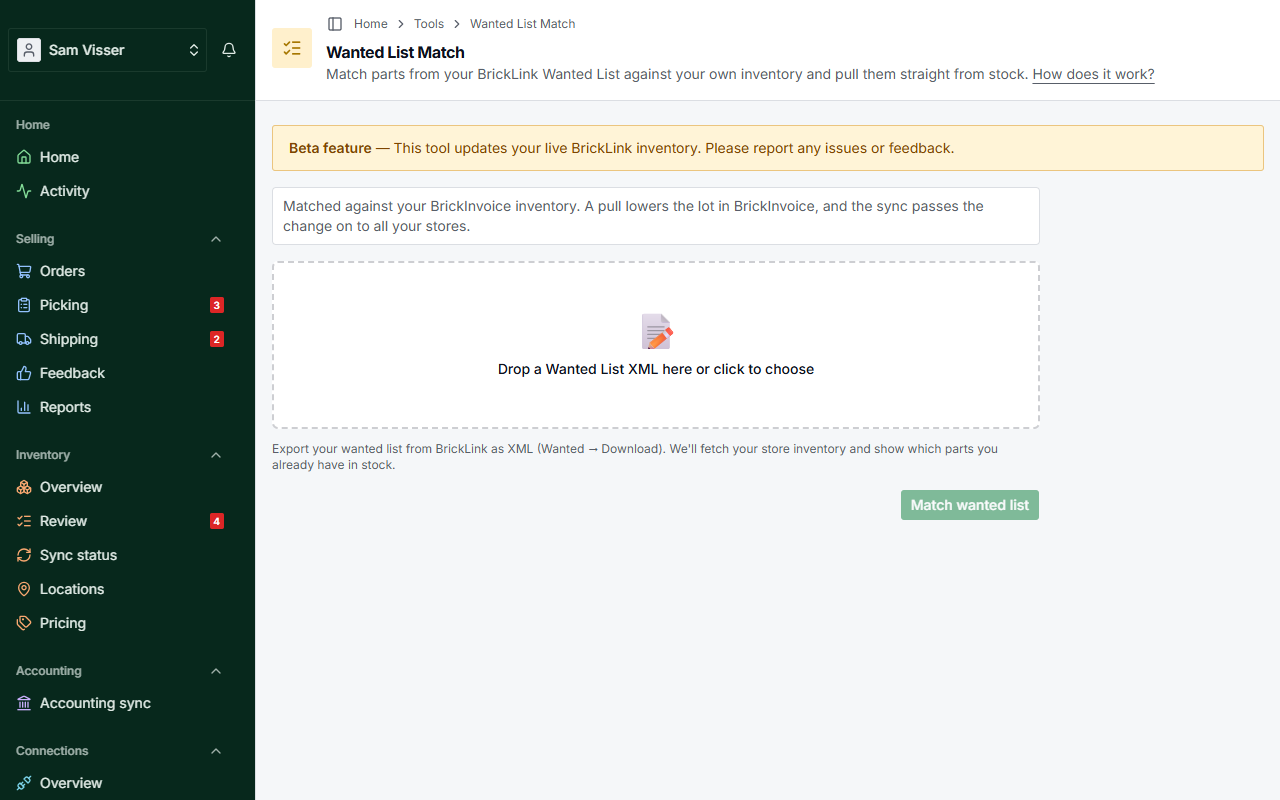
- Drag your Wanted List XML onto the upload area (or click to choose it). Choose which lot to fill in first and what happens to a lot that runs out, then click Match wanted list. The form remembers both choices for your next session.
- BrickInvoice fetches your full BrickLink store inventory in the background. You can follow the progress, or stop it with Cancel. Then the page shows which wanted parts you already have in stock.
- Work through the picking checklist: as you grab each lot from the warehouse, pull it. Each pull removes that quantity from your BrickLink inventory automatically.
- Click Copy wanted list XML under the checklist and paste it into BrickLink to record what you filled. Copying does not end the session: you can keep pulling and copy again, and each copy holds only what you pulled since the previous one.
- When you're done, click Finish session.
Only parts are matched. Sets, minifigures and other item types on your Wanted List are ignored. Parts are matched on part number, color and condition, and a part listed without a color is matched in every color you stock.
You can close the tab at any point. Your progress is saved to your account, so you pick up exactly where you left off, even on another device.
The picking checklist
The checklist is sorted by location (the remark you use on your BrickLink lots to note where they sit), so you can walk your storage in one round. Each row shows the part, color, condition, location, available stock and your listing price, plus how many are wanted. Every row also links straight to that lot on BrickLink, so you can open it if you want to check something.
- Set the amount in the row's quantity field, then click Pull to take it out of stock. Rows start filled in with a suggested amount, from the lot you chose to fill in first. Clicking twice by accident never subtracts twice.
- Pull everything handles every remaining row in one go, showing progress as it works. You can close the tab while it runs.
- Skip a row by setting its quantity to 0, for example to keep a pricier part listed for sale. The price is shown so you can decide.
The summary bar at the top shows In stock (how many of your wanted parts you have), To pull (the pieces you are about to pull), Stock value (what they are worth at your prices) and Checked off (the rows you have done). Wanted parts you have no stock for are counted at the bottom of the list and need no action.
Right before each pull, BrickInvoice checks that lot's current quantity on BrickLink. If you sold some elsewhere in the meantime, the pull is refused and the row says how many are left, so you never take stock you no longer have.
The inventory fetch and every pull use BrickLink calls from your daily allowance, the same allowance your order sync draws on. BrickInvoice keeps part of it free for the order sync.
One pull per lot
Choose the amount before you pull. Each lot can be pulled once per session: as soon as the pull goes through, the row locks and shows Pulled. This is what makes a double-click or a page refresh safe, but it also means you cannot top up the same lot with a second pull later in the same session. If you need to take more from a lot you already pulled, finish the session and start a new one.
Parts matched by several lots
When one wanted part matches two or more lots, say a used lot and a new one, those lots are grouped under one header. The header shows the part, how many are needed, how many you have assigned so far, and how many lots are available. A badge shows whether the part is still partly unassigned, fully assigned, or already complete.
Each lot underneath spells out its own role: Pulling 2 from this lot, Not assigned, Above max price, Fully covered by another lot, or Pulled from this lot once it is done.
The quantity you want is shared across the whole group, not repeated per lot. Say you want 2 pieces and both are assigned to the cheapest lot: the other lot then stops at 0, because those 2 are already accounted for. Lower the first lot to 1 and the second immediately allows 1. This is what stops you from accidentally pulling 4 pieces for a part you only wanted 2 of.
The lots are listed and filled in the order you chose on the upload form (cheapest first, unless you chose otherwise). Use Take from here instead on any lot to move the whole remaining need over to it in one click.
Which lot is filled in first
On the upload form, Fill in first decides which of several matching lots gets the suggested amount:
- Cheapest lot (the default): you give away cheap stock and keep pricier listings for sale.
- Most expensive lot.
- New, then cheapest or Used, then cheapest: lots of that condition first, the cheapest of them first, then the other condition.
When that lot has too few pieces, the next lots in the same order make up the rest. Lots above the part's max price are still skipped, and a part wanted in any color is still not filled in. Pull everything follows the same choice.
When a lot runs out
Without the inventory sync, a pull that takes a BrickLink lot to 0 does what you chose on the upload form under When a lot runs out:
- Delete the lot (the default): the lot is removed from your BrickLink store, as BrickLink does with a sold-out lot.
- Keep it at 0: the lot stays in your store with quantity 0 ("Retain after sold out" on BrickLink), so you can restock it later.
- Keep it at 0 in a stockroom: the same, and the lot moves into stockroom A, B or C, out of sale.
A lot you already set to Retain after sold out on BrickLink is never deleted, whatever you chose. With the inventory sync on, this choice is not shown: the sync's own rules decide.
A part matched by only one lot stays a single row, without a group header.
Parts wanted in any color
A part on your Wanted List can be listed without a color, meaning you'll take it in whatever color you can get. Those wants are matched on the part number alone, so every color you have in stock shows up and you decide which ones to give away.
They use the same grouped layout as any other multi-lot part, with one difference: each lot underneath shows its own color, with a thumbnail of the part in that color, so you can tell them apart. The header says Any color instead of naming one, and tells you how many lots across how many colors are available.
Two things follow from that:
- Nothing is pre-filled. Every lot starts at 0, even the cheapest one. For a normal want the cheapest-first default only picks a lot. Here it would be picking a color for you, which is the choice the want leaves open. Use Take from here instead, or type a quantity, to choose.
- Because nothing is pre-filled, Pull everything skips these parts until you've assigned a color yourself.
The wanted quantity is still shared across the whole group, exactly as it is for lots of the same color: if you want 3 and take 2 from red, only 1 is left to take from blue.
When you export, all the colors you pulled are summed into the single colorless line your Wanted List holds: a want for 3 filled with 2 red and 1 blue records 3 filled on that one line. The update never adds color-specific lines to your list, which would leave you with new wants instead of a filled one.
A color of "(Not Applicable)" on your Wanted List is a real BrickLink color, not a missing one: it matches strictly like any other color.
If the same part is wanted twice
You may have both a colorless want and a color-specific one for the same part, say "3626 in any color, 3 pieces" alongside "3626 in red, 1 piece". Both lines are shown, and the lot appears under each.
What you pull is only ever counted once. It is credited to the most specific line first (the red want fills before the colorless one), and anything above what that line still wants rolls over to the other. Pull 2 red and your list records 1 filled on the red want and 1 on the colorless want, never 2 on both. The same holds when a New want and an Any condition want overlap.
Conditions (New / Used / Any)
Each part on your Wanted List can ask for New, Used, or Any condition:
- New or Used only match lots of that same condition.
- Any matches both. Your new and used lots appear as separate rows under one group header, and the total you can pull across them is still capped by the quantity you want. Cheaper lots are used first by default; to prefer new or used lots, see Which lot is filled in first.
Condition and color are independent: a want for any condition in any color lists every new and used lot you have of that part, in every color.
Max price
If a part on your Wanted List has a max price, any lot of yours priced above it is treated as too expensive to give away:
- The price is shown in red, with the ceiling underneath it.
- The lot is not filled in automatically, so Pull everything never touches it.
- When some parts have every lot over the ceiling, a checkbox appears above the table to hide them, so the picking list only shows what you mean to pull. A part you have already pulled from stays visible either way, so your work never disappears from the checklist.
Nothing is blocked. If you do want to pull an over-priced lot, type the quantity into its field as usual.
A max price of 0 or -1 on your Wanted List means "no limit": BrickInvoice ignores it instead of treating it as a ceiling of zero.
Refreshing your inventory
Your store inventory is fetched once when you upload the list. If you change your stock on BrickLink while a session is open, use Refresh inventory to fetch it again and rebuild the checklist. Everything you already pulled stays recorded.
Finishing a session
Only one session can be active at a time. To start a new one, close the current session first:
- Finish session marks it complete and keeps the upload step and the pick list available in your session history. Use this whenever you have pulled anything. If some pulls are not in a copied XML yet, you are asked first: copy and upload them, or finish anyway and copy them later from Previous sessions.
- Discard session drops it. This is only offered before your first pull: once stock has left your inventory, finishing is the only way out, because a discarded session has no update to copy. A discarded session stays in Previous sessions for a week, marked Abandoned, and then disappears.
Updating your Wanted List
The update is a copy-and-paste you do yourself. Click Copy wanted list XML and follow the on-screen steps to paste it on BrickLink's upload page. Nothing is downloaded as a file.
Each copy holds only the parts you pulled since your previous copy. BrickLink adds what you upload, so a part in two copies would count twice; that is why every pull goes into one copy only. Nothing new since your previous copy? Then there is nothing to copy, and the page says so. Copying never ends the session.
The XML lists only the parts you pulled, and for each one it records how many you filled from your own stock. BrickLink adds that to the Have quantity your Wanted List already holds, so the "still wanted" count drops by exactly the amount you took. Your wanted quantities stay as they were, and parts you didn't pull are left completely untouched.
That's why the import has to be additive: the file is a small update on top of your list, not a new version of it. The on-screen steps walk you through picking the right option on BrickLink.
Your earlier copies are listed under the copy button, each with its date and number of lines. Copy again copies that exact XML once more, for when its upload did not go through. Do not upload a copy twice: BrickLink would add it twice.
You can come back to a finished session later from Previous sessions, open Copy & upload, and copy its XML again, or copy pulls that were not in a copy yet. Previous sessions shows your last 20 sessions. Finished sessions are deleted after a year.
The pick list
Many sellers pull the parts, update their wanted list on BrickLink, and only then take the parts off the shelf. The Pick list shows everything pulled in a session, sorted by location in the same order as the checklist: location, part number and name, color, condition and quantity. Open it with Pick list above the checklist, or from Previous sessions for a finished session.
The location is the one the lot had when you pulled it, so the pick list stays complete when a refresh or a deleted lot has removed the lot from the checklist.
With the inventory sync on
When BrickInvoice keeps your BrickLink and Brick Owl stock in sync, Wanted List Match works on your stock in BrickInvoice rather than on BrickLink. Everything above still applies, with these differences:
- Your BrickInvoice inventory is matched. BrickInvoice does not fetch your BrickLink store. It reads your lots in BrickInvoice, so a lot you only sell on Brick Owl is offered too. Only lots with stock that the sync keeps up to date are matched. The review says "Matched against your BrickInvoice inventory".
- A pull lowers the lot in BrickInvoice, and the sync passes the change on to all your stores, as for any change you make to a lot. The check right before a pull looks at the lot in BrickInvoice, not on BrickLink: a pull never takes more than the lot holds. The pull shows in the lot's history. A pull is never held back for an extra confirmation: you chose every lot yourself.
- View lot opens the lot in Inventory, instead of on BrickLink.
- While your inventory import is under way, or after you approved it but before you started the sync, Wanted List Match is paused: start the sync first. A session that was open when you started the sync is closed then: finished if you pulled something (its update is still in Previous sessions), discarded if you did not.
- When your trial ended without a plan, or your plan stopped, the inventory sync is paused and Wanted List Match works on BrickLink again, exactly as described above: it fetches your BrickLink store, and a pull lowers BrickLink only (Brick Owl is not changed). A session that was open on your BrickInvoice inventory is closed then: finished if you pulled something (its update is still in Previous sessions), discarded if you did not. After you choose a plan, the tool stays on BrickLink until you have resumed the sync. From then on it matches against your BrickInvoice inventory again, and a session that was open on BrickLink is closed the same way.
- While your inventory sync is paused for another reason, for example when fewer than two stores are in the sync, you can match but not pull. Resume the sync first.
Frequently asked questions
Does this change my live BrickLink inventory?
Yes. Pulling a lot (or "Pull everything") lowers that lot's quantity on BrickLink. When it reaches zero, the lot is removed or kept at 0, as you chose under When a lot runs out. This is the one irreversible action, which is why your progress is tracked carefully. With the inventory sync on, the pull lowers the lot in BrickInvoice, and the sync changes it on BrickLink and Brick Owl.
What if I close the tab halfway through?
Come back any time. We keep a record of every pull, so the checklist comes back exactly as you left it and already-pulled parts stay marked as pulled.
Why can't I pull the same part from two lots?
You can, but only up to the number you want in total. That number is shared across every lot of the same part, so once one lot covers it, the others stop at 0. Lower the first lot to free up room for the second.
Why is a lot's quantity field stuck at 0?
Either the amount you want is already assigned to another lot of the same part (lower that one first), or you have pulled everything you wanted, so there is nothing left to take.
Why does a part start at 0 even though it's the cheapest lot?
That part is wanted in any color. Filling it automatically would mean choosing a color for you, so every lot starts at 0 until you assign one yourself. This is the only case where nothing is pre-filled.
I pulled two different colors for one want, will my Wanted List be right?
Yes. A colorless want is a single line on BrickLink, so everything you pulled for it is summed into that one line: 2 red plus 1 blue records 3 filled. No color-specific lines are added to your list.
Can I pull from the same lot twice in one session?
No. A lot can be pulled once per session, which is what makes an accidental double-click or a page refresh harmless. Decide the amount before you click Pull. To take more from that lot afterwards, finish the session and start a new one.
Why don't I see a part that's on my Wanted List?
Four reasons are normal:
- It isn't a part. Sets and minifigures are skipped.
- It has no wanted quantity set.
- Its Have quantity on BrickLink already covers what you wanted, so there is nothing left to pick.
- You have the price filter ticked and every lot of it is above your max price.
A part with no quantity (a missing, 0 or negative wanted quantity on your list) is left out entirely rather than treated as a want for 1. It asks for nothing, so there is nothing to pick and nothing is ever pulled for it.
Some pieces were already filled on my Wanted List, does that count?
Yes. We only ever pull what is still wanted: the quantity you asked for minus the Have quantity already on your list. That pre-existing amount is also left out of the export, so an additive import can't double-count it.
Why can't I discard my session?
Because you have already pulled parts from it. Those pieces have left your inventory, so the session has to be finished instead. That keeps the upload step available so you can still record the pulls on your wanted list.
Why import additively instead of replacing my wanted list?
The file only holds the parts you just pulled: it is an update, not a full copy of your list. The additive option keeps everything else on your Wanted List as it was and records what you filled. Replacing would wipe out every part that is not in this file.