Carriers
Connect a carrier and link your shipping methods, so BrickInvoice can make shipping labels.
Under Connections → Carriers you connect the account your shipping labels are made through. You then make the labels themselves from Selling → Shipping: see Shipping. Labels go through your own account, at your own prices.
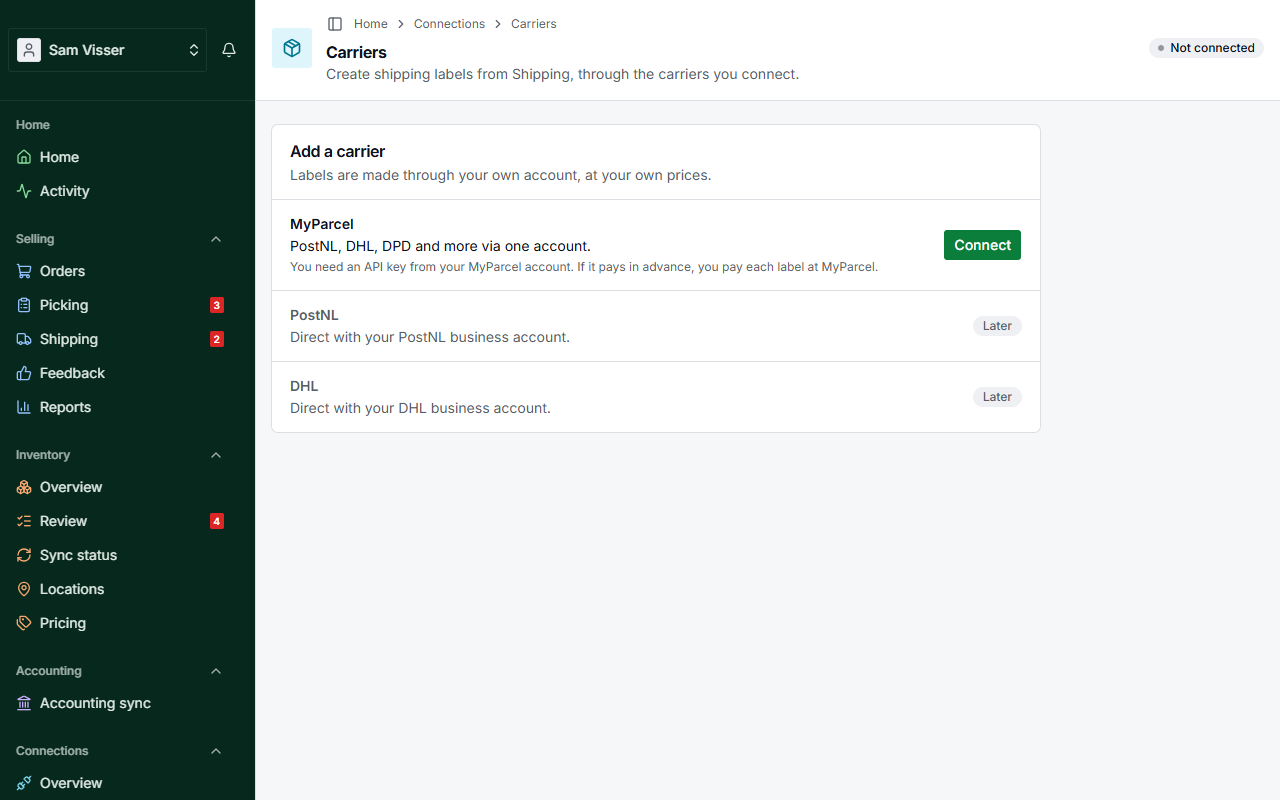
Table of Contents
- Add a carrier
- Connect MyParcel
- Your contract
- Label format
- Customs defaults
- Sender address
- Shipping methods
- Replacing the key or disconnecting
Add a carrier
Without a connection the page shows Add a carrier: the label services your account can connect, such as MyParcel, which gives you PostNL, DHL, DPD and more through one account. Click Connect next to the one you use. PostNL and DHL direct, with your own business account, are marked Later.
Once a carrier is connected, the page has a tab for each connection, one per label service, and a tab Add a carrier. Settings are kept per connection, so connecting a second service changes nothing on the first one.
Connect MyParcel
You need a MyParcel account. If your account pays in advance, you pay each label, or each run of labels, at MyParcel before it is made.
- Log in at
backoffice.myparcel.nlwith the account your labels are paid from. - In Shop settings, open Integration and create a new key named BrickInvoice, with the right to create shipments.
- Paste the key into API key and click Connect.
BrickInvoice checks the key before it saves anything, and stores it encrypted. The key is not shown again. If the check fails, you see why:
- MyParcel does not accept this key: check that you copied all of it, or create a new key in MyParcel.
- This key may not create shipments: the key works but lacks that right. Give it the right in MyParcel, or create a new key with it.
- MyParcel did not answer: nothing was saved. Try again in a moment.
Your contract
After you connect, the tab shows the carriers in your MyParcel contract, with their Package types and Options. These are the choices you get when you link a method or make a label. Click Fetch again when your contract has changed.
If BrickInvoice could not read your contract, you see We could not read your contract from MyParcel and can choose from the standard PostNL options until you fetch again.
Label format
Under Labels, choose the Format:
- A4, four labels per sheet, for an ordinary printer. With MyParcel you also choose where on the sheet to start. That is your default, and you can change it each time you print several labels.
- A6, one label per page, for a label printer.
Click Save.
Customs defaults
Orders to a country outside the EU need a customs declaration. Under Customs, outside the EU you set, per connection, what is filled in for every such order:
- Description, up to 50 characters with MyParcel.
- HS code, of 6, 8 or 10 digits. 950300 is the code for toys. The United States asks for 10 digits. You are responsible for the right code for what you send.
- Country of origin.
You can change them per order when you make the label.
Sender address
With MyParcel, labels carry the sender and return address of your MyParcel account. To change it, use Change it in MyParcel.
Shipping methods
Your buyers choose a shipping method on BrickLink or Brick Owl. You tell BrickInvoice once what each method stands for, so the label starts from the right carrier and package. The Shipping methods card at the top of the Carriers page says how many methods your orders have and how many are not linked yet. Click Link shipping methods to open the Shipping methods page.
The methods show up there by themselves from your orders, most used first. All and Not linked yet filter the list. The Status column shows one of:
- Not linked yet: you have not said how you ship it. A new method starts here.
- Linked: it makes a label with the carrier and package you chose.
- No label: you ship it by hand.
- No connection: it was linked to a carrier connection that is gone.
Click Link or Edit to choose how you ship a method:
- Make a label: choose the Connection, a Default weight in grams for orders that have none, and under Delivery Home address or Pickup point. What else you choose depends on the label service of that connection. With MyParcel it is the Carrier, the Package type and the Options your contract offers for that carrier. With insurance you enter an insured amount from 1 to 5,000 euros.
- No label: for a method you ship by hand, such as pickup.
Click Save. Labels that are already open do not change. The next review starts from your choice. You can also link a method while you review a label, by ticking Remember for that method. A different choice for a single order never changes the method itself.
Without a carrier connection your choices are kept, but you can only set a method to No label until you connect again.
Replacing the key or disconnecting
Under API key, Replace key saves a new key in place of the old one. Your label settings, customs defaults and shipping methods stay.
Under Disconnect, Disconnect MyParcel deletes the key and the settings on that tab, after you confirm. Your shipping methods and labels are kept. Methods that were linked to it show No connection until you connect again.