Shipping
Copy the buyer's address, add a tracking code or make a label, and mark your orders as shipped in BrickInvoice and on the store.
Shipping is where a picked order becomes a parcel: the address for the label, the shipping method the buyer chose, and the tracking code if you have one.
Table of Contents
- The Shipping page
- Right after picking
- Tracking codes
- What shipping does on the store
- Shipping one order
- Shipping labels
- Orders that were never picked
The Shipping page
Selling → Shipping lists the orders that are ready to go: picked in BrickInvoice, or already packed on the store (Packed on BrickLink, Processed on Brick Owl), and not shipped yet. The oldest order is at the top. An order that was packed on the store shows Packed on BrickLink or Packed on Brick Owl with its order number. The menu item shows how many orders are waiting, for example "3 to ship".
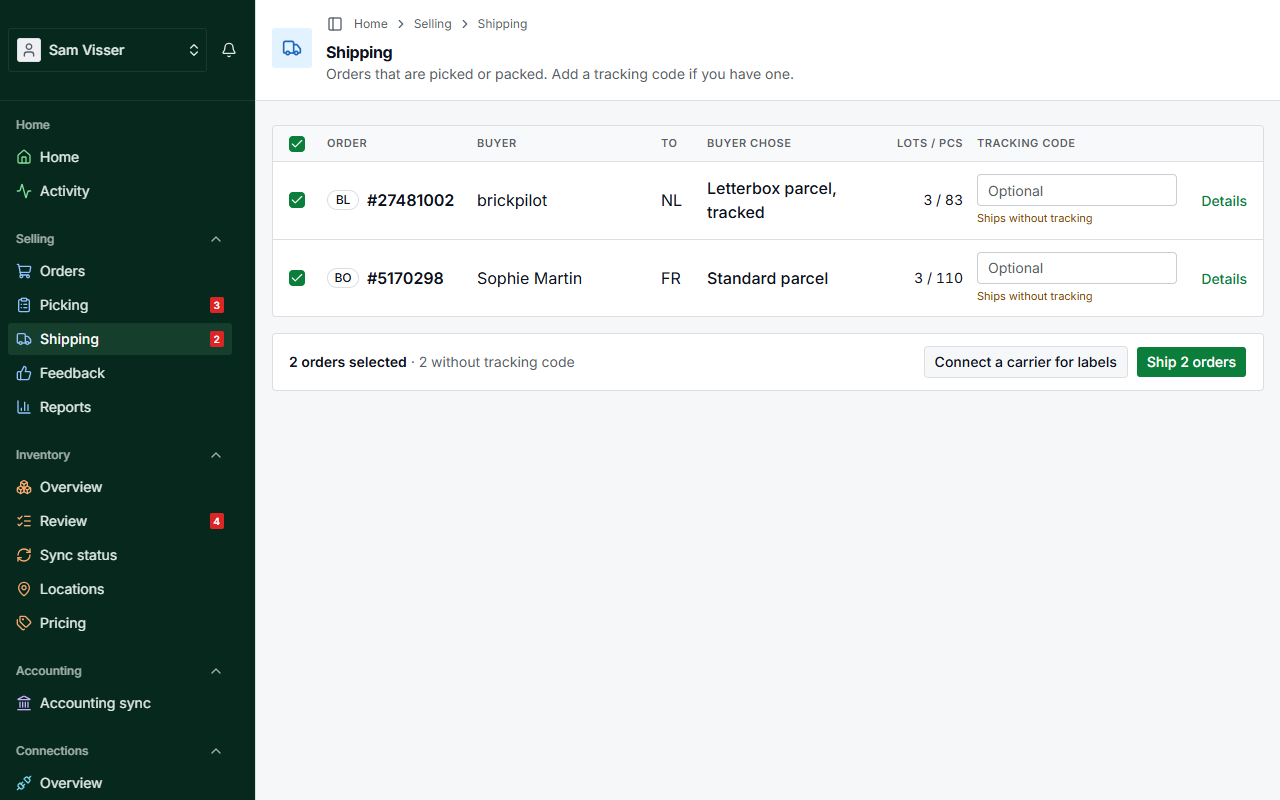
Each row has the order number, the buyer, the destination country (To), the shipping method the buyer chose (Buyer chose), the number of lots and pieces, a field for the tracking code and a Details link. The order number opens the order itself. Details opens the shipping page of that order, see Shipping one order.
Every order on the list is ticked for you. Untick the ones that are not going out today, type a tracking code where you have one, and press Ship N orders (for example Ship 3 orders). The bar next to the button counts the ticked orders and how many of them have no tracking code. The orders you ship leave this list.
If an order stopped being paid in the meantime, or was removed, it is not shipped and the page tells you how many were left out. The same goes for an order whose tracking code could not be saved: that order stays, the others go ahead.
Right after picking
When you finish picking, you land here. The orders you just picked stand at the top, under Just picked, ticked for you. Each card shows the address under Ship to with a Copy address button, the shipping method the buyer chose, the buyer's note (Note from the buyer) and the tracking code field, so you can write the label right away. If you picked several orders together, each card shows its letter, so you know which bag or box is which.
The other orders that are ready follow below, under Picked or packed. An order you ship from the Just picked block keeps its card, with a Shipped badge and its tracking code, so you can see it went.
The block only shows up straight after picking. Open Shipping from the menu and the orders are in the list as usual.
Tracking codes
A tracking code is optional. An order without one ships just as well, but the list marks it in amber with the text Ships without tracking, so you can tell a choice from an oversight.
A letter or a digital stamp has no tracking code at all. When you made its label in BrickInvoice, the list says No tracking for a letter in grey instead, and does not count the order as one without a tracking code.
Saving a tracking code does not ship the order. The code is saved as soon as you leave the field (or press Enter), and the field says Saved. When the inventory sync updates the store for that order, it says Saved. Goes to BrickLink when you ship. (or Brick Owl). You can add the code while packing and ship later. A code you typed just before pressing Ship is saved first, so it is not lost.
Once an order has shipped, its tracking code is fixed. The field is replaced by the code itself, with the text This order has shipped, so its tracking code is fixed. If the code went to the store, the text is Sent to BrickLink. Change it there. Add the code before you ship, or correct it on the store afterwards.
What shipping does on the store
Marking an order as shipped always updates it in BrickInvoice: it leaves Picking and Shipping, shows as Shipped on the Orders page, and keeps its tracking code and shipping date.
With the inventory sync running and the order's store in it, BrickInvoice also updates the store:
- Finish picking marks the order Packed on BrickLink (Processed on Brick Owl).
- Ship marks it Shipped on the store, then sends the tracking code you saved.
- On BrickLink, shipping also sends the "Thank You, Drive Thru!" e-mail to the buyer if you switched that on under Feedback.
The order page and the shipping page of the order show how that went, under On the store: Marked as shipped on BrickLink, Tracking sent to BrickLink, or what went wrong, with a Retry button.
Without the inventory sync, the text next to the button says Marks them as shipped in BrickInvoice, with the tracking codes you saved. Update the status on the shop yourself for now. Then the status and the tracking code on BrickLink or Brick Owl are yours to update there.
Shipping one order
Click Details on the Shipping page, or choose Ship in the order's menu on the Orders page, to open the shipping page of one order.
At the top, large, the shipping method the buyer chose, with what the buyer paid for shipping and the weight. Below it is the address under Ship to, with Copy address for the whole address. For carriers whose form asks for each part on its own, there are separate copy buttons for the street, house number, postcode, city and country. The house number is only split off when it is unmistakable. A field the order does not have is marked, for example Missing postcode.
If the buyer's billing address differs from the shipping address, the page says so. The buyer's note is shown where you cannot miss it. Under Contact you find the email address, phone number and the buyer's username on the store, each with a copy button.
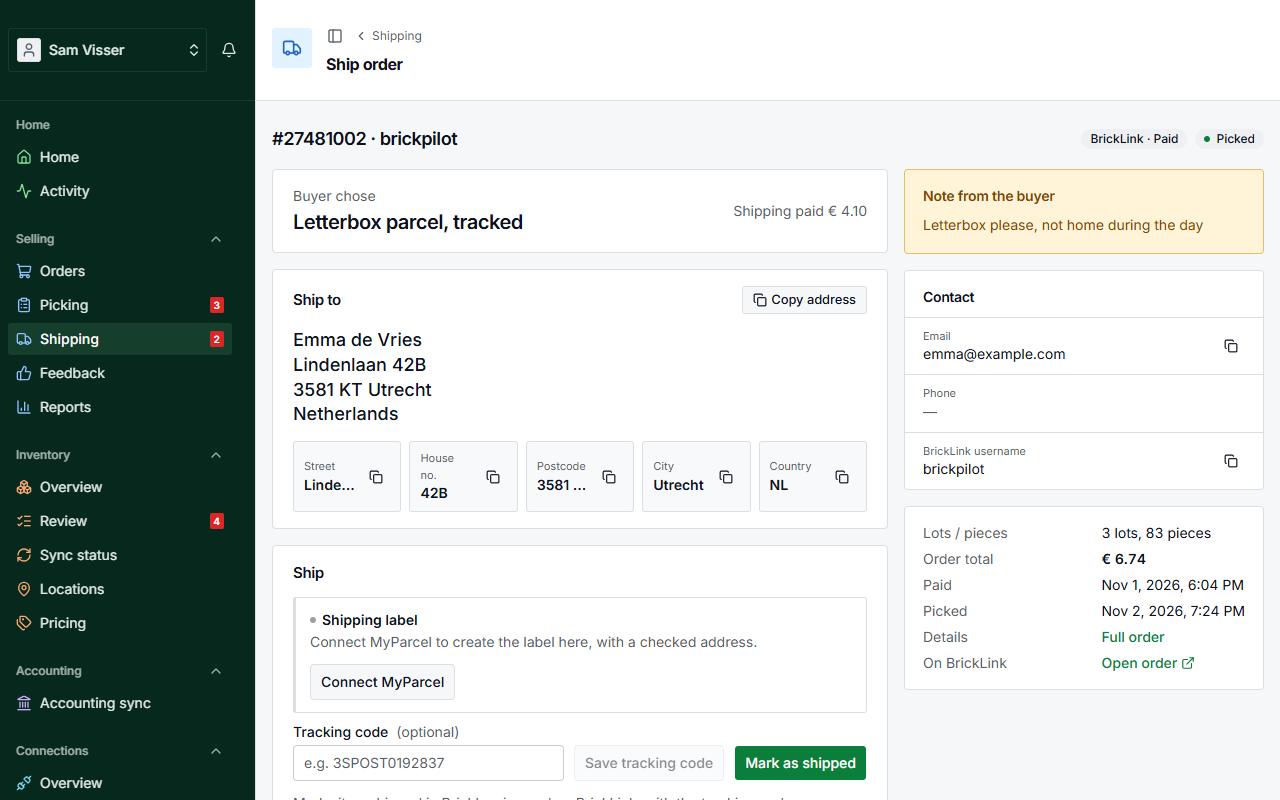
Next to it you see the lots and pieces, the order total, when it was paid and picked, a Full order link to the order page, and Open order to see it on BrickLink or Brick Owl. The badges at the top say whether the order is Paid or Packed on the store, and whether it is Picked, Not picked or Shipped.
Under Ship you save the tracking code and mark the order as shipped, with two separate buttons: Save tracking code and Mark as shipped. An order that is still awaiting payment shows no address yet, and a cancelled order or one on hold cannot be shipped from here.
Shipping labels
BrickInvoice can make the labels for you through a label service you connect, such as MyParcel. Connect your account with that service and link your shipping methods first, under Connections → Carriers: see Carriers. Labels go through your own account, at your own prices. With more than one connection, each shipping method says which one its labels go through. Until a carrier is connected, the Shipping page shows Connect a carrier for labels next to the ship button.
A row on Shipping whose shipping method is not linked yet shows Not linked with a Link it link, which takes you to the shipping methods. You can still make a label for that order. You choose the carrier and package type in the review.
Labels for several orders
Tick the orders on Shipping and press Create labels. The Create labels page lists each order before anything goes to the carrier, with how it is shipped, the address check, the weight, the customs declaration and, afterwards, the tracking code. At the top you see how many orders are Ready, need a Check or are Blocked, and a price indication from your prices at the label service. Click an order to open its review and fix what it needs.
Each order also shows what its label costs and what the buyer paid for shipping, both including VAT. When the buyer paid less than the label, that amount is marked. At the top, next to the price indication, you see what the buyers paid in total for the same orders and how much more or less that is than the labels. An order in another currency is converted to euros at the daily rate. Without a rate for that currency, the amount shows in the order's own currency and is not compared. Outside the EU there is no label price, only what the buyer paid.
In the review of an order you opened from this page, Save for this batch keeps your changes, such as the customs declaration, the weight or the carrier, and takes you back to the table. The order then says Saved from the review, and Create N labels makes its label with what you saved. An order that was Blocked, for example because its customs declaration had no value, goes along once you have saved it complete. Open the order again to see or change what you saved. What you saved stays on this page only: if you reload it, the orders start again from what BrickInvoice proposes. Confirm and create label still makes that one label right away.
Choose the label format at the bottom (A4, with MyParcel also the position to start at, or A6 with one label per page) and press Create N labels. Blocked orders are left out and stay in the list. One table holds at most 100 orders. Make those labels first and the rest from Shipping.
One run makes its labels through one connection. If the orders you ticked go out through more than one, the page says Create these labels per provider, with a button for each that opens a table with only its orders.
When the labels are made, you get one PDF with all of them (Download N labels), and the tracking codes are filled in on the orders. A label never ships an order by itself: go back to Shipping and ship the orders when they are packed.
If your MyParcel account pays for each label in advance, the page says so. Either pay at MyParcel and press Try again, or switch the account to paying afterwards in MyParcel.
A label for one order
On the shipping page of one order, the label sits inside the Ship block. Before there is one, it says No label yet and which carrier and package your setting for that shipping method uses. Create label opens the review: the carrier and package type (tick Remember for the shipping method to use the same choice next time), the address check, home address or pickup point, the weight and, outside the EU, the customs declaration. Nothing goes to the carrier until you press Confirm and create label.
Once the label is made, the block says Label made with the carrier, package and date, and Download label gets the PDF again. The tracking code from the label is put on the order, with a Track link. If you had saved a code of your own, BrickInvoice asks whether to Replace it or Keep mine. Don't use this label sets a label aside so you can make a new one. What that costs depends on the label service, and the dialog says so before you confirm. MyParcel cannot cancel a label, but does not charge one that is never handed to the carrier. A service that can cancel labels does so when you set one aside, and the block then shows whether it was cancelled.
Orders that were never picked
The Shipping list only shows orders that were picked in BrickInvoice or packed on the store. An order you packed straight from the shelf, without a pick session, is not on it. You can still ship it: choose Ship in the order's menu on the Orders page, which opens its shipping page with the status Not picked. Or mark it packed on BrickLink or Brick Owl, and it appears on the Shipping list once BrickInvoice has fetched the order again.