Editing and deleting lots
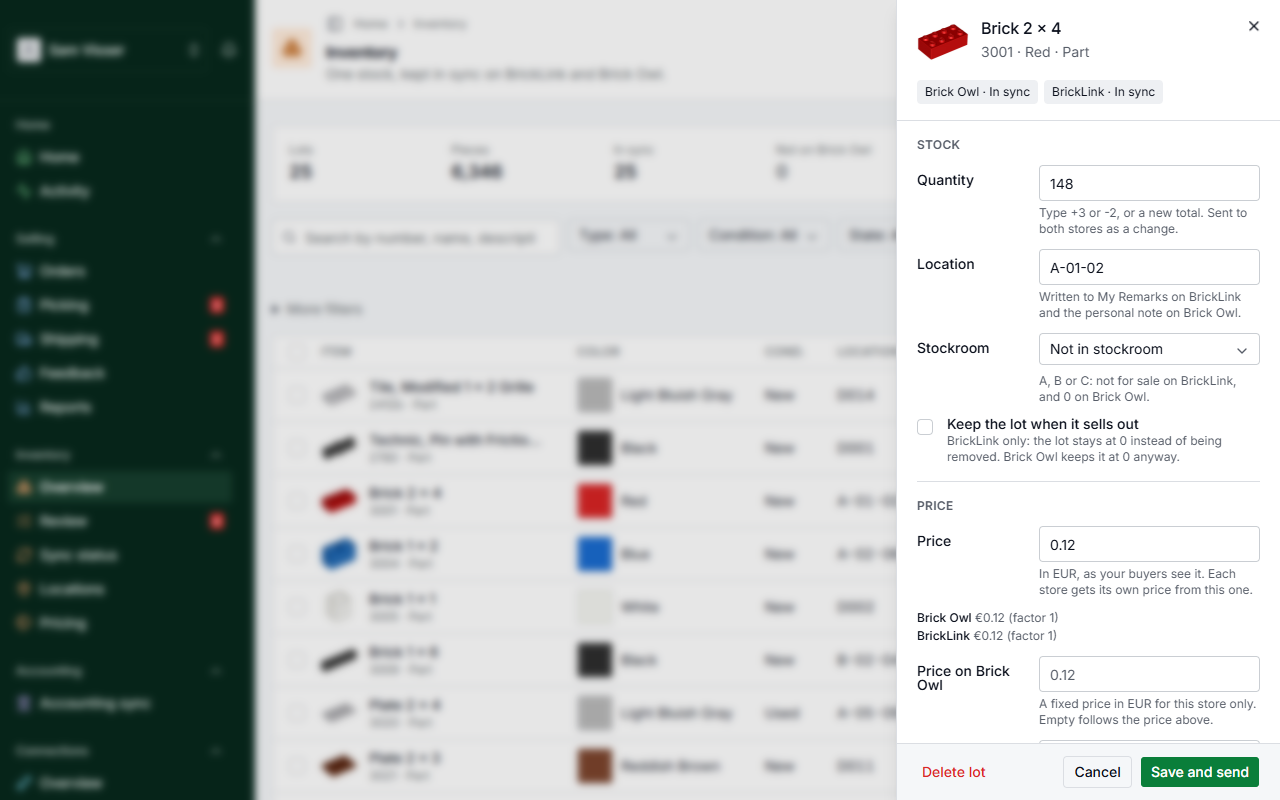
Change a lot in the side panel: count, price, location and the rest. BrickInvoice sends only what you changed to BrickLink and Brick Owl.
BrickInvoice is the place to change your stock. Open Inventory, choose a lot, and change it in the panel next to the list. What you change goes to BrickLink and Brick Owl for you.
Table of Contents
- Open a lot
- What you can change
- How your changes are sent
- When a store did not take the lot
- Delete a lot
- When the sync is paused
Open a lot
Choose a row in the list. The panel opens beside it, and the address holds the lot, so you can reload the page or share the link. Closing the panel brings you back to the same list, with the same filters.
At the bottom of the panel you see when the lot was added and when it last sold (the date, the number of pieces, the price and the order), or Not sold since a date. You also see the lot on each store with the date BrickInvoice last checked it, and a link to everything that happened to it in Activity.
If the lot was deleted in the meantime, the panel says This lot is not there any more. Close it to go back to your stock.
What you can change
- Stock: the count, the location, the stockroom (A, B or C) and Keep the lot when it sells out (BrickLink only).
- Price: your price, a price of your own per store, up to three tiered prices, a sale percentage, bulk, my cost and Lock price.
- Condition and text: new or used, the completeness of a set, the grade of a used lot and the description. The grade can follow your account setting or be set for this lot.
- Weight, and Keep this lot in sync.
The item and its color cannot be changed: that would be another lot. Add that lot instead.
Save and send saves your changes and sends them to the stores.
The sale percentage is kept in BrickInvoice only: each store keeps its own sale. To send it to both stores, turn on Sync the sale between your stores under Settings → Inventory. The panel says so next to the field.
A lot in the stockroom is not for sale on BrickLink and has 0 on Brick Owl, which has no stockroom.
How your changes are sent
The count: type +3 to add three, -2 to take two off, or a new total, up to 1,000,000. BrickInvoice sends the stores a change, never a fixed number. With +3 or -2 a sale that comes in while you edit is kept. A new total is worked out against the count at the moment you save, so a sale in between is overwritten.
The price: your price is the price your buyers see, in your base currency, with at most four decimals. Under it you see what each store gets: your price times the factor of that store, in the currency of that store, with or without VAT as that store prices. Set a price of your own for one store if it should differ from that. Changing only the exchange rate never sends a price.
The location goes to My Remarks on BrickLink and to the personal note on Brick Owl. A change of location is recorded, with who made it and why. Under Moved in the panel you see the last moves of the lot ("D0412 → D1580 · 3 Oct · bulk action"). A bulk action that moved many lots is one line in Activity that opens to the lots it moved.
Only what you changed is sent. If you change just the location, nothing else is touched on the stores.
When a store did not take the lot
Sometimes a store refuses a new lot or a change. The panel then says, for example, Brick Owl did not take this lot. Fix the cause and choose Try again on Brick Owl, or choose Keep off Brick Owl to keep the lot on your other store only. Either way the lot is no longer out of sync.
Delete a lot
Delete lot asks first. The lot leaves your list and your stock, and BrickInvoice removes it from both stores. Its history stays in Activity.
When the sync is paused
The sync pauses when your free trial ends without payment details, when your inventory plan is no longer active, or when fewer than two stores are connected. While it is paused the panel shows everything, but you cannot save or delete anything, and the panel says why. Add lot is not offered either.
To come back, follow the banner on Inventory: add payment details or connect your second store, and then review what changed on your stores. See Resuming after a pause.