Sync status
How well your two stores match, what waits to go to each store, changes the safety brake holds, problems to look at, and resuming after a pause.
Inventory → Sync status opens the page Inventory sync. It shows how well your two stores match and whether both are up to date. The menu item shows a number when changes are held or problems are open. How the sync itself works is in How it works.
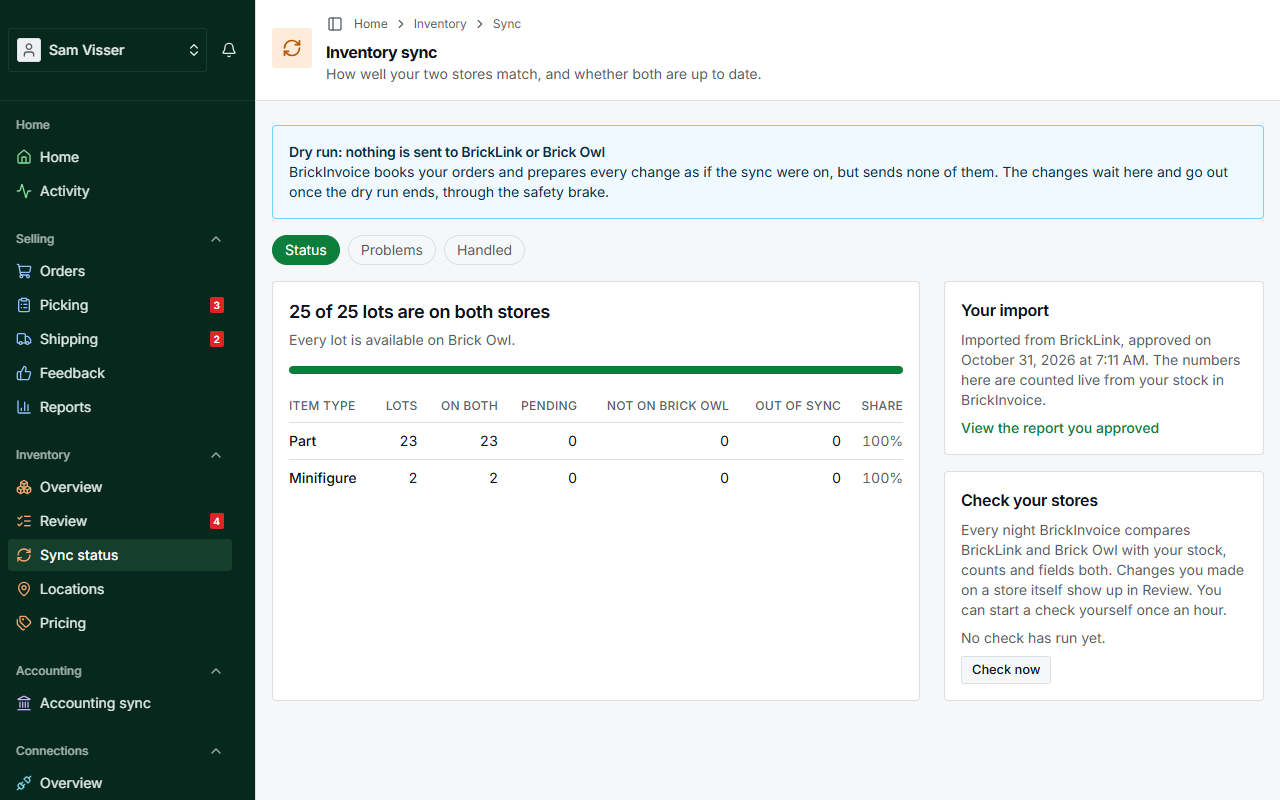
Table of Contents
- How well your stores match
- Changes to your stores
- The safety brake holds changes
- Problems
- Your import
- Check your stores
- Dry run
- Resuming after a pause
How well your stores match
The Status tab counts your lots per item type: Lots, On both, Pending (still being matched), Not on Brick Owl, Out of sync and the Share on both stores. Like the key figures in the overview, it counts the lots you have stock of: a sold-out lot is not Pending, but it does count under Out of sync when it is. The numbers under Not on Brick Owl and Out of sync link to those lots in the overview. Lots not on Brick Owl are normal. See Not on Brick Owl. On a phone, the table scrolls sideways inside its card.
Changes to your stores
Once the sync runs, the page shows per store what is on its way and what waits:
- changes on the way to the store
- a store that cannot be reached right now: its changes go through automatically once it answers again
- a store that reached its daily limit: its changes resume at the time shown
- changes that wait on your choice in Review, with Go to Review
- changes held by the safety brake (see below)
- changes that wait on a check of the store
- lots that go to Brick Owl once they leave your BrickLink stockroom
- changes that failed, listed under Problems
- new lots Brick Owl cannot take because it is taking the item out of its catalog in that color: correct the color on BrickLink, and the next check puts the lot on Brick Owl
- after a pause, changes that wait until you approve resuming, with Review the changes
When a store has not been checked for orders for a while, a banner above says so, here and on Home. See When a store does not answer.
The safety brake holds changes
When a round would change more than 5% of your lots or remove more than 10, BrickInvoice sends nothing and shows Safety brake: changes are on hold at the top of the page. It says how many changes and lots are held, how many of them remove a lot, and how many go to each store.
- Continue sends the changes to your stores now.
- Cancel asks first. With Cancel the changes nothing is sent, and your stores may then differ from BrickInvoice: the next check puts each difference in Review for you to settle. Keep them on hold leaves the choice open.
If more changes were held since you opened the page, BrickInvoice asks you to look again before you choose.
Problems
The Problems tab lists what needs a look. Nothing is lost: Mark as handled moves a line to the Handled tab, with the date. Each line has a summary and, where it helps, a button: Open order, View in the overview or Go to Review. An oversold lot is red. The rest is amber.
The kinds you can see:
- Oversold: both stores sold the last pieces. The line names the order, so you know which buyer to contact.
- Count was short: BrickInvoice had fewer pieces of a lot than an order asked for.
- Several lots matched and Not matched: an order line that BrickInvoice could not tie to exactly one of your lots.
- Change failed and Check failed: a change for a store did not go through, or could not be checked.
- Leaves the catalog: Brick Owl is taking an item out of its catalog in that color.
- Safety brake: a round the brake held.
- Needs a look: anything else.
Your import
The Your import card says from which store you imported and when you approved it. The numbers on the page are counted live from your stock in BrickInvoice. View the report you approved opens the import report.
Check your stores
Every night BrickInvoice compares BrickLink and Brick Owl with your stock, counts and fields both. Changes you made on a store itself show up in Review. The Check your stores card says when the last check ran. Check now starts one straight away. You can do that once an hour. Differences show up in Review when it is done. While the sync is paused, no check can be started.
Dry run
When your account is in a dry run, the page shows Dry run: nothing is sent to BrickLink or Brick Owl. BrickInvoice then books your orders and prepares every change as if the sync were on, but sends none of them. The changes wait here and go out once the dry run ends, through the safety brake.
Resuming after a pause
When the sync was paused and you added payment details or connected your second store again, the banner on Inventory offers Review the changes. That opens Resume inventory sync. Your stores kept selling during the pause, so nothing is sent until you approve. Stay paused leaves at any step.
- Compare stores. Compare both stores reads BrickLink and Brick Owl, books the orders placed during the pause as ordinary orders, and puts what BrickInvoice cannot explain in Review. Nothing is sent to either store. It runs on our servers, so you can leave and come back. If it stops, Try again.
- What changed. The report shows how long the sync was paused, the orders per store, the changes to send, the lots oversold during the pause (listed on the Problems tab, with the buyer to contact) and the differences left for Review. Approve and do a dry run approves it. If differences are still open in Review, choose Continue with these differences left as review items: you settle them once the sync runs again, and their field changes stay on hold until you do. If your stores changed more than the report covers, Compare again.
- Dry run. Per store, the updates, new lots and deletions that go out when you resume, plus the statuses and tracking codes of orders you shipped during the pause. Nothing has been sent yet. Continue goes on. Back to the report goes back.
- Resume. The step shows the days you were paused, whether the orders from the pause cost a fee, and what you pay from now on. You confirm that BrickInvoice manages your stock again, and that changes you made directly on a store during the pause stay as they are until you resolve them in Review. Resume sync reads both stores once more and sends the changes from the dry run. If more moved than your orders explain, or a store could not be read, you see the report again. The safety brake still applies.
Orders placed during the pause are booked. After a trial that ended or a plan that stopped, they are never charged. After a removed connection, they are charged in the month you resume, like any other order: the sync handles them then. See When the trial ends or the sync pauses.