Review
What the nightly check finds on BrickLink or Brick Owl that differs from BrickInvoice, and what each choice in Review does.
Every night BrickInvoice compares both stores with your stock. When a store differs and no order or pending change explains it, the lot goes to Inventory → Review. Nothing is taken over or set back until you choose. The Review menu item appears once your import is approved, with the number of lines waiting next to it.
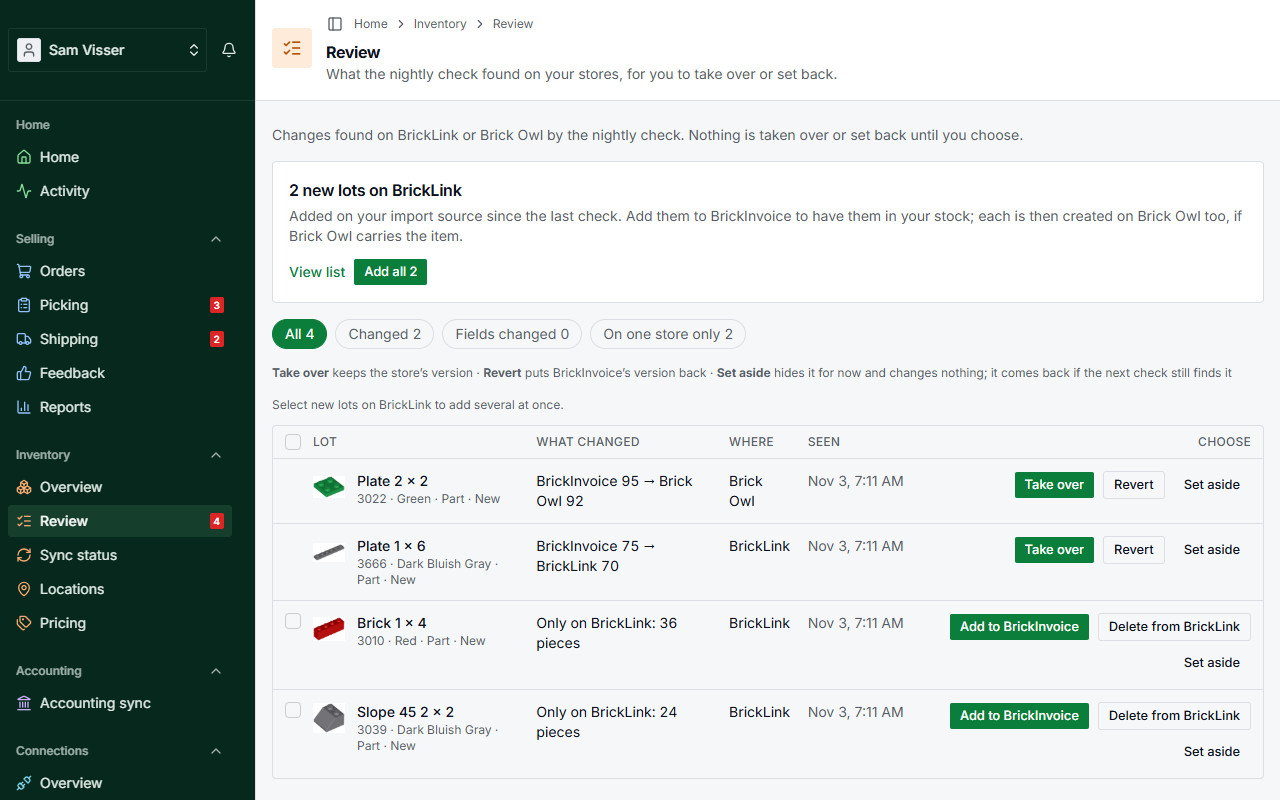
Table of Contents
- Why a lot is in Review
- A count that differs
- A field that changed on a store
- A lot on one store only
- A lot that is gone from a store
- Set aside
- When a choice is refused
Why a lot is in Review
Usually because something changed directly on BrickLink or Brick Owl: you edited a count, added a lot or removed one there. BrickInvoice never copies such a change and never undoes it by itself. Review is where you decide.
The list has four tabs: All, Changed for counts that differ, Fields changed for a price, description or other field changed on a store, and On one store only for lots that one store has and the other, or BrickInvoice, does not. Above the list a short legend repeats what the three main choices do: Take over keeps the store's version, Revert puts BrickInvoice's version back, and Set aside hides the line for now and changes nothing.
You do not have to wait for the night: Check now on Sync status starts a check, once an hour.
A count that differs
The line shows BrickInvoice's count next to the store's.
- Take over keeps the store's count. BrickInvoice changes to it, and your other store follows.
- Revert puts BrickInvoice's count back on that store. Nothing else changes.
When the lot differs on both stores, you see three counts: BrickInvoice's and each store's. Choose Keep … on the one that is right. Every place that differs is set to it.
Changes are sent as a difference, not as a fixed number. A sale that came in between the check and your choice is not overwritten.
A field that changed on a store
The line shows each field that changed on the store since BrickInvoice sent it, for example a price you changed on BrickLink.
- Take over keeps the store's value. A price stays that store's own price for the lot. Any other field becomes BrickInvoice's, and your other store follows.
- Revert puts BrickInvoice's value back on that store.
Until you choose, BrickInvoice sends no other field changes for that lot. See Changing a lot on BrickLink or Brick Owl.
A lot on one store only
A new lot on a store
The store has a lot that BrickInvoice does not know, for example a lot you added there yourself.
- Add to BrickInvoice adds the lot to your stock with the count the store has. BrickInvoice checks that count on the store straight away, in case some sold since the nightly check. When your other store carries the item, the lot is also created there, as with Add lot.
- Delete from BrickLink or Delete from Brick Owl removes the lot from that store. Review asks you to confirm first, and the lot is not put back automatically. Nothing changes on your other store.
New lots on your import store can also be added in one go. See Adding stock.
A lot of yours that lost its link
The store has a lot that matches one of yours, but BrickInvoice no longer knows it is the same lot.
- Link to my lot links them again. BrickInvoice takes over the store's count and your other store follows.
- Delete from BrickLink or Delete from Brick Owl removes the store's lot, for example when it is a second copy of a lot that is already linked. Review asks you to confirm first.
A lot that is gone from a store
BrickInvoice still has the lot, but the store no longer does.
- Take out of stock deletes the lot, as Delete lot in the lot panel does. Review asks first: the lot leaves your stock and is removed from any store that still has it. The store that lost it is left as it is. Its history stays in Activity.
- Add to BrickLink or Add to Brick Owl puts the lot back on that store, with the count, price and fields it has in BrickInvoice now.
A lot that can be on your other store now, for example once Brick Owl knows its part, shows Not on Brick Owl yet. Add to Brick Owl puts it there.
A sold-out lot that Brick Owl removed by itself while BrickInvoice also has 0 does not show here: that is expected.
Set aside
Set aside takes the line off the list without changing anything, in BrickInvoice or on your stores. If the next nightly check still finds the same difference, the line comes back. Use it when you want to sort something out on the store first.
When a choice is refused
Some choices cannot go through, and the line says why:
- This lot is excluded from the sync. Include it again first. Tick Keep this lot in sync in the lot panel, then choose again.
- This lot is already on that store as another lot. Remove the duplicate on the store yourself.
- This lot is in your BrickLink stockroom, so Brick Owl should have 0 of it. Choose Revert on the Brick Owl line instead.
- This cannot be done from BrickInvoice yet. Do it on the store yourself, or set the line aside.
While the sync is paused, nothing in Review can be resolved.