Choosing your import source
Your stock is imported once, from the store you choose. Why you choose once, and how to pick the right store.
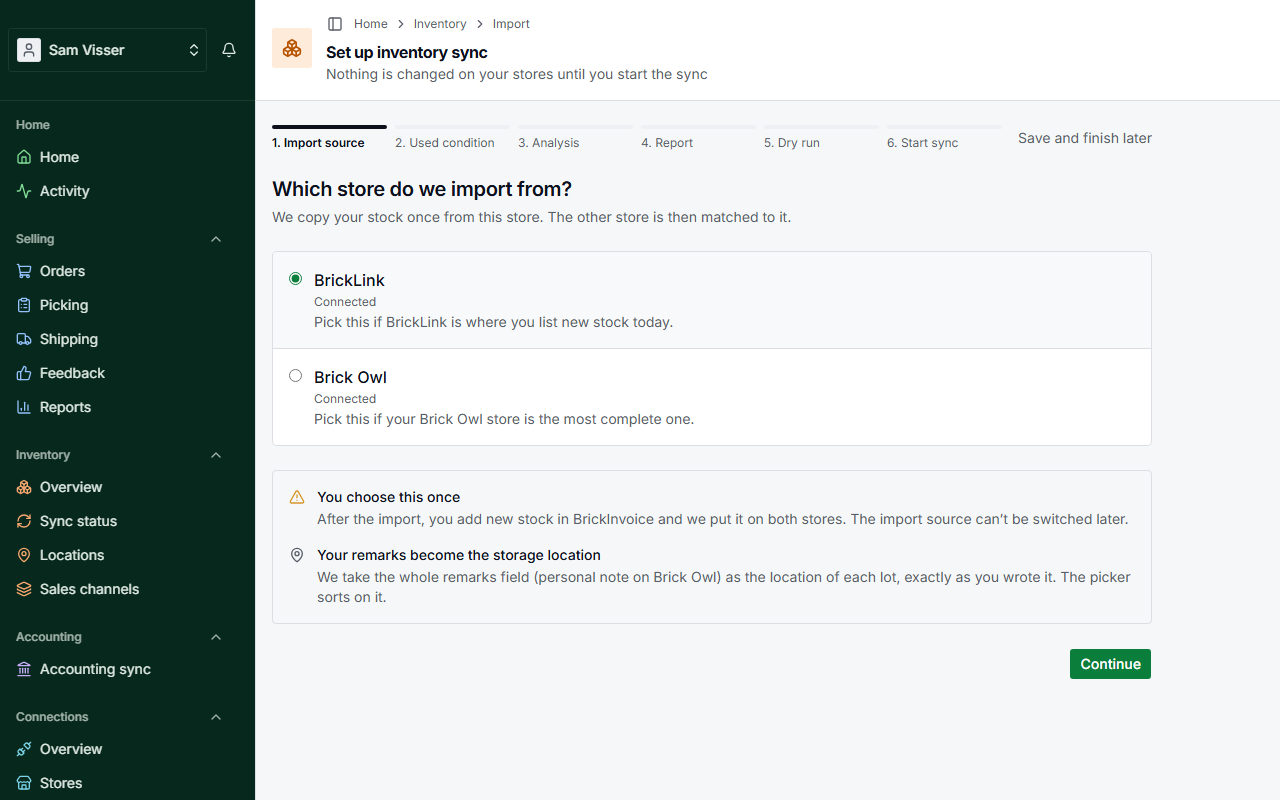
The first step of the import asks which store your stock comes from: BrickLink or Brick Owl. BrickInvoice copies your stock once from that store, and matches the other store to it.
Table of Contents
Which store to pick
Pick the store that is most complete and most up to date. The screen helps: BrickLink is the one to pick if it is where you list new stock today, Brick Owl if your Brick Owl store is the most complete one. Lots that only exist on the other store are counted in the report, not lost. You decide about them later.
The same screen reminds you that the whole remarks field of a lot (the personal note on Brick Owl) becomes its storage location.
When you press Continue, BrickInvoice checks that your Brick Owl API key may read your inventory. If the key lacks the permission Store Inventory / Coupons, the import stops with a notice that tells you how to tick it on Brick Owl. You do not need a new key: tick the permission, save it on Brick Owl and choose Check again.
You choose this once
Until the analysis starts you can go back and choose the other store. From then on the import source can't be switched: after the import you add new stock in BrickInvoice, and switching the source would change where your stock comes from. You can import again from the same store as long as the sync has not started.
Your store's currency
Your stock's prices are in the currency of your import source. BrickInvoice reads the currency of your Brick Owl store from Brick Owl, and that of your BrickLink store from your latest BrickLink order. Without a BrickLink order yet, the first step asks you for it.
Both stores start with prices that include VAT. You can change that per store later under Inventory → Sales channels (see Prices per sales channel).