Picking
Pick paid orders line by line, sorted by storage location, from your phone or from a printed pick list.
Picking is the morning job: which orders came in, and where in your storage are the parts? BrickInvoice turns every paid order into a pick list, sorted by the storage location you keep on your lots.
Table of Contents
- Where the location comes from
- The Picking page
- Picking an order
- The letter of an order
- Finishing an order
- Picking several orders together
- Not found
- Correcting the lot
- Picking time
- Pausing and continuing
- Printing pick lists
- Why an order is not in the list
Where the location comes from
With the inventory sync on, the location of a line comes from your inventory in BrickInvoice: the place of the lot the order was booked on. A lot you moved in BrickInvoice is picked at its new place, even before the stores show it.
Without the inventory sync, or for an order the sync has not booked yet, the location is the remarks field of the lot on BrickLink, or the personal note on Brick Owl: the whole field, exactly as you typed it. There is nothing to configure. Whatever format you use (A12, Box 3 / Bin 7, 2-14-5), the list is sorted naturally, so A-2 comes before A-12.
A line without a location is listed last.
An order line from more than one place
A lot can lie on more than one place. An order is then taken from the oldest stock first, and the pick list shows exactly those places: an order line of 2 taken from two places is two lines, each with its own location and 1. Each line is sorted by its own location, like any other.
- The pick screen says how big the whole order line is and where the rest lies: "Order line of 12 · the other 4 are at A-02-16".
- In the list of all lines and on the printed pick list, the line says "1 of 2 locations".
- Before and after picking, the line shows what is left at that place and in the whole lot once it is out: "Left here: 0 · in the lot: 4".
- Not found and Correct lot correct that place, not another place of the same lot.
The Picking page
Selling → Picking lists every paid order that has not been picked yet, oldest first. The menu item shows how many are waiting, for example "4 to pick". Each order shows when it was ordered, the buyer, the number of lots and pieces, and a status: New for an order nobody started, Picking with "2 of 5 lines picked" for one you started. An order you started also shows its letter.
Press Pick to start, or Continue to pick up where you left off. You can also start from the Orders page: choose Pick in an order's menu, or press Pick on the order page.
Next to the list (below it on a narrow screen) are two blocks:
- Not found while picking: lines you marked as not found in earlier sessions, with your note, so you can contact the buyer or fix the lot.
- Not in this list: how many orders are still awaiting payment, with a link to them on the Orders page.
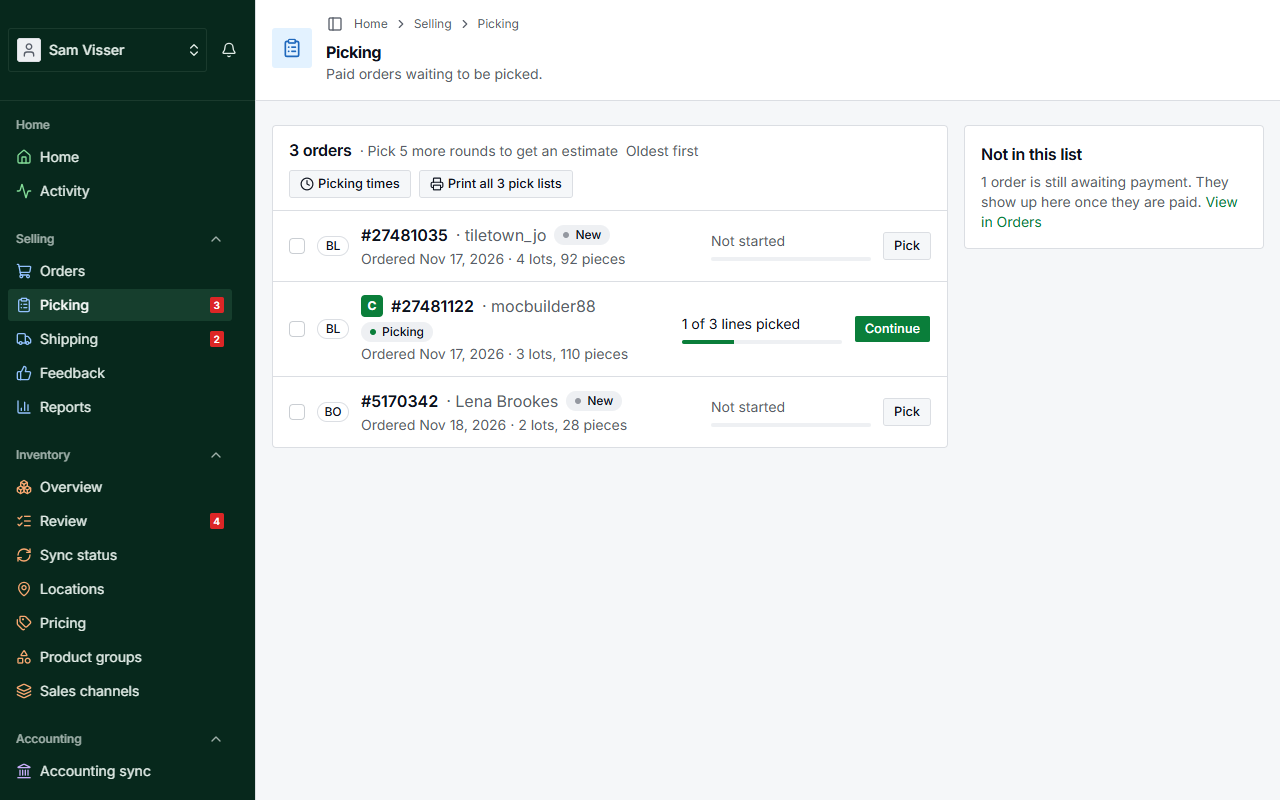
A round of several orders you started together stands at the top as one Pick round block, with the progress of each order and Continue round. See Picking several orders together.
Picking an order
The pick screen is built for a phone. It shows one line at a time on a card: the storage location in large type, the order's letter beside it, and the image of the part next to its name, item number, color and condition, with the quantity below. The arrows at the top of the card go to the previous and the next line, around "Line 3 of 12".
- Picked 4 (the button shows the quantity of the line) marks the line as picked and moves on to the next one. It stays at the same spot at the bottom of the screen for every line.
- With the inventory sync on, the line says how many pieces stay in the lot once you have taken them: "Left after picking: 12". Check the bin right there: after taking 4, there should be 12. The number stays at the quantity the line asks for, also while you count. When an earlier line of the same pick takes from the same lot (two orders picked together, say), that is taken off too, so the number matches the bin when you get there.
- A line of more than one piece has − and + next to its quantity, for counting in parts. When you count fewer than the line asks, the button reads Picked 3 of 4. It asks first, then marks the rest as not found.
- The next arrow skips a line for now. It stays open and comes back later. The previous arrow goes back one line.
- The line you handled last stays above the current one as one row, with Undo, so a tap you did not mean is easy to put back. With the inventory sync on, it also says how many pieces are left in the lot (and at that place, for a lot on more than one place).
- A line you already handled shows Already picked, with Undo and Next open line.
- Below the card stand the other lines: first the open ones (Up next), then the ones you handled (Done). The first line of Up next is the one Picked goes to. When it lies at the same location as the line you are on, it says Same location, so you take both from the bin in one go. Tap a line to jump to it. The list button at the top switches to a compact list of all lines.
- With the inventory sync on, Correct lot next to "Left after picking" fixes the location or the count of the lot. See Correcting the lot.
- The ⋯ button at the top holds Sort lines by (Location, Color or Order, the order's own sequence) and Finish picking. On a computer screen these stand at the top next to each other.
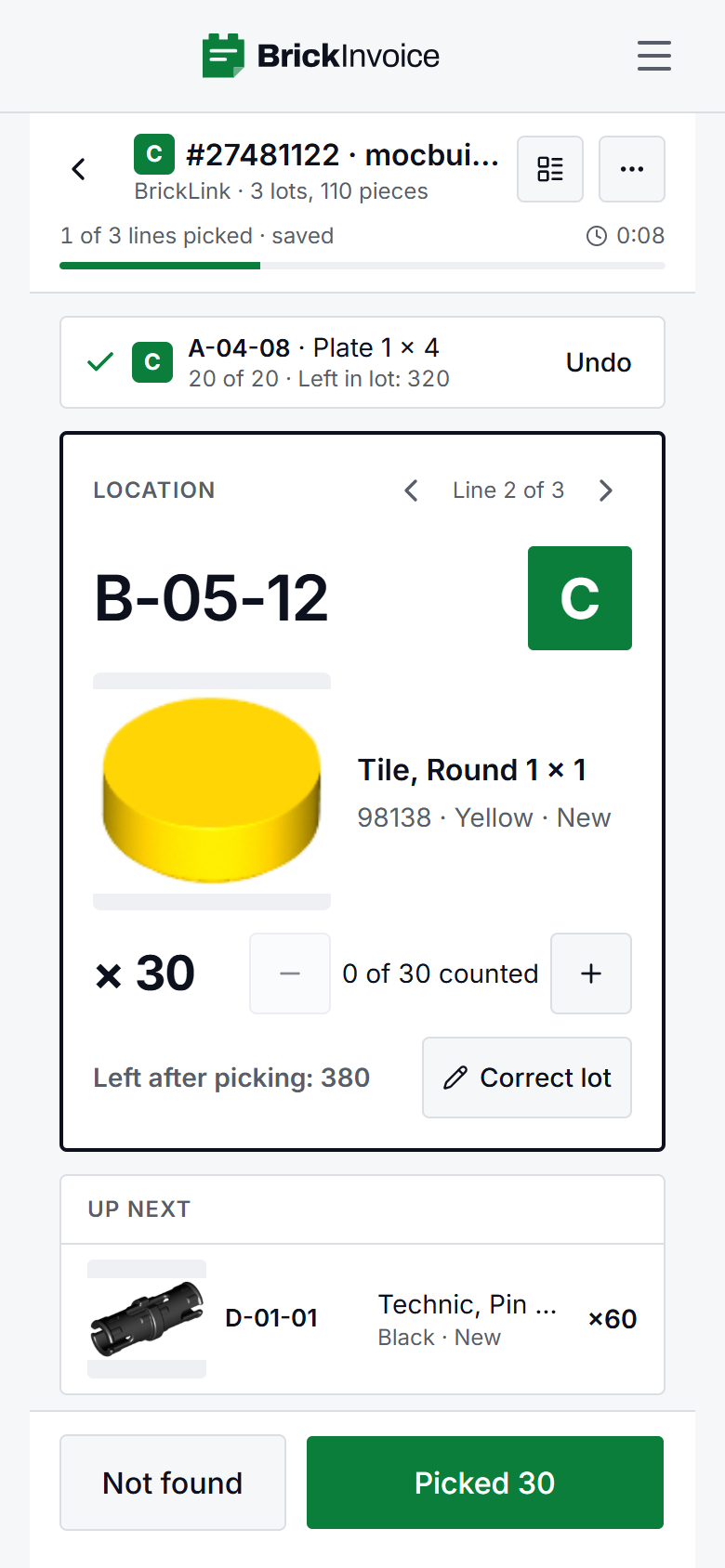
Every change is saved the moment you make it. The small "saved" text next to the progress tells you so.
Images come from the BrickLink catalog. A Brick Owl line uses the image Brick Owl sends with the order, in color. Only when there is none, the image is found through the LEGO design number, and then it has no color. A Brick Owl line also has View on Brick Owl, in the ⋯ menu of the card.
On a computer
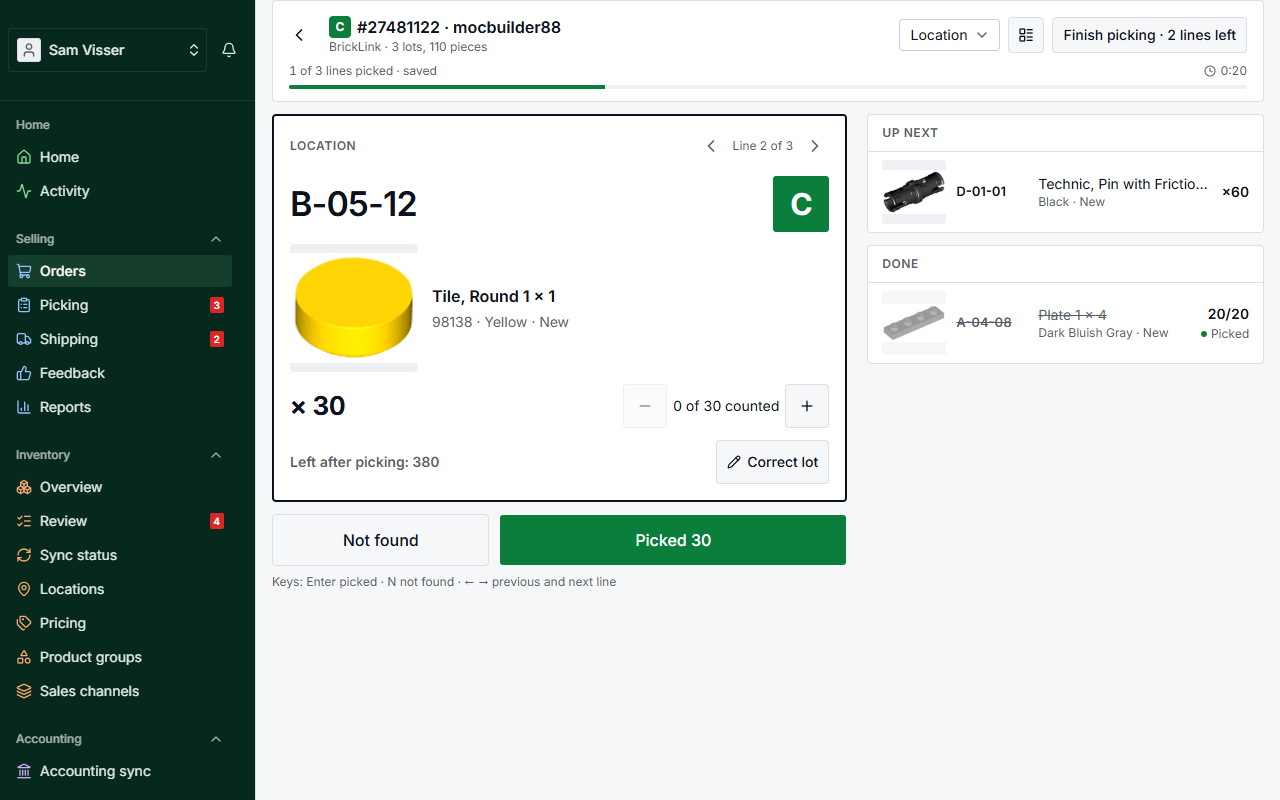
On a wider screen, such as a laptop at your packing table, the line stands on the left with Not found and Picked right under it, and the rest of the round on the right. You can pick with the keyboard: Enter is Picked (on a line you already picked: Next open line), N is Not found, and the ← and → arrow keys go to the previous and next line. The keys do nothing while you type in a field or have a dialog or menu open.
The letter of an order
Every order gets a letter the moment you start picking it, on its own or together with other orders: the first letter that is free, A to Z, then AA to ZZ. Write it on the bag or the box. The order keeps its letter until it ships, and you see it on the pick screen, on Picking, on the printed pick list and on Shipping, so you know which bag is which. Once the order has shipped, its letter is free again.
Finishing an order
When every line is handled, the screen says Every line handled, and Finish picking is the large button at the bottom. Press it, or Review the lines first if you want to look them over.
You can also finish with lines still open: choose Finish picking · 2 lines left in the ⋯ menu at the top (on a computer, the button at the top). BrickInvoice asks first: the open lines are marked picked in full, and lines you marked not found stay as they are. Confirm with Mark picked and finish.
After finishing, you go straight to Shipping, where the orders you just picked are waiting at the top. With the inventory sync running, finishing also marks the order Packed on BrickLink (Processed on Brick Owl). See What shipping does on the store.
Picking several orders together
Walking through the storage once for several orders? Tick the orders you want on the Picking page, then press Pick together. Nothing is ticked for you: you choose. Tick at least two and at most 26. An order you already started on its own can be ticked too: it joins the round with what you picked so far, and keeps its letter. Orders that are already in an open round have no tick box. The bar at the bottom counts the ticked orders and has Clear to untick them.
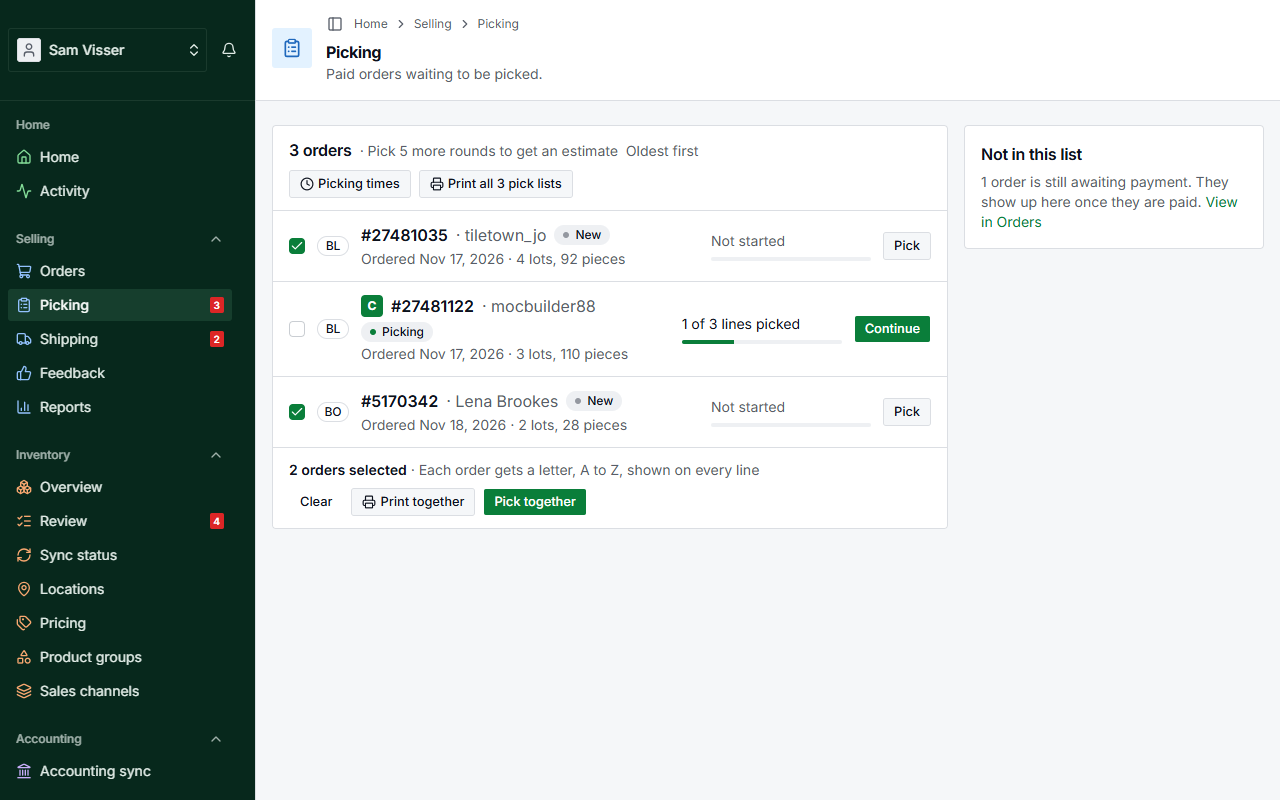
Each order in the round has its letter. Orders that don't have one yet get the first free letters, oldest order first. The letter is shown large on every line, so you know which order each lot belongs to. The top of the pick screen says how many orders are in the round. Tap it to see the orders, their letters and their progress. The lines of all orders are in one list, sorted by location: when two orders need the same lot, the lines stand next to each other.
The round works like picking one order, and Finish picking completes all of them at once. If one of the orders is cancelled or changed in the meantime, the others still complete, and that order stays open on the round's page with a message that says so. Starting a round is all or nothing: if one of the ticked orders can no longer be picked, none of them is started and the message names the orders that are in the way, so you can untick them and start again.
Not found
Can't find a part, or not enough of them? Press Not found, enter how many you did find under Found and, if you like, a note under Note (optional) ("bin empty", "3 damaged"), then press Mark not found. The line is marked and listed on the Picking page afterwards. Nothing is sent to the buyer or to the store: that remains your call.
With the inventory sync on, the dialog also shows where the lot lay before ("It lay earlier at D0412"): a lot that was moved on paper often still lies at its old place.
With the inventory sync on, you can also correct the lot from here. Nothing about the lot changes unless you tick it:
- The lot holds fewer: enter how many pieces are left in it after you took what you found. BrickInvoice shows how many it expects there and sends the difference to both stores, so an order that comes in meanwhile is kept.
- It lies somewhere else: enter where it lies now. Both stores get the new place, and the move shows in the lot's history.
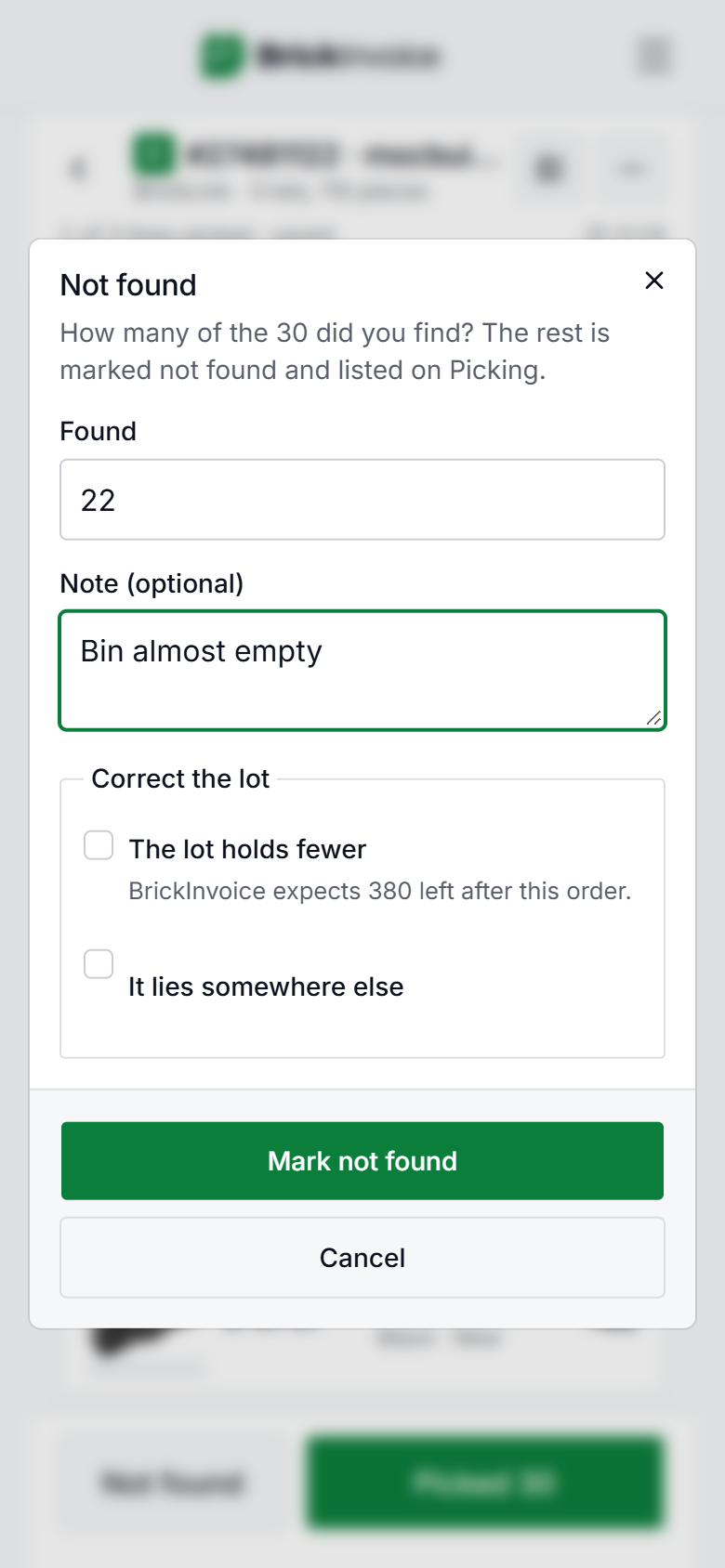
A correction shows in the lot's history like any other change. Corrections are not possible while the inventory sync is paused.
Correcting the lot
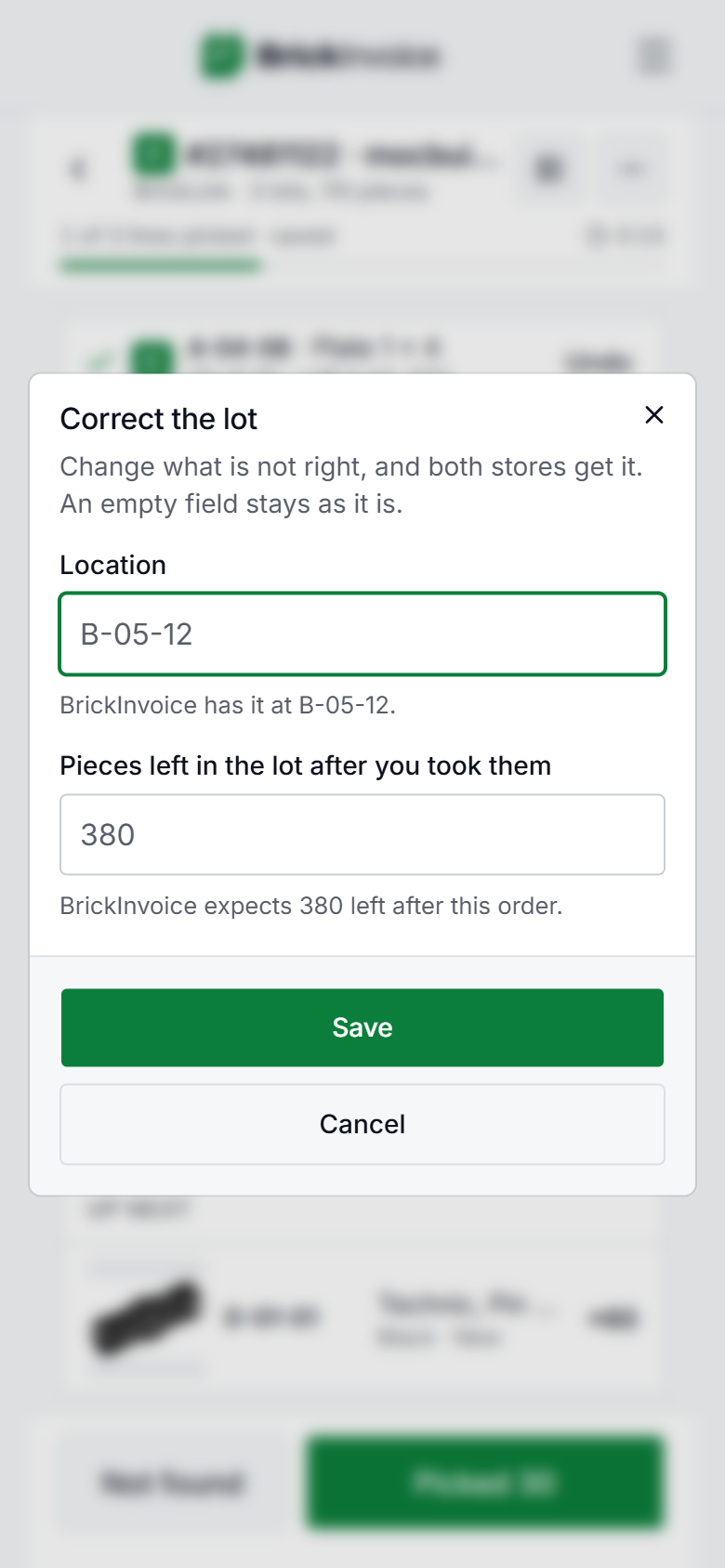
Found everything the line asks, but the lot lies at another place, or the bin holds fewer than BrickInvoice says? With the inventory sync on, Correct lot under the line fixes the lot without marking anything as not found. It works on a line you already picked too: right after picking is when you see that the count is off.
Correct the lot asks for the place where the lot lies now, the number of pieces left in it after you took this line, or both. It says where BrickInvoice has the lot and how many it expects to be left. A field you leave empty stays as it is. Press Save: the lot changes, and both stores get the change. The new place or count shows in the lot's history. As with Not found, it is not possible while the inventory sync is paused.
Picking time
The pick screen keeps a clock at the top, next to the progress: how long you have been picking this order, or this round of several orders. Only active time counts: the clock pauses when you switch to another tab or app, and after 5 minutes without a tap, and it shows Paused until you carry on. Continuing on another device, or tomorrow, carries on with the same time. Two devices at once do not count twice.
After Finish picking, Shipping shows the round you just picked: how long it took, and how many orders, lots and parts it had. Did the round not go as usual (you were called away, you were trying things out)? Press Don't count this round. Count this round takes it back in.
Picking times, the link at the top of the Picking page, lists your latest rounds, newest first, with whether each one counts. Above them are your averages per round, per order, per lot and per part. You can leave a round out or take it back in there too.
The estimate
From 5 counted rounds on, BrickInvoice estimates how long picking takes: on the Picking page next to the number of orders ("about 40 min"), for the orders you tick before Pick together, and on Home. Until then it says how many more rounds it needs.
The estimate learns from your latest 50 counted rounds, so it follows you as you get faster. The averages on Picking times are over the same 50 rounds. Below 20 rounds it looks at lots and parts only. From 20 rounds on it also learns the fixed time a round and an order take, so a round of many small orders is estimated differently from one large order.
A round counts when you finished it with measured time and did not leave it out. A round in which no time was measured is listed as No time measured and never counts. An order you started on its own and then added to a round of several orders leaves its time so far behind: the round measures from when you start it, and the order's own start is not listed.
Pausing and continuing
Close the browser, switch to another phone, or pick up tomorrow: the session is saved on the server, not on your device. Open Picking and press Continue (or Continue round for a round of several orders).
Printing pick lists
Prefer paper? Print all 3 pick lists on the Picking page opens one A4 page per order. The number is how many orders are waiting. Each page has the order details, every line in location order with a tick box, and a "Picked by" line at the bottom. With the inventory sync on, each line also says what is left in the lot after it, as on the pick screen. An order line taken from more than one place is a line per place, with "1 of 2 locations, order line of 2" under the item. Print it, or choose Save as PDF in your browser's print dialog. Printing does not start a pick session.
Picking several orders on paper works the same way. Tick them on the Picking page and press Print together, or choose Print the list for this round in the ⋯ menu of a round you already started (on a computer, the printer button at the top). You get one list for the whole round: a legend at the top that says which letter is which order, then every line of every order sorted by location, each with the letter of its order. The letters are the ones Pick together gives, so the paper matches the round when you start it afterwards.
Why an order is not in the list
Only paid orders are picked: BrickLink from Paid, Brick Owl from Payment Received or Processing, and paid Shopify orders if you sell there. Picking an unpaid order would lead to marking it packed or shipped on the store, which is a wrong signal to a buyer who has not paid yet. An unpaid order stays on the Orders page under Awaiting payment, and appears on Picking after the first synchronisation once it has been paid.
An order that is already packed on BrickLink or Brick Owl is not on Picking either: there is nothing left to pick, so it goes straight to Shipping. Orders that are cancelled or on hold, and orders you already marked as shipped, are not listed. If you open the pick screen of such an order anyway, it says why it cannot be picked.