Overview
How BrickInvoice works with your BrickLink and Brick Owl stores.
BrickInvoice fetches the orders from your BrickLink and Brick Owl stores, works out the VAT, and can send them on to your accounting package. This page explains what happens with your orders once a store is connected, and when it happens.
Table of Contents
- The Connections menu
- How it works
- When orders are fetched
- The cutoff date
- Re-syncing an order
- When something goes wrong
- Trial users
The Connections menu
Everything you connect lives under Connections in the menu.
Connections → Stores is where you connect BrickLink and Brick Owl. The page has one block per store. The links at the top jump to a block and show its status with a colored dot. When a store has stopped and needs new keys, Stores in the menu shows a red number: how many stores are waiting to be reconnected. Each block has a status badge, the form to enter or change the keys (or the connected state with Change connection and Remove connection), and on the right the steps to get your keys from the store. See Connect BrickLink and Connect Brick Owl.
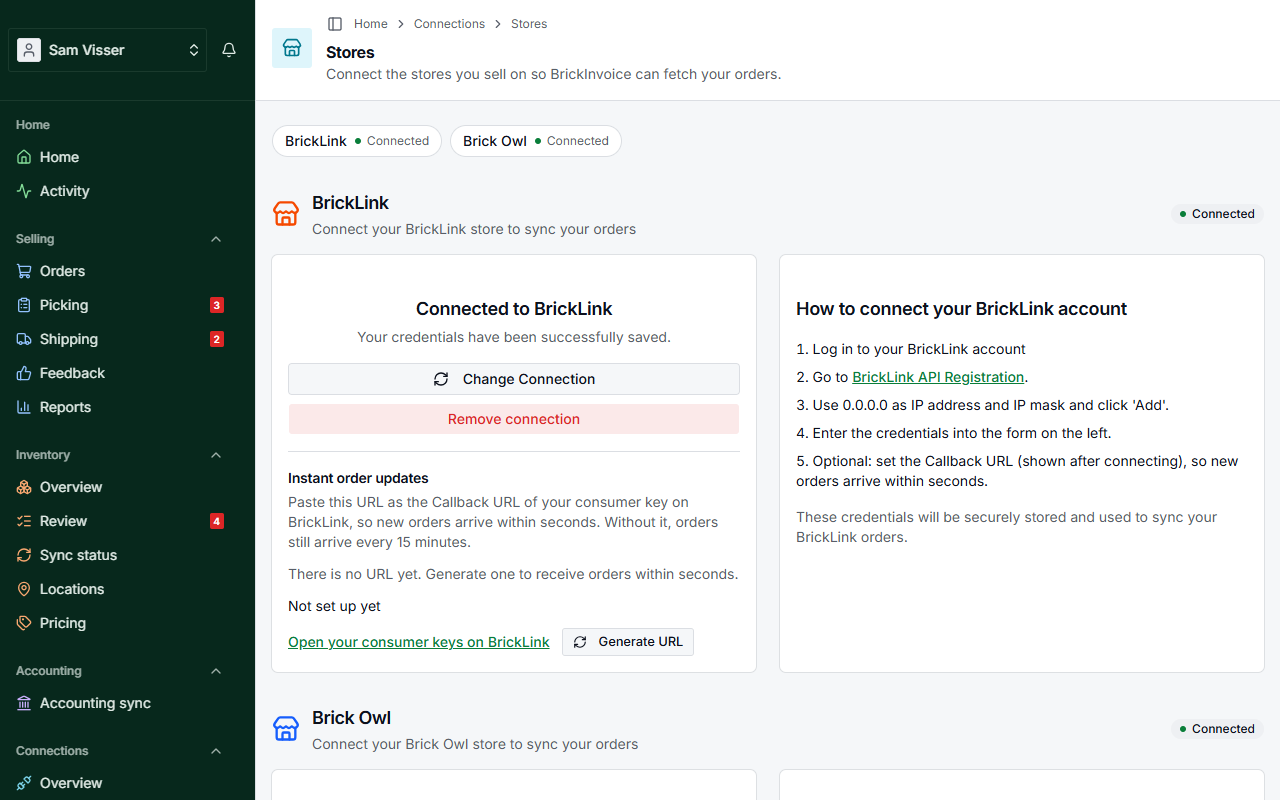
The other pages under Connections:
- Payments: Stripe and PayPal, so their fees reach your accounting. See Payments.
- Schedules: when orders are fetched and sent to your accounting. See Schedules.
How it works
Connecting a store
You enter the API keys of your store on Connections → Stores. BrickInvoice checks them with the store before it saves anything, and stores them encrypted.
As soon as a store is connected, BrickInvoice starts fetching its orders. If your country is already set in your settings, the first orders are fetched right away. Without a country, nothing is fetched yet: the Schedules page then asks you to set it.
Fetching orders
BrickInvoice fetches new orders from your connected stores on a schedule, with:
- the order details (items, quantities, prices)
- the buyer's details
- the order status and dates
VAT calculation
Each order is stored and its VAT is worked out from:
- where you and the buyer are (same country, another EU country, or outside the EU)
- the VAT rates of the country that applies
- OSS: if you use it, cross-border EU orders use the VAT rate of the buyer's country instead of yours
- the margin scheme, for products that fall under it
Purchase cost
BrickLink and Brick Owl both give a cost per order, and BrickInvoice keeps it with the order. If you never filled in cost prices in your store, the cost is 0.00. You find it in the Cost column of the orders table, which is hidden until you turn it on with the columns toggle.
Discounts
Coupons and store credit are taken off the order:
- Brick Owl: coupon discounts are subtracted from the subtotal.
- BrickLink: coupon and credit discounts are both subtracted from the subtotal.
- With a partial margin scheme, a discount is split over the margin items and the regular items in proportion.
The processed orders are on the Orders page, and from there they can go to your accounting software.
When orders are fetched
How often orders come in depends on your plan:
- Free and Pay per Order: every 24 hours.
- Unlimited, the Inventory sync plan and the free accounting trial: every 6 hours.
- While an inventory sync runs: about every 15 minutes. A BrickLink order can then arrive within seconds if you set the Callback URL, see Instant order updates.
Connections → Schedules shows the frequency, the last fetch and the next one. Fetching orders has no switch: it runs as long as a store is connected and your country is set.
The cutoff date
The Cutoff date (optional) is in your settings, on the Tax & business tab. It only matters for your accounting: orders from that date on are booked. Your orders are fetched without it.
You do need it before you can switch on automatic booking on the Schedules page. A new cutoff date has to be within the last 7 days. See Configure settings.
Re-syncing an order
On the Orders page, the menu at the end of an order's row has Re-sync store order data. It fetches the order from the store again and recalculates its amounts with your current settings. That helps when:
- the VAT came out wrong because a setting was wrong
- you turned OSS on or off after the order came in
- you changed your margin scheme settings after the order came in
The same menu has Re-sync with accounting for an order that is already booked. BrickInvoice asks first (Re-sync with accounting?), because sending it again may create duplicate records in your accounting, and a buyer gets the new invoice too if your accounting package e-mails invoices.
When something goes wrong
If a round of fetching fails, the Order sync card on Connections → Schedules shows Not current since with the date of the last good round, and the error.
A store that refuses your keys several times in a row is stopped. Its status becomes Stopped: reconnect, and its block on the Stores page and the Schedules page say BrickLink stopped: reconnect (or Brick Owl), because BrickInvoice no longer contacts that store. Your other store goes on as usual. To start again, open the store's block, click Change connection, enter keys that work and save them with Update connection.
With Email notifications switched on in your settings, you also get an e-mail when a store is stopped.
Trial users
Trial users fetch their orders as usual. The free accounting trial books up to 25 orders in your accounting package. After that, the Accounting sync card on the Schedules page says the trial is used up, and new orders wait until you choose a plan. See Schedules.