The initial import
The six steps of the import and the start of the sync: what the report tells you, choosing between possible matches, the dry run, and what you approve.
You start the import with Set up inventory sync under Inventory. Both stores must be connected first. Until they are, the step says Connect both stores first, with Go to Connections. The import has six steps. You can leave at any moment with Save and finish later. BrickInvoice remembers where you were.
Table of Contents
- 1. Import source
- 2. Used condition
- 3. Analysis
- 4. Report
- Choosing between possible matches
- Approving
- 5. Dry run
- 6. Start sync
- Importing again
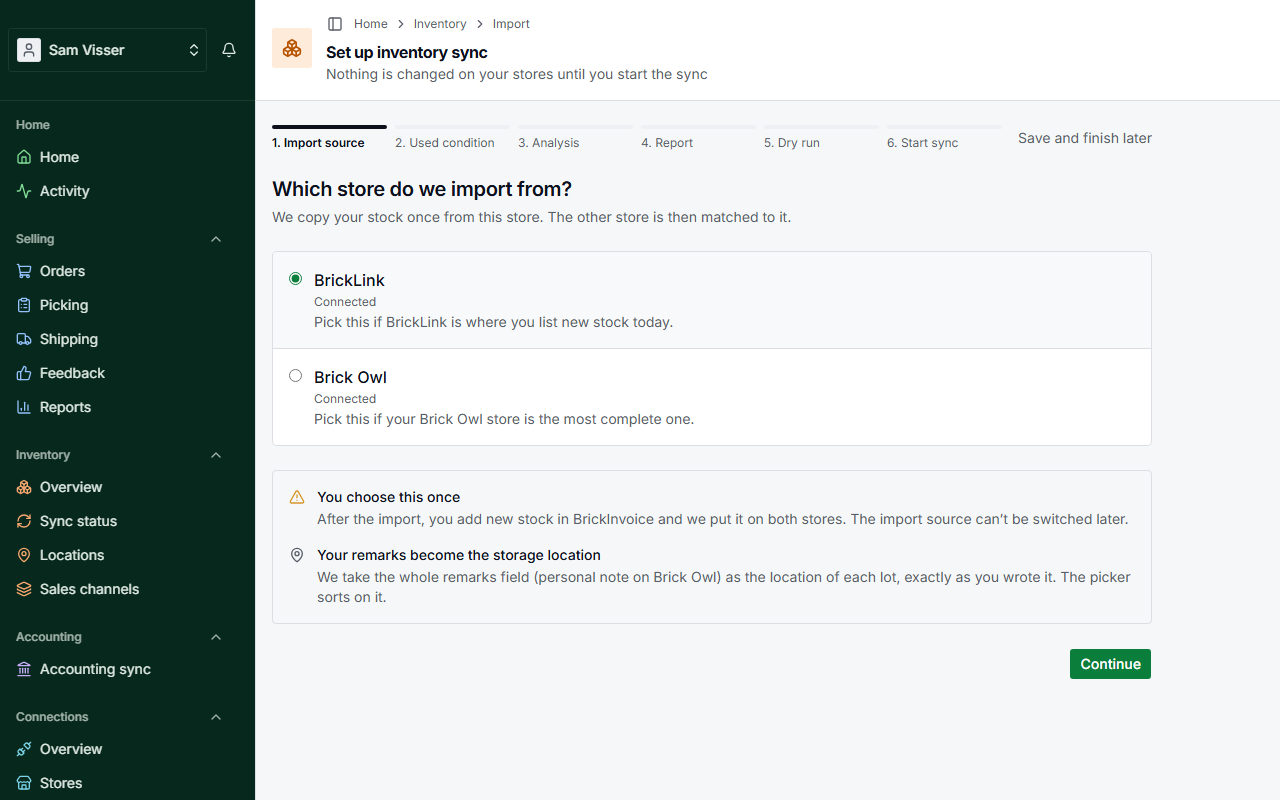
1. Import source
Choose the store your stock comes from. See Choosing your import source. If your Brick Owl API key may not read your inventory, this step tells you how to fix that before you go on.
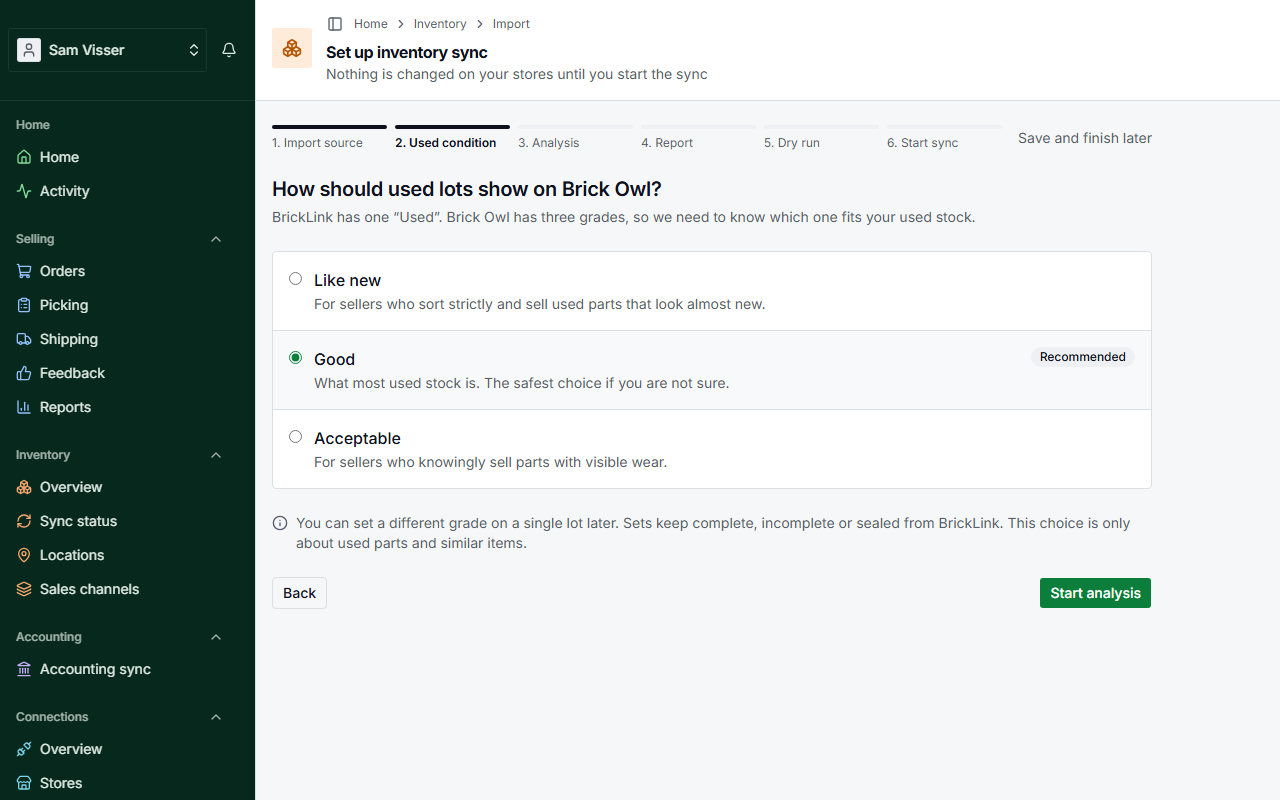
2. Used condition
Choose how your used lots show on Brick Owl: like new, good or acceptable. Good is what most used stock is. With Brick Owl as your import source, your Brick Owl lots keep their grade. The choice is for lots that are only on BrickLink. You can change it for all lots later in Settings → Inventory.
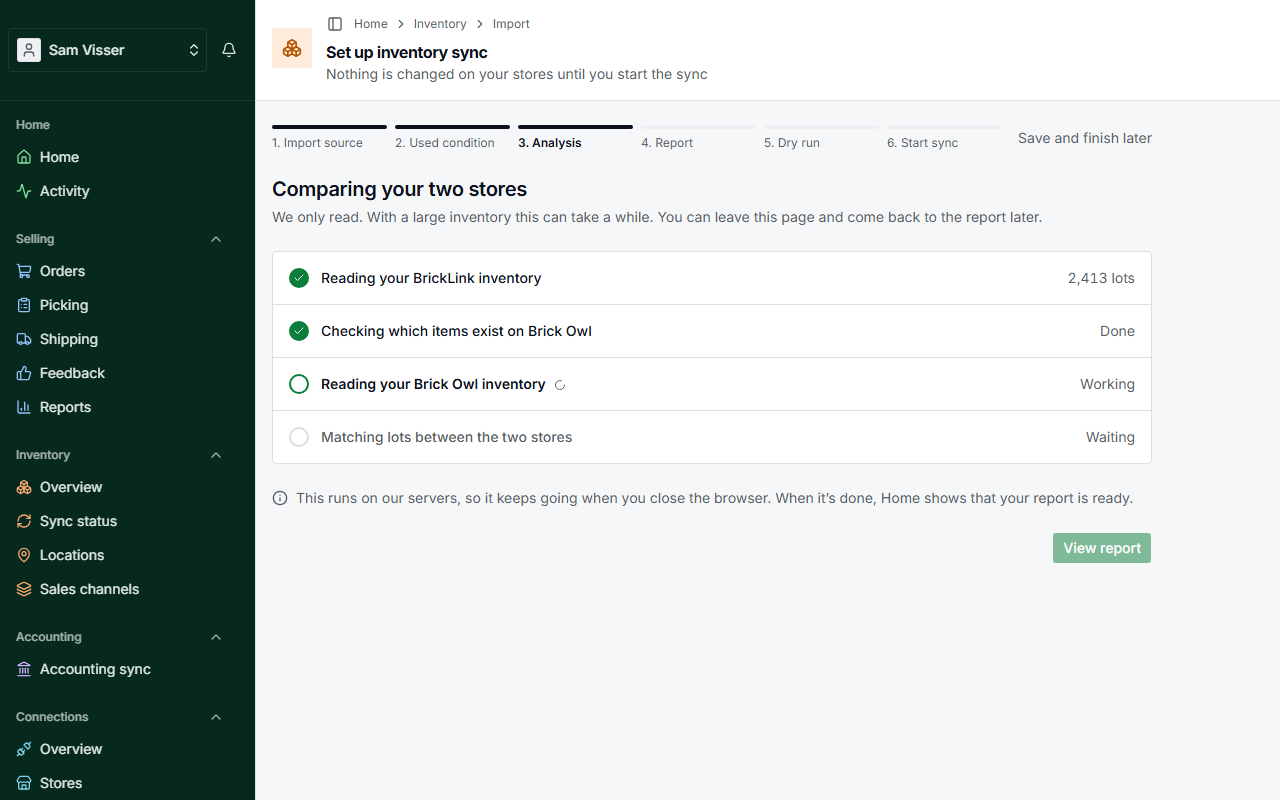
3. Analysis
BrickInvoice reads both stores, checks which items exist on Brick Owl, and matches the lots. With a large inventory this can take a while. It runs on our servers, so you can close the browser and come back. Home shows when your report is ready. If a store does not answer, the step says so and you can try again. Nothing is changed on your stores.
4. Report
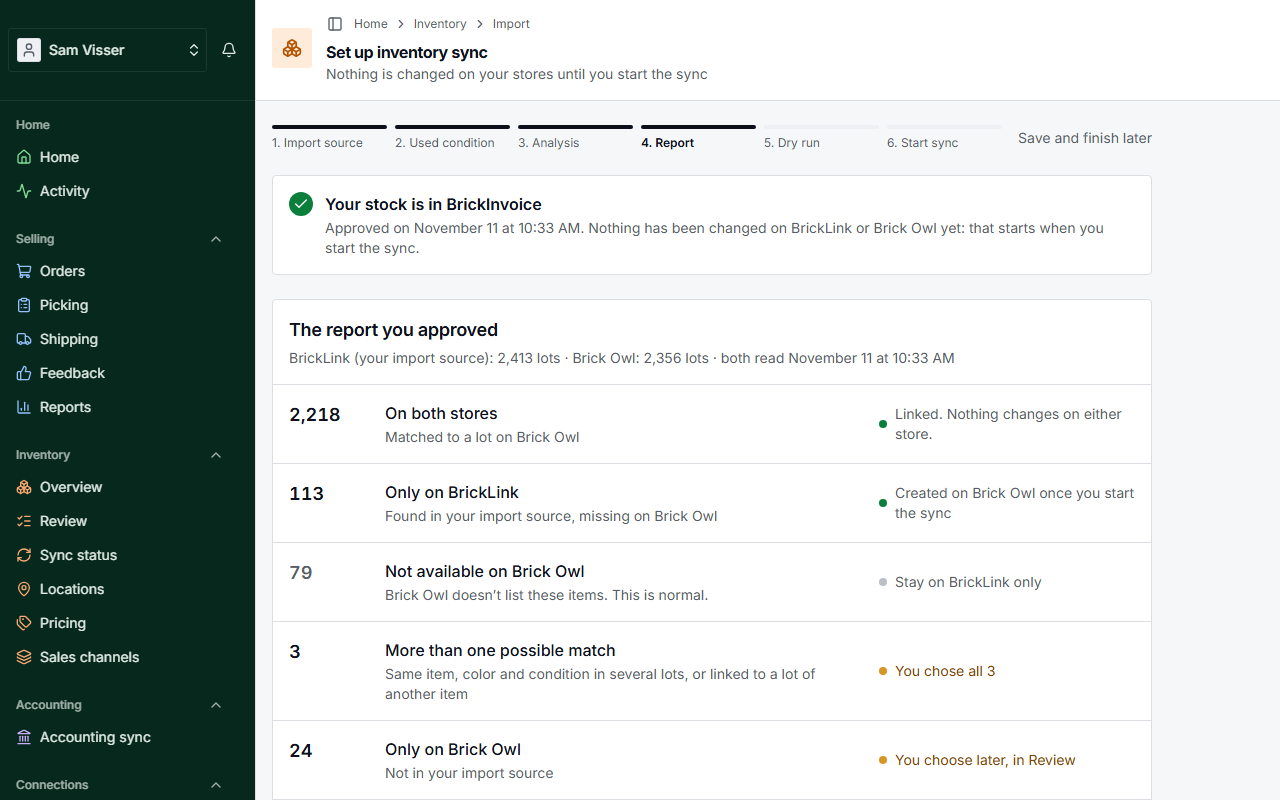
The report tells you per outcome how many lots it found and what happens to them:
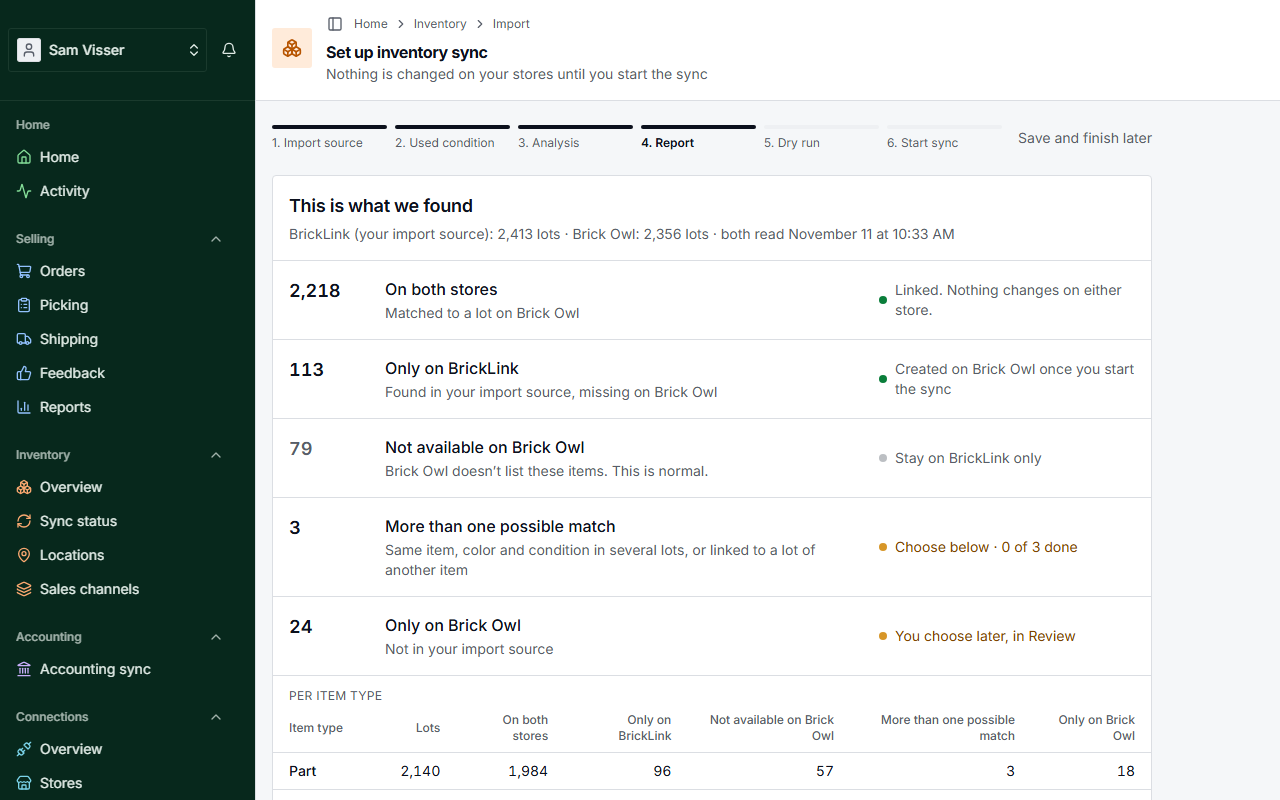
- On both stores: the lot was matched to a lot on the other store. Nothing changes on either store.
- Only on your import source: the lot is missing on the other store. The row says Created on Brick Owl once you start the sync (or BrickLink, when Brick Owl is your import source).
- Not available on the other store: that store does not list the item. This is normal. The lot stays on your import source only. See Not on Brick Owl. When BrickInvoice could not yet look up some of these items, a second line in the row says how many may still be on that store. BrickInvoice checks them soon. If the store has them, you can add those lots there in Review once the sync runs.
- More than one possible match: you choose (see below). Without such lots the row says Nothing to choose.
- Only on the other store: not in your import source. You decide later, in Review.
Below the outcomes the report can add notes. A lot in a color the other store does not have is counted as not available there: the store knows the item, but not in that color. Lots in your BrickLink stockroom that are for sale on Brick Owl are listed with their count on Brick Owl. When you start the sync they go to 0 there, because Brick Owl has no stockroom. Your stock in BrickInvoice stays as it is.
Per item type splits the numbers by parts, minifigures, sets and so on. Sold-out lots are counted below the report, not imported.
Choosing between possible matches
When the same item, color and condition appear in several lots, BrickInvoice does not guess. Below the report you pick for each lot the matching lot on the other store, or None of these match, and press Save. With None of these match the lot is created on the other store later. When Brick Owl is your import source and Brick Owl knows one item under several BrickLink numbers, you pick the right number.
The same place asks about lots that are linked to a lot of another item on the other store. BrickInvoice does not take such a link over without you. Follow the link to … (with the number of the linked lot) keeps it: stock changes go to that lot. Let the link go creates your lot on the other store later, and the linked lot stays only on that store.
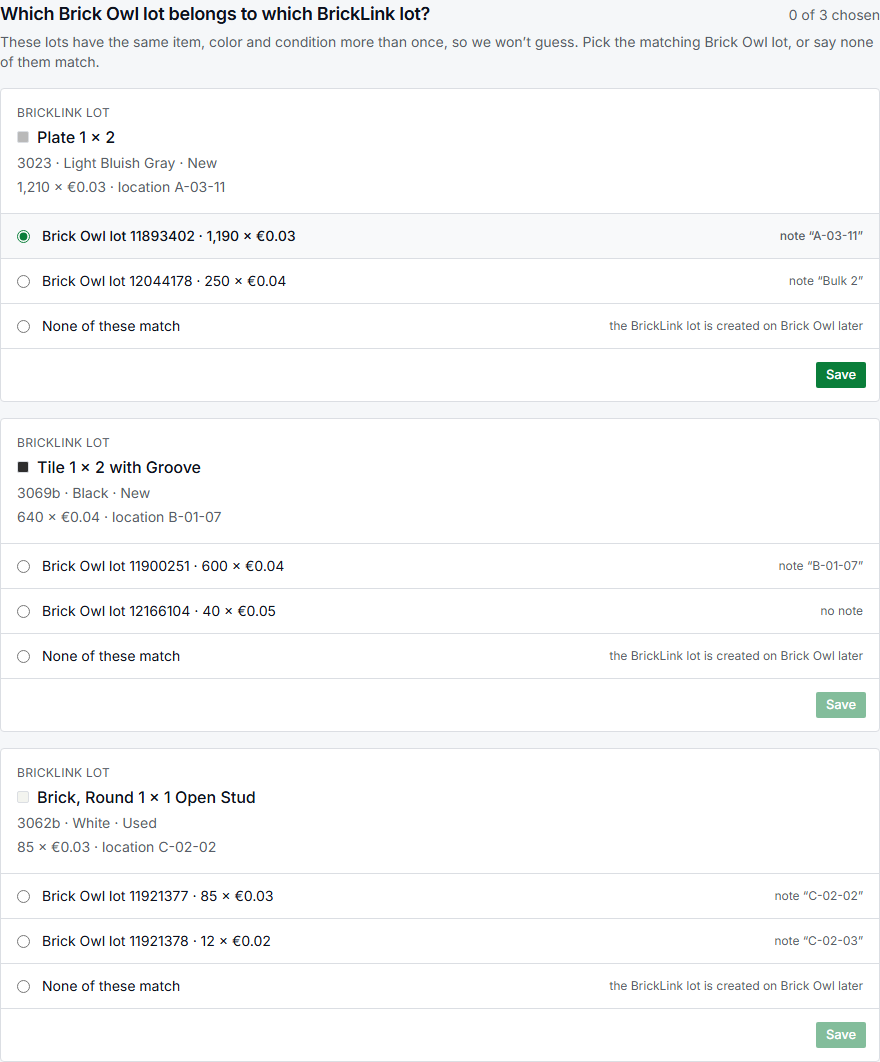
You can change a choice until you approve.
Approving
You approve the kind and size of the changes, not the exact numbers: both stores keep selling in the meantime. After Approve import the report says Your stock is in BrickInvoice, and View your stock opens the overview. Approving does not change anything on BrickLink or Brick Owl, and nothing is sent before you start the sync in the last step. Continue to the dry run takes you on.
5. Dry run
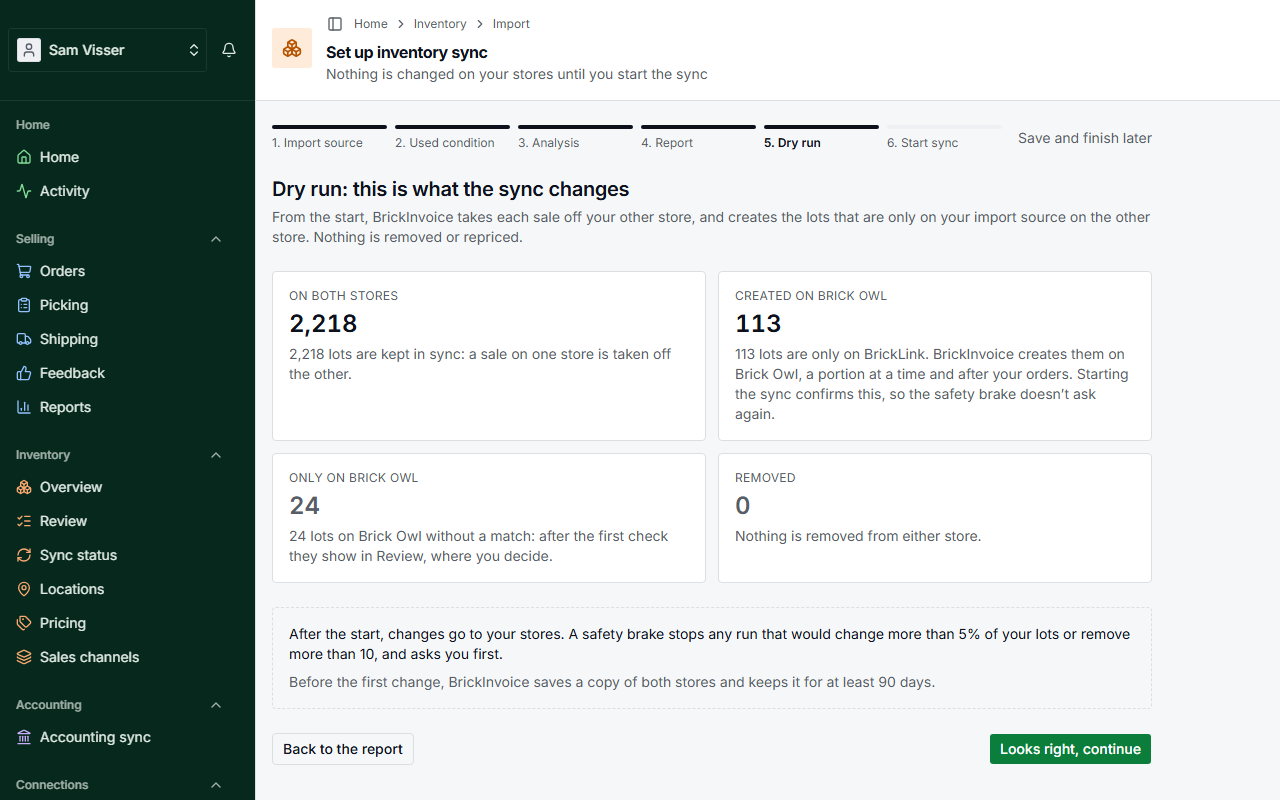
Before anything starts, this step shows what the sync will change. From the start, BrickInvoice takes each sale off your other store, and creates the lots that are only on your import source on the other store. Nothing is removed or repriced. Per outcome:
- On both stores: kept in sync, so a sale on one store is taken off the other.
- Created on the other store: the lots only on your import source, created a portion at a time and after your orders. Starting the sync confirms this, so the safety brake does not ask again. If creating lots is not switched on for your account yet, the row says so, and the lots wait until it is.
- Only on the other store: lots without a match show up in Review after the first check.
- Removed: nothing is removed from either store.
The step also explains two safeguards. Before the first change, BrickInvoice saves a copy of both stores and keeps it for at least 90 days. And a safety brake stops any round that would change more than 5% of your lots or remove more than 10, and asks you first. Looks right, continue goes to the last step. Back to the report goes back.
6. Start sync
Start sync is the moment BrickInvoice starts to manage your stock. It reads both stores once more, checks that nothing has changed beyond your orders since you approved, saves a copy of both stores and starts. On a large stock this can take a few minutes. If it does not finish, nothing was changed and you can try again.
Your free trial of 14 days starts now. You do not need payment details yet. The step shows the fee after the trial. See What you pay. If the trial ends without payment details, the sync pauses. See How it works. A store that already had its free trial does not get a second one: the step then says from which date the trial counts. When that trial is already over, the sync starts paused, and you add payment details to keep your stores in sync.
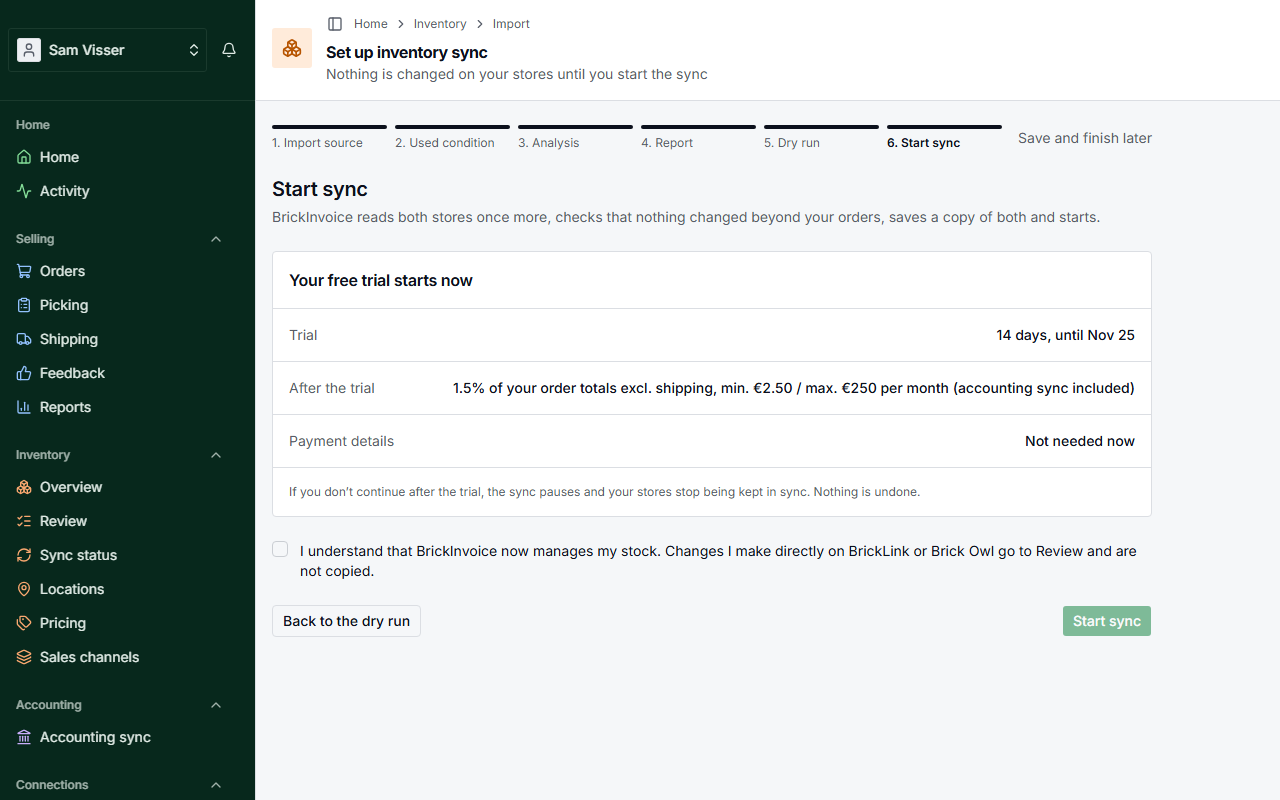
You confirm that BrickInvoice now manages your stock, and that changes you make directly on BrickLink or Brick Owl go to Review instead of being copied. If more has moved on your stores than your orders explain, the approval is taken back and you see the report again. Import again for a new report and approve that one.
After the start, Open sync status shows how both stores are doing and Open Review shows what differs. See Sync status.
Importing again
As long as the sync has not started, Import again replaces the stock in BrickInvoice with a fresh copy from the same store, and you approve a new report. Nothing changes on your stores.