Overview
Your imported stock in one list: key figures, search by number, name, description or location, and filters.
Inventory → Overview shows your stock as BrickInvoice holds it after the import: one line per lot.
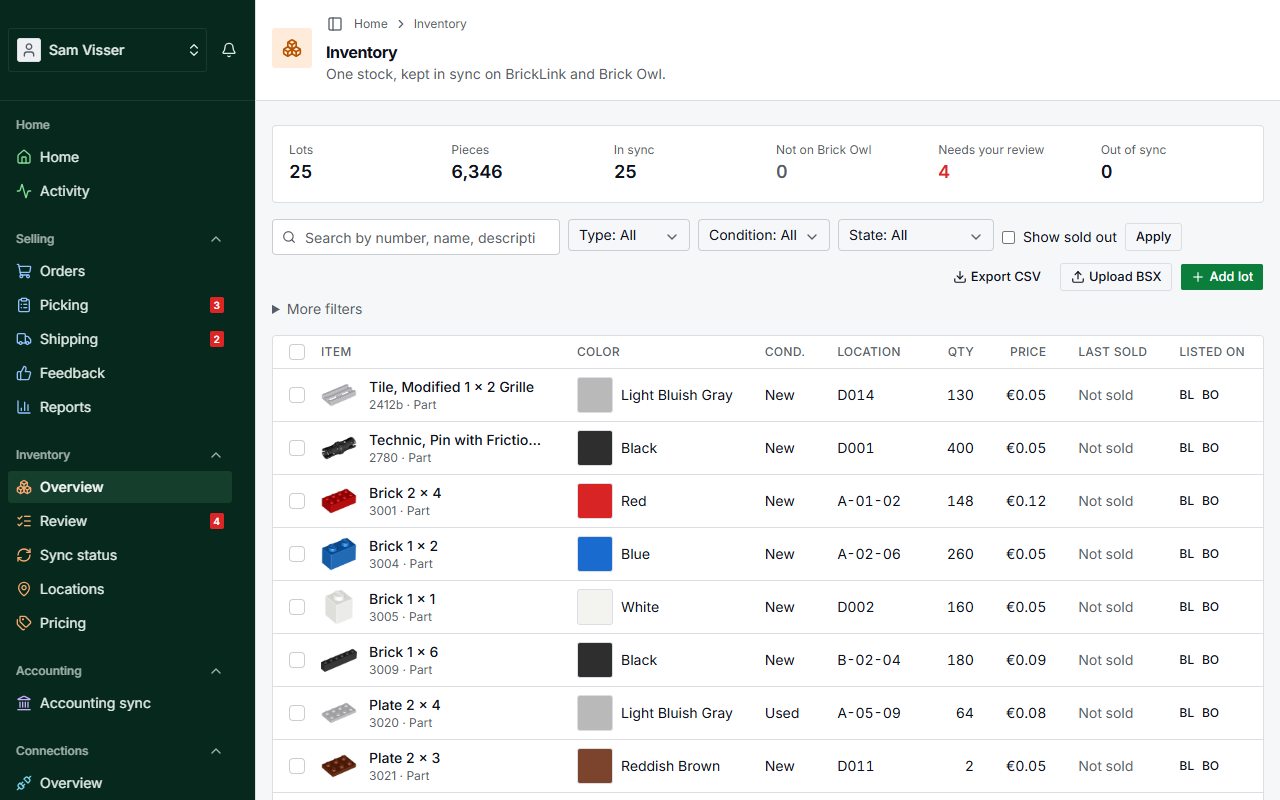
Table of Contents
Key figures
At the top you see Lots, Pieces, In sync (lots on both stores), Not on Brick Owl, Needs your review and Out of sync. Not on Brick Owl is gray on purpose: it is normal, and there is nothing to fix (see Not on Brick Owl). Needs your review takes you to Review. Out of sync shows those lots in the list.
Lots counts the lots you have stock of. A sold-out lot does not count, also not when you show sold-out lots in the list.
Searching and filtering
Search by item number (3001, sw0001a), by name (plate 2 x 2), by description or by storage location (A-01). Names are matched word by word, so you do not need the commas BrickLink puts in its names. Filter on item type, sync state and condition. Under More filters, Not sold in shows the lots that did not sell in the last 6 or 12 months. Clear filters takes every filter off. The search and the filters are part of the page address, so you can bookmark a view. See Searching, saved searches and bulk actions for the other filters.
Next to the filters are Export CSV, Upload BSX and Add lot. Upload BSX and Add lot only show while the sync runs or is in its trial. See Uploading a BSX file and Adding stock.
The list
Each line shows the item with its picture, name and color, the condition, the storage location, the quantity, the price and on which store the lot is listed. Parts get their name from BrickLink during the import. Under Listed on a lot can say Not listed on Brick Owl, or Gone from BrickLink: see Review when the nightly check found it missing there. View on BrickLink and View on Brick Owl open the lot on that store.
Last sold shows when the lot last sold. Click the column head to sort slow stock first: lots that never sold, then the ones that sold longest ago. BrickInvoice only knows the orders it has, so a note under the list says how far back "Last sold" looks (to your oldest order).
Sold-out lots
A lot that sells out stays a lot in BrickInvoice, with its location and history, so you can fill it up again later. The list hides it, so you see only what you can sell. To see sold-out lots too, tick Show sold out next to the filters and choose Apply: a sold-out lot shows its quantity of 0 in gray and the state Sold out.
A sold-out lot that is Out of sync needs a look, so it still counts under Out of sync, and it appears without the tick when you click that number or choose Out of sync under State. A search for a quantity of at most 0 (More filters) shows the sold-out lots too.
Sync status
Inventory → Sync status counts how well your two stores match, per item type, and shows what is on its way to each store, held changes and problems. See Sync status. Home shows the match in one line.