
Lexware
Learn how to connect and configure Lexware Office for automated invoice generation.
Lexware Office (formerly lexoffice) is a popular German cloud-based accounting software. This guide covers both connecting your Lexware account and configuring it for optimal order processing and financial management.
Table of Contents
- Before You Start
- Connecting Lexware
- Configuring Lexware Settings
- Invoice Features
- Troubleshooting
- Disconnecting Lexware
- Best Practices
- Next Steps
- Support
Before You Start
Prerequisites
- Active Lexware Office subscription
- Admin access to your Lexware account
- Completed settings configuration
- Connected BrickLink and/or BrickOwl stores
What You'll Need
- API Token - Your Lexware API token for secure authentication
Connecting Lexware
Step 1: Generate API Token
- Log into your Lexware Office account at https://app.lexoffice.de
- Navigate to: Settings → Public API
- Create a new API key with the following permissions:
- Retrieve general profile information
- Retrieve articles
- Retrieve contacts
- Save contacts
- Retrieve invoices
- Save invoices
- Copy the generated API token for use in BrickInvoice
Step 2: Configure Connection
- Navigate to:
/home/accounting/connect - Select "Lexware" from the package dropdown
- Enter your API Token in the provided field
- Click "Connect to Lexware" to verify the token and save the connection
Security Note
Your API token is:
- Encrypted before storage in the BrickInvoice database
- Never shared with third parties
- Used only for authenticated API calls to Lexware
- Can be regenerated in Lexware settings if compromised
Configuring Lexware Settings
After successfully connecting Lexware, you'll need to configure how orders are processed and mapped to your accounting system.
Invoice Line Item Structure
Each order creates an invoice with separate line items for different product types and customer locations. Lexware uses Articles for line items, which you'll need to create in Lexware first.
Product Line Items (Standard Products)
- LEGO parts and sets subject to standard VAT rates
- Separate Articles based on customer location:
- Domestic: Sales within Germany
- EU: Sales to other EU countries
- Export/Other: International sales outside the EU
- Each Article needs appropriate tax code based on German/EU tax rules
Margin Scheme Line Items (Second-hand Goods)
- Products subject to margin scheme (special VAT treatment for used goods)
- Separate Articles based on customer location:
- Domestic: Margin scheme sales within Germany
- EU: Margin scheme sales to other EU countries
- Export/Other: Margin scheme sales outside the EU
- Tax codes typically set to 0% under margin scheme
Handling Fees Line Items
- Processing and handling costs
- Single Article that applies to all regions
- Set appropriate tax code (usually same as standard rate)
Shipping Line Items
- Shipping and delivery costs
- Single Article that applies to all regions
- Set appropriate tax code (usually same as standard rate)
Line Item Descriptions
Each line item type has an optional description field. You can leave it empty (no description will be sent to Lexware) or use placeholders for dynamic content:
{order_number}- The order number (e.g., "123456"){source}- The platform name ("BrickLink" or "Brick Owl"){payment_method}- The payment method used (e.g., "PayPal")
Example: "Products from {source} order {order_number}" becomes "Products from BrickLink order 123456"
Articles Mapping
For each line item type and region, you'll map a Lexware Article:
Product Sales:
- Domestic Product - For customers in Germany (e.g., "LEGO Parts - Germany 19%")
- EU Product - For other EU customers (e.g., "LEGO Parts - EU 19%")
- Export Product - For non-EU customers (e.g., "LEGO Parts - Export 0%")
- B2B Product (optional) - For B2B orders with reverse charge (e.g., "LEGO Parts - B2B 0%"). Only visible when B2B VAT Exempt is enabled in Order Sync settings.
Margin Scheme Sales:
- Domestic Margin - For customers in Germany (e.g., "Margin Scheme - Domestic")
- EU Margin - For other EU customers (e.g., "Margin Scheme - EU")
- Export Margin - For non-EU customers (e.g., "Margin Scheme - Export")
- B2B Margin (optional) - For B2B margin scheme orders with reverse charge. Only visible when B2B VAT Exempt is enabled.
Other Items:
- Shipping Article - For shipping costs (e.g., "Versandkosten")
- Shipping Article (B2B) (optional) - For B2B shipping with reverse charge. Only visible when B2B VAT Exempt is enabled.
- Handling Fees Article - For processing fees (e.g., "Bearbeitungsgebühren")
- Handling Fees Article (B2B) (optional) - For B2B handling fees with reverse charge. Only visible when B2B VAT Exempt is enabled.
If you don't want to separate domestic and EU sales, you can choose the same Article for both.
B2B Articles: When an order is detected as B2B exempt, BrickInvoice uses the configured B2B Article for that line item instead of the standard article. The B2B Article should have a 0% or reverse charge tax code in Lexware.
General Settings
Before configuring Articles, you can optionally set up invoice customization:
Differentiate BrickLink and Brick Owl:
- Enable this option to configure separate Articles for BrickLink and Brick Owl orders
- Useful when you want to track sales from different platforms separately in your accounting
- When enabled, each Article dropdown is replaced with two dropdowns side by side: one for BrickLink, one for Brick Owl
- This allows you to use different ledger accounts or Articles per platform
- Leave disabled if you want to use the same Articles for all orders regardless of source
Invoice Title:
- Optional custom title for invoices
- Maximum 25 characters
- Static text only (no placeholders)
Introduction Text:
- Optional introductory text displayed on invoices
- Placeholders: You can use the following placeholders for dynamic content:
{order_number}- Automatically replaced with the order number (e.g., "123456"){source}- Automatically replaced with the platform name ("BrickLink" or "Brick Owl"){payment_method}- Automatically replaced with the payment method used (e.g., "PayPal")- Example: "Order {order_number} from {source}" becomes "Order 123456 from BrickLink"
Remarks Text:
- Optional closing remarks or notes
- Placeholders: Supports the same placeholders as Introduction Text above
- Example: "Vielen Dank für Ihre Bestellung!"
Make Invoice Final:
- Choose whether invoices should be automatically finalized after creation
- No: Invoices remain in draft status (editable in Lexware)
- Yes: Invoices are automatically finalized and receive official invoice numbers
Contact Sync Options
Update Existing Contacts:
- When enabled (default), existing contacts in Lexware are updated every time an order is synced — keeping address and name data in sync with your store data.
- When disabled, existing contacts are never modified during sync. If BrickInvoice detects that the contact data from your store (BrickLink/Brick Owl) differs from what is currently stored in Lexware, you will receive an in-app warning notification listing exactly which fields have changed (e.g. street, postal code, city, country). This allows you to review the differences and decide whether to update the contact manually in Lexware.
Sync Email Addresses:
- When enabled, the buyer's email address is included when creating or updating contacts in Lexware
- Useful if you want to send invoices directly from Lexware to your customers by email
- Disable if you prefer not to store customer email addresses in your accounting system
Configuration Tips
1. Create Articles in Lexware First
- Go to Lexware → Articles/Products menu
- Create Articles for each category and region
- Set appropriate tax codes (VAT rates) for each Article
- Use clear, descriptive names
2. Use Consistent Naming
- Example: "LEGO Parts - Domestic 19%", "Versandkosten"
- Makes it easier to identify Articles in BrickInvoice configuration
- Helps with bookkeeping and reporting
3. Review Tax Settings
- Ensure Articles have correct tax codes for German tax regulations
- Standard rate: 19% for regular products, shipping, and handling
- Margin scheme: 0% for second-hand goods under margin scheme
- Export: 0% for sales outside the EU
Invoice Features
Automatic Invoice Creation
When orders are synchronized:
- Customer Sync: Customer data (contact) is created or updated in Lexware
- Invoice Generation: Invoice is created with proper line item structure
- Invoice Finalization (optional): Invoice can be automatically finalized in Lexware
Invoice Amounts Display
Invoices in Lexware display amounts using the gross price method (Bruttopreise). Line items show the gross amounts (with VAT included). This is the standard display format and ensures the final invoice totals match your order amounts exactly.
Customer Management
BrickInvoice automatically manages customers (contacts) in your Lexware system. For every order it checks whether the buyer already exists as a contact in Lexware. If so, the invoice is linked to that contact. If not, a new contact is created and the invoice is linked to the new contact.
Lexware has no field to store a link to a BrickLink or Brick Owl buyer. Instead, every contact BrickInvoice creates carries the buyer's store username in its note, for example BL_username for BrickLink or BO_username for Brick Owl.
Step 1: looking up the buyer
Lexware only searches on names of at least 3 characters, so BrickInvoice searches for existing contacts by:
- the buyer's last name, or
- the buyer's first name, if the last name is missing or shorter than 3 characters, or
- the buyer's email address, if both names are shorter than 3 characters.
If none of these is possible, BrickInvoice creates a new contact without searching.
Step 2: choosing the right contact
The search can return several contacts. A name search also finds contacts whose name only contains the searched name, so searching "Schmid" also finds "Schmidt". BrickInvoice picks the right contact from the results as follows:
- By username. A contact whose note holds the buyer's username is the same customer, even if their first name or address has changed since.
- By name and country. Otherwise, a contact matches when its first name, last name and country are all the same as in the order. Differences in capitals or spaces are ignored, but a different spelling is not: "Schmid" and "Schmidt" are different customers. Contacts whose note holds a different username are skipped, because they belong to another buyer. Company contacts are only recognised by username.
If no contact matches, a new contact is created.
Step 3: what happens with an existing contact
- With Update Existing Contacts turned on, BrickInvoice overwrites the contact's name, address and note with the data from the order, and the email address as well if Sync Email Addresses is on. Any text you wrote in the note yourself is replaced by the username.
- With Update Existing Contacts turned off, the contact is left unchanged. If the order data differs, you receive a warning listing the differences. Email addresses are only compared when Sync Email Addresses is on. The invoice shows the contact as it is stored in Lexware.
What this means for you:
- A customer whose last name has changed is usually not found by the search, so BrickInvoice creates a new contact for them.
- Two different customers with the same first name, last name and country are treated as the same customer if the contact in Lexware has no username in its note. This mainly applies to contacts you created in Lexware yourself. Add the username to the note of such a contact (for example
BL_username) to rule this out.
Invoice URLs
BrickInvoice automatically generates direct links to view invoices in your Lexware interface. These URLs allow you to quickly navigate to the invoice in Lexware for review or further processing.
Troubleshooting
Connection Issues
"Failed to Connect to Lexware"
- Invalid API token: Verify your API token is correct
- Missing permissions: Check if all required permissions are enabled for your API token
- Network issues: Verify your internet connection and Lexware service status
"Authentication Failed"
- Token revoked: Check if you regenerated tokens in Lexware (old tokens become invalid)
- Account suspended: Verify your Lexware subscription is active
- Permission issues: Ensure your API token has all required permissions
Configuration Issues
"Articles Not Loading"
- Check connection: Verify Lexware is still connected
- Permissions: Ensure your API token has "Retrieve articles" permission
- Empty articles: Check that you have created Articles in Lexware
- Refresh: Try refreshing the configuration page
"Invoice Creation Failed"
- Missing Articles: Verify all required Articles are configured
- Invalid tax: Selected Article may have invalid or expired tax code
- Article settings: Verify Articles have correct tax codes in Lexware
- Customer data: Ensure order has complete customer information
Disconnecting Lexware
To disconnect Lexware:
- Navigate to:
/home/accounting/connect - Click "Disconnect" button
- Confirm the disconnection
- Connection credentials are removed from BrickInvoice
Note: Existing invoices in Lexware are not affected by disconnecting. You can reconnect at any time with the same or new API token.
Best Practices
Small Business Owners (Kleinunternehmer)
If you are registered as a small business owner (Kleinunternehmer) in Lexware, your invoices are exempt from VAT according to §19 UStG.
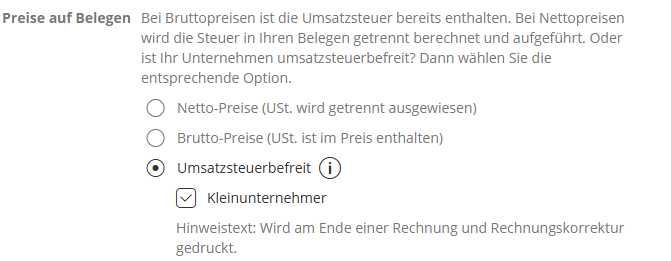
Important: When you have this setting enabled in Lexware, you must also disable VAT in BrickInvoice:
- Go to Settings → Localization
- Uncheck VAT applicable
- Save your settings
This ensures that BrickInvoice creates invoices with taxType: vatfree which matches your Kleinunternehmer status in Lexware. All line items will be sent with net amounts and 0% tax rate.
VAT Configuration for German Businesses
Standard Setup:
- Domestic (Germany): 19% standard VAT rate (Umsatzsteuer)
- EU Sales: 19% standard VAT rate
- Export Sales: 0% (no VAT for non-EU sales)
- Margin Scheme: 0% (special treatment for second-hand goods, Differenzbesteuerung)
Articles Organization
Recommended Articles Structure (Standard):
Articles in Lexware:
├── LEGO Parts - Domestic (19% VAT)
├── LEGO Parts - EU (19% VAT)
├── LEGO Parts - Export (0% VAT)
├── Margin - Domestic (0% Margin)
├── Margin - EU (0% Margin)
├── Margin - Export (0% Margin)
├── Versandkosten (19% VAT)
└── Bearbeitungsgebühren (19% VAT)
With Platform Differentiation (BrickLink/Brick Owl):
If you enable "Differentiate BrickLink and Brick Owl", you can use separate Articles for each platform:
Articles in Lexware:
├── BrickLink - Domestic (19% VAT)
├── BrickLink - EU (19% VAT)
├── BrickLink - Export (0% VAT)
├── Brick Owl - Domestic (19% VAT)
├── Brick Owl - EU (19% VAT)
├── Brick Owl - Export (0% VAT)
├── Versandkosten BL (19% VAT)
├── Versandkosten BO (19% VAT)
└── ... (repeat for margin scheme and handling fees)
This is useful when you want to:
- Track revenue per platform separately
- Use different ledger accounts for different sales channels
- Generate platform-specific reports in Lexware
Next Steps
After configuring Lexware:
- Test integration - Process a few orders as draft invoices
- Verify invoices - Check that invoices are created correctly in Lexware
- Review tax treatment - Ensure tax codes are applied correctly based on customer location
- Set up automation - Configure automated invoice generation schedules
Support
If you encounter issues with the Lexware integration, please use the contact form to reach out to us.