
Odoo
Learn how to connect and configure Odoo for automated invoice generation.
Odoo is a comprehensive business management suite with integrated accounting functionality. This guide covers both connecting your Odoo instance and configuring it for optimal order processing.
Table of Contents
- Before You Start
- Connecting Odoo
- Configuring Odoo Settings
- Invoice Features
- Troubleshooting
- Best Practices
- VAT Rounding and Price Inclusive Taxes
- Next Steps
- Support
Before You Start
Prerequisites
- Active Odoo instance
- Admin or accounting access to your Odoo instance
- Completed settings configuration
- Connected BrickLink and/or BrickOwl stores
What You'll Need
- Database Name - Your Odoo database name (e.g., "mycompany" for https://mycompany.odoo.com)
- Username - Your Odoo login username (email address)
- API Key - API key for secure authentication
Part 1: Connecting Odoo
Step 1: Generate API Key (Recommended)
- Log into your Odoo instance
- Go to Preferences (top right corner)
- Go to Account Security tab
- Generate a new API key
- Copy the API key for use in BrickInvoice
Step 2: Gather Connection Information
You'll need the following information from your Odoo instance:
- Database Name: Your Odoo database name (e.g., "mycompany" if your URL is https://mycompany.odoo.com)
- Username: Your Odoo username (email address)
- API Key: The API key you generated in Step 1
Step 3: Configure Connection
- Navigate to:
/home/accounting/connect - Select "Odoo" from the package dropdown
- Fill in your connection details:
- Database Name: Your Odoo database name (e.g., "mycompany" if your URL is https://mycompany.odoo.com)
- Username (Email): Your Odoo username (email address)
- API Key: Your generated API key
- Click "Connect to Odoo" to verify the connection and save the configuration
Note: The system automatically constructs your Odoo URL as https://[database].odoo.com based on the database name you provide.
Connection Status
- Connected: Green indicator shows successful connection
- Disconnected: Red indicator shows connection issues
Part 2: Configuring Odoo Settings
After successfully connecting Odoo, you'll need to configure how orders are processed and mapped to your accounting system.
General Ledger Account Mapping
Odoo uses a flexible chart of accounts system. You'll need to map different revenue types to appropriate accounts based on customer location:
Product Line Items:
- Standard product sales revenue
- Maps to general ledger accounts based on customer location:
- Domestic: Sales within your country
- EU: Sales to other EU countries (if you're in the EU)
- Other Countries: Sales outside the EU or your country
Margin Line Items:
- Additional margin on products (often subject to margin scheme)
- Maps to general ledger accounts based on customer location:
- Domestic: Margin sales within your country
- EU: Margin sales to other EU countries (if you're in the EU)
- Other Countries: Margin sales outside the EU or your country
Shipping Line Items:
- Shipping costs with appropriate VAT treatment
- Single general ledger account mapping for all shipping revenue
Handling Fees Line Items:
- Additional handling fees with appropriate VAT treatment
- Single general ledger account mapping for all handling fees
Line Item Descriptions
Contact Sync Options
Sync Email Addresses:
- When enabled, the buyer's email address is included when creating or updating contacts in Odoo
- Useful if you want to send invoices directly from Odoo to your customers by email
- Disable if you prefer not to store customer email addresses in your accounting system
You can customize the default descriptions that appear on invoice line items. Each description field supports placeholders for dynamic content:
Available Placeholders:
{order_number}- The order number (e.g., "123456"){source}- The order source (e.g., "BrickLink" or "BrickOwl"){payment_method}- The payment method (e.g., "PayPal")
Example: "Order {order_number} from {source}" becomes "Order 123456 from BrickLink"
Product Description:
- Default description for product line items on invoices
- Example: "LEGO Parts" or "Order {order_number} - Products"
Margin Description:
- Default description for margin line items on invoices
- Example: "Margin on Second-hand Parts" or "Margin - {source} order {order_number}"
Shipping Description:
- Default description for shipping line items on invoices
- Example: "Shipping Costs" or "Delivery Fees"
Handling Fees Description:
- Default description for handling fees line items on invoices
- Example: "Handling Fees" or "Processing - {payment_method}"
Tax (VAT) Configuration
BrickInvoice provides comprehensive tax mapping for Odoo integration, allowing you to configure specific VAT rates for different transaction types and customer locations.
Tax Settings Overview
BrickInvoice supports four tax categories that need to be configured in your Odoo settings:
- Normal Tax: Standard VAT rate used for regular products, shipping, and handling fees
- Margin Tax: Special tax rate for margin goods (typically 0% under margin scheme)
- Export Tax: Tax rate for export sales (typically 0% for non-EU sales)
- B2B Exempt Tax: Zero-rate tax for B2B orders under the reverse charge mechanism (only visible when B2B VAT Exempt is enabled in Order Sync settings)
Setting Up Tax Configuration
- Navigate to: Accounting Configuration after connecting Odoo
- Scroll to Tax Settings section
- Configure the three tax types:
Normal Tax (Tax for other Sales):
- Used for: Products, shipping, and handling fees for domestic and EU customers
- Configure your standard VAT rate (e.g., 21% for Netherlands, 19% for Germany)
- This applies to most line items for domestic and EU sales
Margin Tax (Tax for Margin Goods):
- Used for: Margin line items (typically under margin scheme)
- Usually set to 0% or special margin scheme tax
- Applied only to margin amounts on orders
Export Tax (Tax for Export Sales):
- Used for: All line items for customers outside the EU
- Typically set to 0% for export sales
- Applied to products, margin, shipping, and handling for non-EU customers
B2B Exempt Tax (Reverse Charge):
- Used for: All line items on orders marked as B2B VAT exempt
- Select the 0% reverse charge tax from your Odoo chart of accounts
- Only shown when B2B VAT Exempt is enabled in your Order Sync settings
- When an order is detected as B2B exempt, this tax overrides all other tax selections
Automatic Tax Application
When processing orders, BrickInvoice automatically:
- Determines customer location from order data
- Compares with your business location
- Selects appropriate tax based on the logic:
- B2B exempt order = Uses B2B Exempt Tax for all line items (overrides all other rules)
- Same country = Uses Normal Tax for products/shipping/handling, Margin Tax for margin items
- Different EU country (if you're in EU) = Uses Normal Tax for products/shipping/handling, Margin Tax for margin items
- Non-EU country = Uses Export Tax for all line items
- Applies correct Odoo tax ID to each invoice line item based on line item type and customer location
Tax Rate Examples
Netherlands Business Example:
- Normal Tax: 21% BTW (applied to products, shipping, handling for NL and EU customers)
- Margin Tax: 0% (applied to margin items for all EU customers)
- Export Tax: 0% (applied to all items for non-EU customers like US, CA)
Germany Business Example:
- Normal Tax: 19% MwSt (applied to products, shipping, handling for DE and EU customers)
- Margin Tax: 0% (applied to margin items for all EU customers)
- Export Tax: 0% (applied to all items for non-EU customers)
Invoice Line Item Example
Netherlands business receiving order from German customer:
Order: €120 (products) + €10 (margin) + €5 (shipping) + €2 (handling)

Odoo Invoice Line Items:
1. Products: €120.00 (incl. VAT) → Product Ledger (EU) → 21% Normal Tax (price inclusive)
2. Margin: €10.00 → Margin Ledger (EU) → 0% Margin Tax
3. Shipping: €5.00 (incl. VAT) → Shipping Ledger → 21% Normal Tax (price inclusive)
4. Handling: €2.00 (incl. VAT) → Handling Ledger → 21% Normal Tax (price inclusive)

Odoo back-calculates VAT internally: exact totals are preserved
Same business receiving order from US customer:
All line items would use Export Tax (0%) instead of Normal Tax,
resulting in no VAT being added in Odoo.
Price Inclusive Taxes (Recommended)
BrickInvoice detects whether each tax in Odoo is configured as price inclusive ("Included in Price: Tax Included") and uses this to determine how amounts are sent to Odoo.
Why this matters — VAT rounding:
When amounts are sent as excl. VAT, rounding can cause small discrepancies. For example:
Order total: €10.00 (incl. 21% VAT)
Calculation: €10.00 / 1.21 = €8.264... → rounded to €8.26 (excl. VAT)
Odoo recalculates: €8.26 × 1.21 = €9.99 ← off by €0.01
When a tax is price inclusive, BrickInvoice sends the incl. VAT amount directly and Odoo handles the back-calculation internally — no rounding loss.
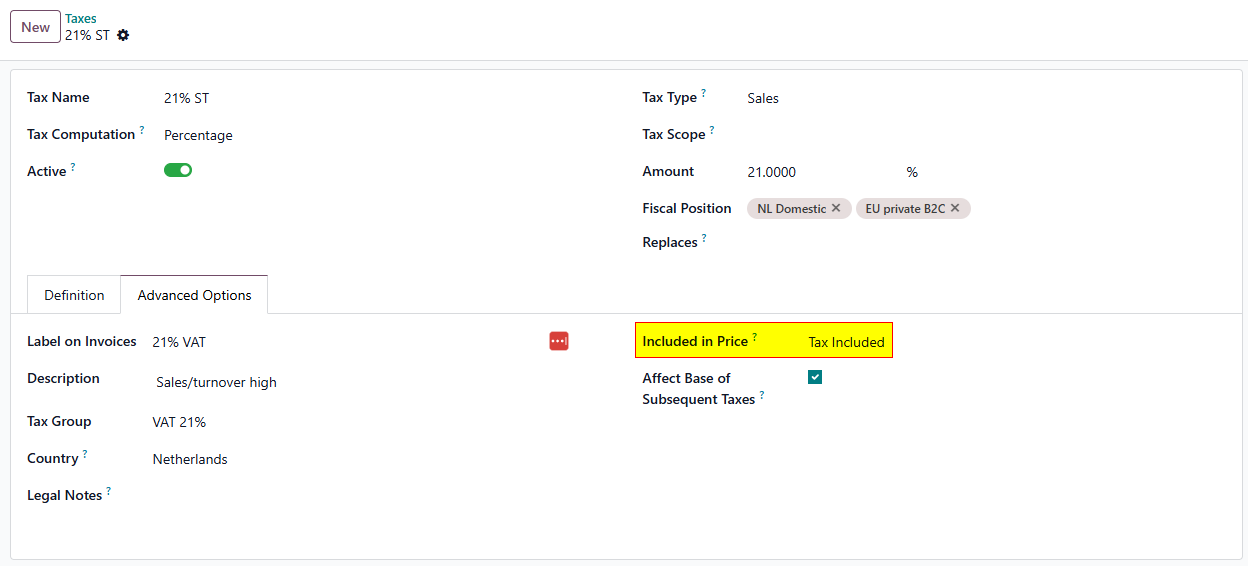
How to configure price inclusive taxes in Odoo:
- In your Odoo instance, go to Accounting → Configuration → Taxes
- Open the tax you want to configure (e.g., your 21% VAT rate)
- Go to the Advanced Options tab
- Set Included in Price to Tax Included
- Save the tax
How BrickInvoice shows this in the config form:
When you select a tax in the BrickInvoice Odoo configuration, a badge is automatically shown beneath the dropdown indicating whether the tax is price inclusive (green) or price exclusive (orange). You do not need to configure this manually — BrickInvoice reads the setting directly from your Odoo instance.
Recommendation: Configure your VAT rates in Odoo as price inclusive to avoid rounding discrepancies. For 0% taxes (margin, export, B2B exempt), this setting has no practical effect.
Mismatch notification:
After an invoice is created, BrickInvoice fetches the invoice back from Odoo and compares the amount_total with the original order total. If there is a discrepancy (which can happen when taxes are not price inclusive), a warning notification is sent so you can review the invoice manually.
Customer Management
BrickInvoice automatically manages customers in your Odoo system:
- Customer Creation: New customers are automatically created based on order data
- Customer Updates: Existing customer information is updated when needed
- Customer Reference: BrickLink/BrickOwl usernames are used as customer references
- Address Information: Billing and shipping addresses are mapped from order data
Part 3: Invoice Features
Automatic Invoice Creation
When orders are synchronized:
- Customer Sync: Customer data is created or updated in Odoo
- Invoice Generation: Invoice is created with proper line item structure
- Invoice Posting (optional): Invoice is automatically posted/finalized in Odoo
- URL Generation: Direct link to view invoice in Odoo interface is provided
Invoice URLs
BrickInvoice automatically generates direct links to view invoices in your Odoo interface. These URLs follow the format:
https://[your-odoo-url]/odoo/customer-invoices/[invoice-id]
This allows you to quickly navigate to the invoice in Odoo for review or further processing.
Manual Synchronization
You can manually synchronize orders through the system, useful for:
- Orders that failed automatic synchronization
- Testing your Odoo configuration
- One-time synchronization of specific orders
Troubleshooting
Configuration Issues
"Ledger Accounts Not Loading"
- Check connection: Verify Odoo is still connected
- Refresh: Try refreshing the configuration page
"Invoice Creation Failed"
- Check account mapping: Verify all required ledger accounts are selected
- Permissions: Ensure user can create invoices and customers in the Odoo interface
"Tax Configuration Issues"
- Tax rates not loading: Verify Odoo connection and check if sales taxes exist in your Odoo instance
- Wrong tax applied: Check customer country and verify tax configuration matches your setup
- Missing tax on line items: Ensure Normal, Margin, and Export tax settings are all configured
- Tax calculation errors: Verify Odoo tax rates match your configured percentages
"Invoice Total Mismatch Warning"
- Cause: This warning appears when the invoice total in Odoo differs from the order total in BrickInvoice. This typically occurs when using taxes that are not price inclusive, causing rounding differences.
- Solution: Configure your VAT taxes in Odoo as Included in Price: Tax Included (see Price Inclusive Taxes). After updating the tax in Odoo, re-select it in the BrickInvoice configuration to refresh the price inclusive status.
Best Practices
Common Tax Scenarios
Scenario 1: EU VAT Compliance
- Normal Tax: 21% (Netherlands) or 19% (Germany) for products, shipping, handling
- Margin Tax: 0% for margin scheme goods
- Export Tax: 0% for all items to non-EU customers
Scenario 2: Export-Only Business
- Normal Tax: Your domestic rate (for any local sales)
- Margin Tax: 0% or margin scheme rate
- Export Tax: 0% (most of your customers will use this)
Scenario 3: Mixed Business Model
- Normal Tax: Standard rate for regular products and services
- Margin Tax: Special rate for second-hand/margin goods
- Export Tax: 0% for international customers
- All three taxes properly configured for complete coverage
VAT Rounding and Price Inclusive Taxes
The Rounding Problem
Orders from BrickLink and BrickOwl always contain amounts including VAT. When these are converted to excl. VAT for Odoo, floating-point rounding can result in the invoice total being off by €0.01 or more. For example:
Order total:          €10.00 incl. 21% VAT
Excl. VAT (rounded):  €8.26
Odoo recalculates:    €8.26 × 1.21 = €9.99  ← €0.01 short
The Solution: Price Inclusive Taxes
By configuring your VAT rate in Odoo as price inclusive, you can send the incl. VAT amount directly and Odoo handles the back-calculation internally. This eliminates the rounding problem entirely.
To set up a price inclusive tax in Odoo:
- Go to Accounting → Configuration → Taxes
- Open your VAT rate (e.g., 21%)
- Open the Advanced Options tab
- Set Included in Price to Tax Included
- Save
Automatic Detection
BrickInvoice reads the price_include setting from Odoo when you load your taxes in the configuration form. A badge is shown beneath each tax dropdown:
- Green badge ("Price inclusive"): BrickInvoice will send the incl. VAT amount. No rounding issues.
- Orange badge ("Price exclusive"): BrickInvoice will send the excl. VAT amount. Minor rounding differences may occur.
You do not need to configure this manually — just set the correct value in Odoo and re-select the tax in BrickInvoice.
Mismatch Notifications
After every invoice is created, BrickInvoice compares the invoice total in Odoo (amount_total) with the order total. If the values differ, a warning notification is sent to your account. Use this as a signal to check whether your taxes should be configured as price inclusive.
Recommendation: Configure all non-zero VAT rates (Normal Tax, and any other rates you use) as Included in Price: Tax Included in Odoo. For 0% taxes (Margin Tax, Export Tax, B2B Exempt Tax), this setting has no effect.
Next Steps
After configuring Odoo:
- Test integration - Process a few orders to verify everything works
- Verify invoices - Check that invoices are created correctly in Odoo
- Review reports - Ensure financial data appears correctly in your reports
- Set up automation - Enable uaccounting schedele for automatic processing
Support
If you encounter issues with the Odoo integration:
- Check the connection status in BrickInvoice
- Review error messages in the sync history
- Verify your Odoo configuration and permissions
- Contact support with specific error details if needed