
Yuki
Learn how to connect and configure Yuki for automated invoice generation.
This guide covers both connecting your Yuki account and configuring it for optimal order processing and invoice generation.
Table of Contents
Before You Start
Prerequisites
- Active Yuki subscription
- Admin access to your Yuki domain
- Completed settings configuration
- Connected BrickLink and/or BrickOwl stores
What You'll Need
- Access Key - The API access key from your Yuki domain's web services settings
Part 1: Connecting Yuki
Step 1: Generate an Access Key
- Log into your Yuki account (Portal)
- Navigate to: Settings → Integrations → Webservices
- Click the plus (+) button at the top to create a new API key
- Set the permissions: choose Selected web services (Geselecteerde webservices) and enable Financial (Financieel), Sales (Verkoop) and Contacts (Relaties)
- Copy the access key — you'll paste it into BrickInvoice in the next step
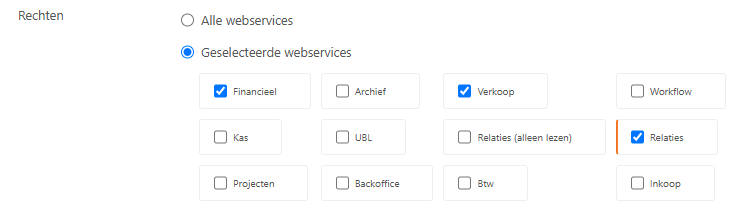
Don't forget Contacts (Relaties). Contacts (read-only) (Relaties (alleen lezen)) is not enough, because BrickInvoice creates your customers as contacts in Yuki. The connection test only checks the access key, so it succeeds without this permission — the problem shows up later, when the first order is synced.
Step 2: Configure Connection
- Navigate to:
/home/accounting/connect - Select "Yuki" from the package dropdown
- Enter your access key in the provided field
- Click "Test Connection" to verify the access key
- Click "Save Connection" to store the connection
The access key is exchanged for a temporary session behind the scenes. BrickInvoice manages and refreshes this session automatically — you only ever need to provide the access key.
Connection Status
- Connected: Green indicator shows successful connection
- Disconnected: Red indicator shows connection issues
- Testing: Yellow indicator during connection validation
Part 2: Configuring Yuki Settings
After successfully connecting Yuki, you'll need to configure how orders are processed and mapped to your accounting system.
General Settings
Domain:
- Select the Yuki domain used to look up and create contacts
- Your account may have more than one domain — choose the correct one from the dropdown
Company:
- Select the Yuki company (administration) used for invoices and for loading the ledger scheme
- The domain and company are two separate selections; both are required
Invoice Subject:
- The subject line for generated invoices
- Supports dynamic placeholders (see Placeholders)
- Example:
Verkoopfactuur {order_number}
Differentiate BrickLink and Brick Owl:
- When enabled, you can configure separate general ledger accounts for BrickLink and Brick Owl orders
General Ledger Account Mapping
Yuki invoices reference a GL account code per line item. The available codes are loaded from your selected company's ledger scheme (only sales accounts that are enabled in Yuki are shown). You configure a code for each line item type below.
Invoice Line Item Structure: Each order creates an invoice with separate line items for different treatments:
Product Line Item:
- Products with standard VAT rates
- Maps to a general ledger account code based on customer location:
- Domestic: Sales within your country
- EU: Sales to other EU countries
- Export: Sales outside the EU
Margin Line Item:
- Products subject to the margin scheme (VAT 0%)
- Maps to a general ledger account code based on customer location (domestic / EU / export)
Shipping Line Item:
- Shipping costs with the appropriate VAT treatment
- Single general ledger account code
Other Line Item:
- Handling fees with the appropriate VAT treatment
- Single general ledger account code
This structure ensures proper separation of different tax treatments and revenue streams.
VAT Handling
The VAT percentage for each line comes directly from the order, so it always matches what your customer paid. BrickInvoice derives the Yuki VAT type automatically:
- Margin lines → margin scheme (VAT 0%)
- Non-EU export → export outside the EU (VAT 0%)
- OSS enabled → OSS (uses the customer-country rate from the order)
- Everything else → standard high tariff
OSS is driven by the Use OSS setting in your tax & business configuration — no separate toggle is needed in the Yuki configuration.
Draft Invoices
Invoices are always created in Yuki as a draft (concept). They are not processed or emailed to the customer automatically, so you can review each invoice in Yuki before finalizing it.
Contact Sync Options
Sync Email Addresses:
- When enabled, the buyer's email address is included when creating or updating contacts in Yuki
- Disable if you prefer not to store customer email addresses in your accounting system
Update Existing Contacts:
- When enabled, an existing contact is updated when its data changes
- When disabled, existing contacts are never modified
Contacts are matched by a code derived from the order:
- BrickLink:
BL_<buyer_name> - Brick Owl:
BO_<customer_username>
Line Item Descriptions
Each line item type has a description field. You can customize the text that appears on invoices for each line item type:
- Product Description: Description for standard product line items
- Margin Description: Description for margin scheme line items
- Shipping Description: Description for shipping costs
- Other Description: Description for handling fees
Placeholders in Text Fields
The subject and line item descriptions support the following placeholders for dynamic content:
{order_number}- The order number (e.g., "123456"){source}- The platform name ("BrickLink" or "Brick Owl"){payment_method}- The payment method used (e.g., "PayPal")
Example: "Products from {source} order {order_number}" becomes "Products from BrickLink order 123456"
Troubleshooting
Configuration Issues
"GL Accounts not Loading"
- Select a company first: GL account codes are loaded per company — make sure a company is selected
- Check connection: Verify Yuki is still connected
- Refresh: Try refreshing the configuration page
- Enabled accounts: Only enabled sales accounts appear; check the account is active in Yuki
"Connection Failed"
- Verify the access key: Confirm the access key is correct and still valid in Yuki
- Web services access: Ensure web services / API access is enabled for your Yuki domain
Sync Issues
"Failed to sync customer with Yuki: A server-side error has occurred"
- Check the Contacts permission: this is what Yuki reports when the access key is not allowed to create contacts. In Yuki, open the access key under Settings → Integrations → Webservices and enable Contacts (Relaties), as shown in Step 1.
- Retry the failed orders after changing the permission.
Next Steps
After configuring Yuki:
- Test integration - Process a few test orders
- Verify invoices - Check that draft invoices are generated correctly in Yuki
- Review reports - Ensure financial data is accurate
- Set up automation - Configure automated processes